
Reviewing AutoQA Evaluations in Cradle to Grave
Once evaluations are enabled and utilized, you'll be able to use the content of this article to access the results
Evaluations must first be configured
To learn how to license agents and configure an evaluation, please review THIS ARTICLE
Ensure the AutoQA Evaluations column is enabled
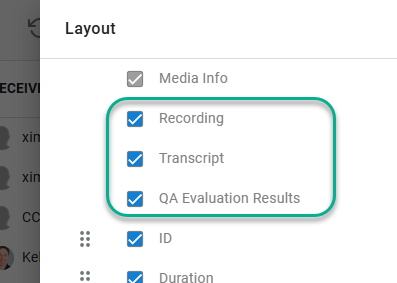
While viewing Cradle to Grave, select "Edit Columns" in the top right

Select "QA Evaluation Results" in the available columns. It's best practice to also have "Recording" and "Transcript" enabled as well.
Filtering for Evaluated Calls (Optional)
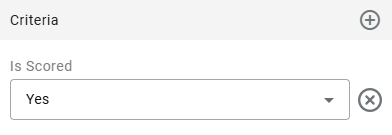
You may use Cradle to Grave criteria filters to find only calls that have been evaluated or specific graded calls.
Select the "Criteria +" icon in the filter pop out to define the criteria further:

Here are a few common examples.
- To only view calls that have been scored. Add a criteria of "Is Scored" = "True"
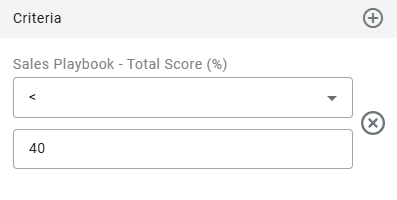
- To only view calls with a low total evaluation score (below 40% as an example)
-
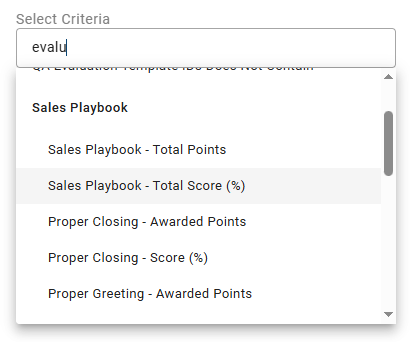
Search for "evaluation" and select the applicable Total Score (%) value. In this case, the template name is "Sales Playbook"
-
Define the operator as < and a value of "40" which represents less than 40%
-
You will find many other filter options as you explore
Apply your filter to see the results
Opening a Scored Evaluation
Note: A call must have completed and needs some time to process the recording and evaluation before you'll see it in Cradle to Grave. Any call that has evaluated will include the following icon:

Selecting the icon will open the call recording and full call transcript.
You'll find the evaluation in the header of the transcripts here:
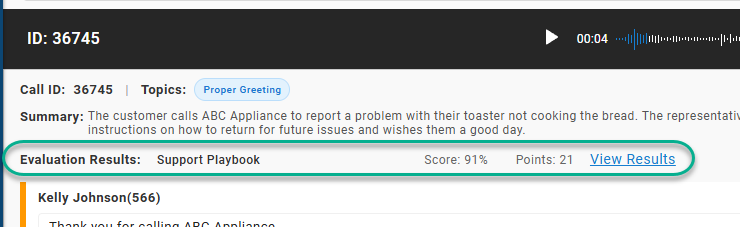
You'll see the total evaluation score as a percent and as the points awarded
To open the evaluation, click on "View Results"
Reviewing a Scored Evaluation
When an evaluation is opened, you'll see a total score at the top and a breakdown of the individual evaluation points in the bottom section.
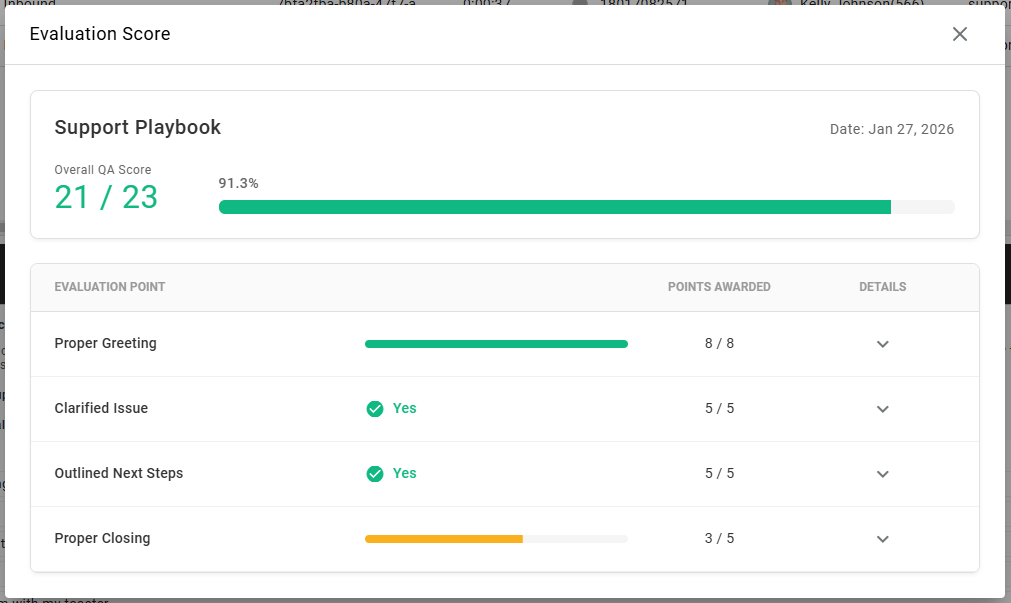
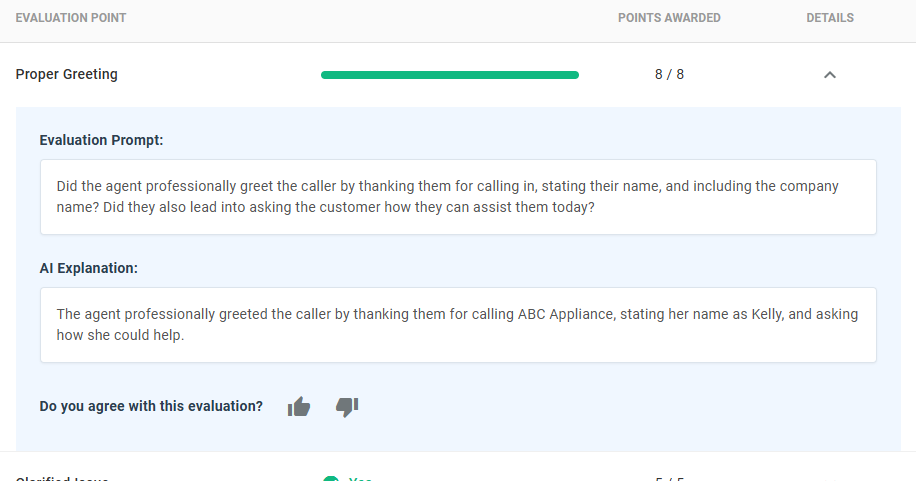
If you'd like to see additional details about how an evaluation point and why it was given the applicable score, you may click on the Details column for the evaluation point. This will expand the view to show you:
-
This only applies to evaluation points with a "Text Response" answer type. It will list the AI feedback in text format.Text Response (not shown here)
You will not see this field for "Yes/No" or "Scale" answer types.
This will display the configured prompt being sent up to AI to grade this evaluation point. Though it matches what an administrator configured for the evaluation, it makes it visible to the manager or supervisor so they might recognize the guidance given. This is not editable from this screen.Evaluation Prompt -
Every evaluation point will include an explanation from AI as to why it gave the score/result it did. This is a great place to see a breakdown on what the agent did correctly but also what else they could have done better.AI Explanation -
This is an optional feature allowing the reviewing manager to reinforce or dispute the result with a thumbs up or thumbs down.Feedback 👍 👎-
👍 will reinforce the provided result and will be used as a positive example as AI continues to grade the associated evaluation point on future calls
-
👎 is used when the reviewing manager does not fully agree with given result. When selected, the user will be prompted to fill out a short with the following:
-
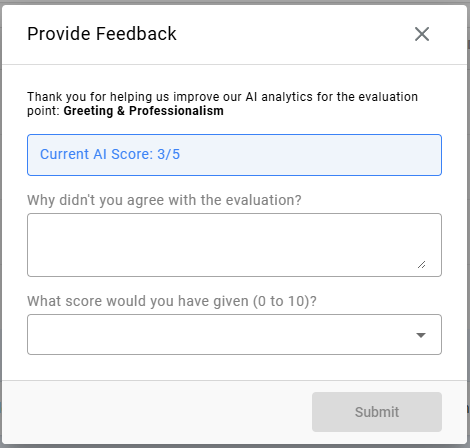
"Why didn't you agree with the evaluation?": Here the manager may enter why they disagree with the assessment given. They should be thorough in explaining what portion of the transcript supports their stance. This will be used to help AI fine-tune its evaluations to better assess future evaluations
-
"What score would you have given?:" This is applicable for Scale answer types exclusively. Since the user may want to suggest a lower or higher score than what was given, they'll have to suggest what score they would have given.
-
-
Feedback will be documented after submission and can be deleted as needed:

Feedback does NOT update the current or past evaluationsThough the feedback will help future evaluation performance, it will not change the score of any completed evaluations . This includes the open evaluation where the feedback was provided.
-
Updated 6 months ago