
Enabling Agent Recording Review
This article outlines how to enable agents to listen to call recordings within the Agent Client, once processed, in the Contact Center Agent Client
If an agent is configured to be recorded, they may access their own recordings for review from their CCAC history menu.
Additionally, if they also need to review recordings of calls that were in their skill and did not necessarily include the agent, this article will cover how to enable them in the last sections.
Enabling the Agent for Recording Review
-
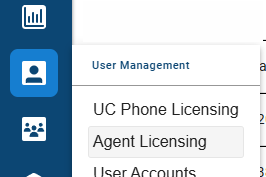
As an administrator of Xima CCaaS, log into the management UI, navigate to User Management and select either "Agent Licensing" or "UC Phone Licensing" depending on where the applicable agents reside.
-
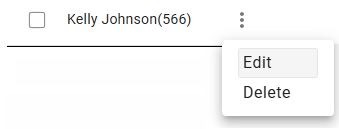
Select the ellipsis next to the agent's name and choose "Edit"
-
ENABLE the checkbox "Allow agent to review their own call recordings"

-
Save your changes
Pro Tip: If you need to apply this for more than one agent, use the bulk agent method. While viewing the list of agents, select the check box to the left of their names and then select the now visible "Bulk Edit" button. Enable the recording access checkbox for all selected agents and save.
Accessing Recordings as an Agent
Once a call has ended and the recording has processed an agent will see a play icon in the call history view.
-
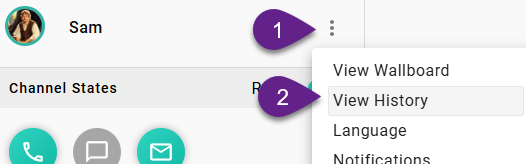
As an agent, select the ellipsis next to your name and choose "View History"
-
Find the call you're looking to review
-
If you see this icon, the recording has processed and is available for your review

-
Selecting the icon will load a media player at the bottom of the agent screen

-
As an agent you may review, snip and download the recording. You will not be able to delete the recording.
Enabling an Agent to Review Skill Call Recordings
This may include calls that the agent was not a part of.
Use Case and Risk
Some business practices may involve an agent needing to do a review of the call history for a customer and/or pulling the recording of any call involved. This task is usually accomplished by Supervisors or Managers but with this functionality enabled, the agent has permissions to perform some of these tasks.
This should only be enabled if agents are allowed to access all call recordings for skill queues they are assigned.
Enabling Agents
-
Navigate to the agent in Agent Licensing or UC Phone Licensing
-
Select the ellipsis by the applicable agent or "check" all agents that need this change for bulk editing.
-
Locate the "Allow agent to review skill recordings" check box and enable it

-
Save your changes
Navigating Calls in Agent Client History
Once the agent is enabled, when they click on "View History" in the agent client...
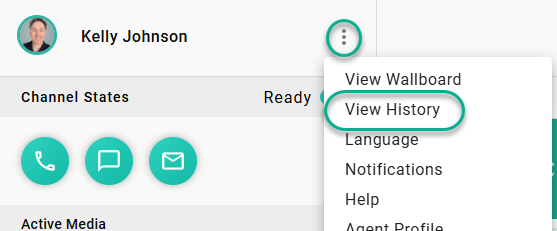
... by default they'll see only their recent customer conversations.
To update and also filter the results to include other conversations, the agent will use the filter now visible on the right of the history view:
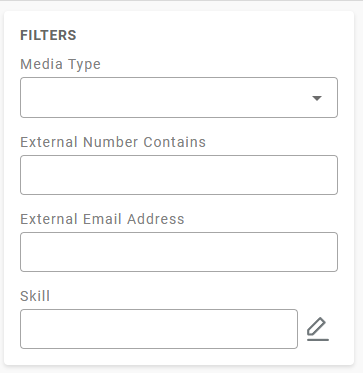
Using this filter, they may search conversations that match the filtered results. The most common use cases would be entering the customer in question's External Number and submitting or searching by the applicable skill.
The agent will see basic information about the conversation and have access to the recording if applicable. This does NOT include full Cradle to Grave event level visibility.
Updated 3 months ago