
Transcriptions - Assigning the Expected Language
Optimizing Call Transcription via Skill Language Settings
This article provides instructions on how to optimize Call Transcription accuracy by configuring the expected language within specific Skill Groups. To ensure the highest quality for transcripts, sentiment analysis, and Auto QA, it is essential that the Skill settings align with the spoken language of the callers and agents.
Best Practice: Use Dedicated Skill for Different Languages
We strongly recommend building dedicated Skill Groups for different languages (e.g., one for English, one for Spanish) to maintain transcription precision. Xima CCaaS does not currently support automatic language detection, so utilizing "hybrid" skills with multiple spoken languages will result in poor transcription quality.
Critical: Incorrect Language Impacts Accuracy
If the Skill Group language is not correctly set to match the language spoken on the calls, transcriptions, sentiment analysis, and Auto QA features will be ineffective or provide inaccurate data.
Navigation & Configuration
To adjust the transcription language for a specific skill, follow these steps:
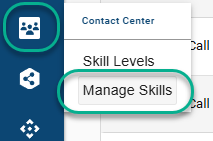
- As a manager, navigate to Contact Center > Manage Skills.
- Locate the applicable skill group, click the ellipsis (...) icon next to it, and select Edit.
3. In the skill settings window, navigate to the Voice Settings tab.
4. Locate the Transcription Language field.
Note: The default language for all skills is English (US).
- Select the applicable language from the dropdown menu.
- Select Save to apply your changes.
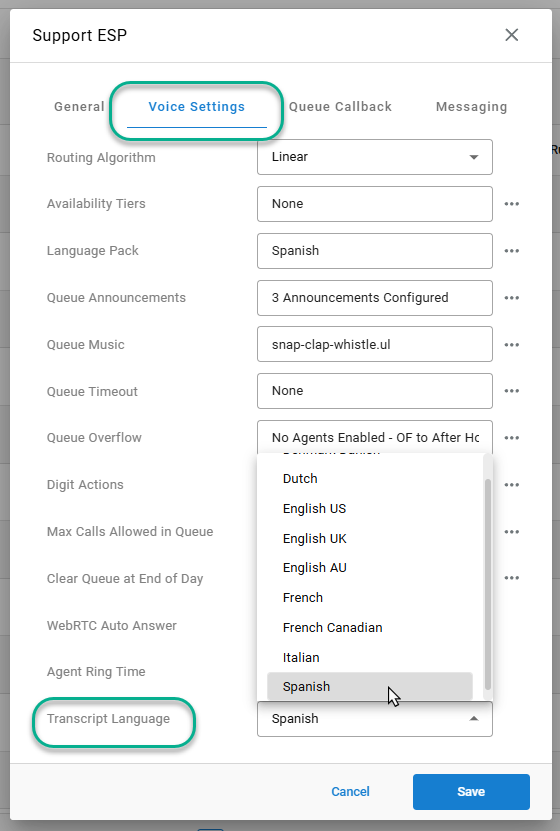
Available Languages:
- English (US)
- English (UK)
- English (Australia)
- French
- French Canadian
- Spanish
- Denmark Danish
- Dutch
- Italian
Need a different language added to the list?Work with Xima Support to discuss your transcription language needs and submit a feature request for the additional language to be added.
Expected Results & Validation
Once these changes are saved, all future calls (this will not apply retroactively to completed calls) associated with this skill will be processed using the selected language profile.
- Cradle to Grave: Managers can expect to find call transcripts in Cradle to Grave appearing more accurately in the designated language.
Accuracy Note: While selecting the correct language significantly improves results, please remember there is always a margin for error in automated transcription due to audio quality, accents, or background noise.
If calls are still not being transcribed in the correct language, verify the settings again and ensure the call was routed through the specific skill modified. If the problem persists, please contact Xima Support.
Updated 6 months ago