
Call Link - Require Digitpress to Connect
Critical Configuration ReviewPlease review this article carefully before toggling these settings. Improper configuration can lead to a poor caller experience, where customers waiting in a queue are unexpectedly dropped into an individual agent's personal voicemail or disconnected unexpectedly.
Overview
The Require Keypress to Connect setting is a specialized configuration within Xima CCaaS for Call Link. It acts as a manual verification step to ensure a live agent—not an automated system—is ready to receive a queued call. This is essential when agents use devices that the contact center cannot natively control, such as personal cell phones or generic PBX extensions.
How it Works
When a call is routed to a phone via Call Link, the system waits for an "Answered" signal via SIP messaging. However, many mobile carriers and generic PBX systems send this signal the moment a voicemail box picks and sometimes if an agent "rejects" the call.
By enabling Require Keypress to Connect, the system will play an audio announcement to the agent upon answering: "To answer this call, press 1." The system then waits for the agent to physically press the digit 1. This confirms a live human is on the line. If no digit is pressed, the system recognizes the call wasn't truly "accepted" and returns the caller to the queue safely after the configured ring time has concluded.
Configuration
To adjust this setting for an agent:
- Log into the Xima Admin portal.
- Navigate to User Management then Agent Licensing and select the desired agent.
- Locate the Connected Numbers setting.
- Find the previously added number or start a new number.
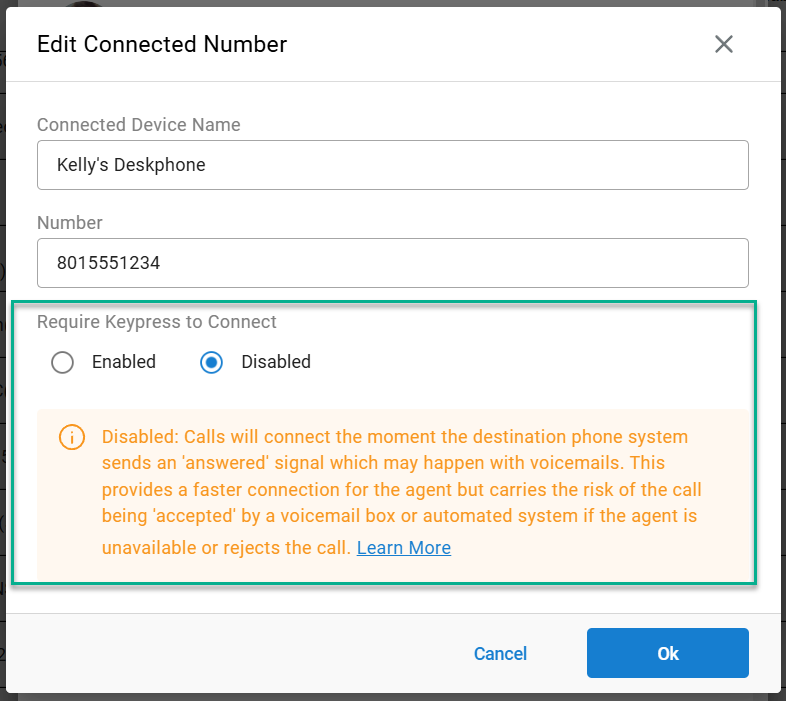
- Find the Require Keypress to Connect radio buttons.
- Select Enabled or Disabled based on the agent's device type.
- Click Ok and save your changes .
Enabled vs. Disabled
Enabled (Recommended for Mobile/External Devices)
- UI Description: "Enabled: Agents must press a digit to manually accept the call after picking up. This verification step ensures that calls are only connected to a live person, preventing callers from being dropped into a voicemail box and allows the caller to return to the queue."
- The Benefit: High reliability. Prevents voicemail greetings from answering a customer call or dropping them unexpectedly.
- The Trade-off: The agent must listen to the prompt and press a button, which adds a small delay to the total connect time.
Disabled (Recommended for Supported Desk Phones)
- UI Description: "Disabled: Calls will connect the moment the destination phone system sends an 'answered' signal which may happen with voicemails. This provides a faster connection for the agent but carries the risk of the call being 'accepted' by a voicemail box or automated system if the agent is unavailable or rejects the call."
- The Benefit: Instant connection. As soon as the agent lifts the handset, they are speaking to the caller.
- The Risk: If an agent’s device was improperly configured has an internal voicemail or if they "Reject" the call, the system may treat that as a successful answer, leaving the caller stuck in a personal inbox.
Best Practices
- Always Enable for agents using personal cell phones, home landlines, or any device where you do not control the voicemail behavior.
- Consider Disabling only for dedicated office desk phones where you are certain no "Auto-Answer" or local voicemail is active.
- Timer Alignment: Ensure the Agent Offer Timeout in your Skill Group settings is shorter than any "No Answer" or "Rollover" timeout configured on the agent's specific phone or mobile carrier. This ensures Xima pulls the call back before the phone's local voicemail can trigger.
Testing & Validation
If you choose to Disable this feature for an agent, you must perform the following tests to ensure the caller experience remains intact. For each test, call the queue as a customer while the agent is logged in and available on the configured device:
- No Answer: Allow the agent's phone to ring out. Ensure the call returns to the queue and does not hit a local voicemail.
- On a Direct Call: Call the agent while they are already on a non-queue call. Verify the system handles the "Busy" signal correctly.
- Manual Reject: Have the agent press the "Ignore" or "Reject" button on their device. Ensure the caller is not dropped into voicemail.
- DND Status: Place the agent's physical UC phone in "Do Not Disturb" mode and verify the call is routed to the next available agent.
- Offline/Unplugged: Log the agent out of the phone or unplug the device. Confirm the system recognizes the device is unreachable.
If the caller is successfully returned to the queue and offered to another agent for all tests, disabling this feature should work great for you.
Updated 5 months ago