
Configuring AutoQA Evaluations
This article outlines how to configure AutoQA Evaluations for your agents to be automatically scored on their call handling.
Requirements
- Elite Licensing is required
- Recording and transcription must be enabled for all calls that need to be evaluated
Enabling an Agent to Be Evaluated
-
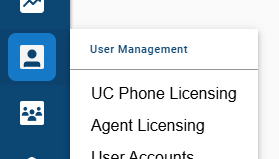
As an administrator of Xima CCaaS, log in and select either "Agent Licensing" or "UC Phone Licensing" from the User Management menu.
-
Find the applicable agent and enable both "Transcription Enabled" and "QA Evaluation Enabled."

-
Save your changes.
Configuring an AutoQA Evaluation Template
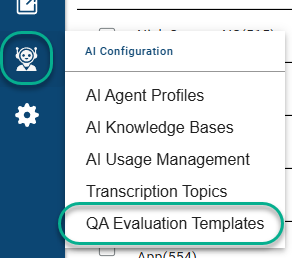
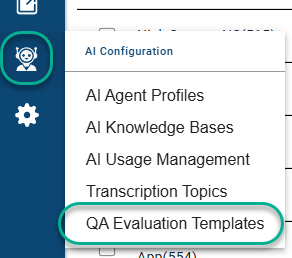
As a manager of Xima CCaaS, log in and select "QA Evaluation Templates" under AI Configuration.
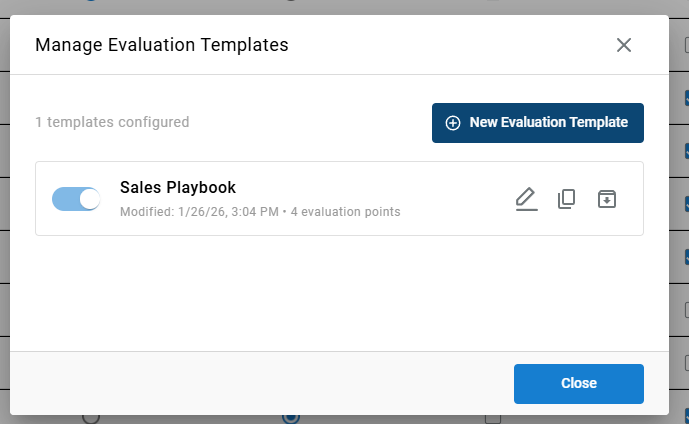
Select "New Evaluation Template" to start a new template, or select an existing template to edit.
Defining the Evaluation Template Criteria
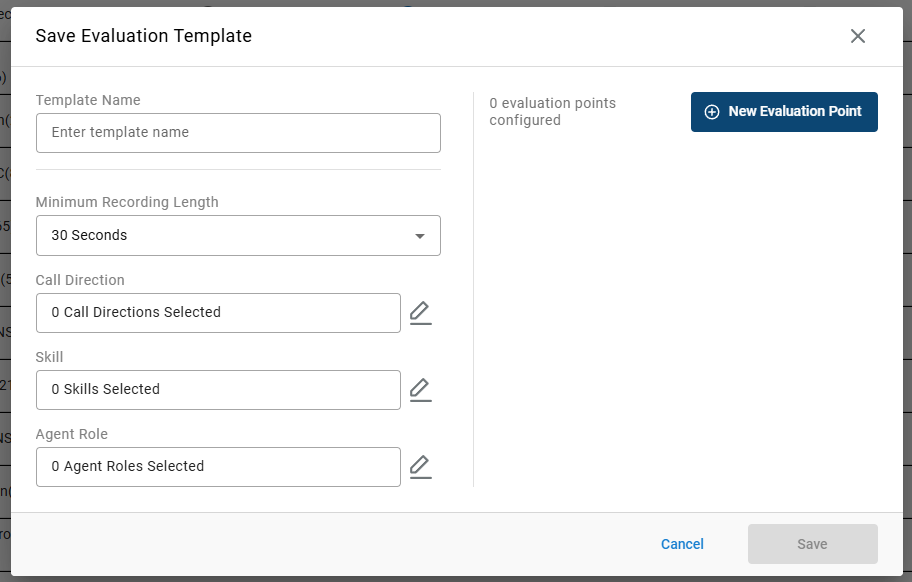
Configure the template name and criteria:
Template Name: The name of the evaluation as it will appear in reports and criteria (e.g., Support Playbook).
Minimum Recording Length: To exclude calls that are too short to be evaluated, select a minimum recording length. For example, if a call ends in 15 seconds, there may not be sufficient content for an agent to complete the required tasks.
Call Direction (optional): Limit evaluations based on call direction. The default of "0 selected" will consider all directions eligible.
Skill (optional): Limit evaluations to only calls that include the selected skill(s). The default of "0 selected" will consider all call types includes skills or not.
Agent Role (optional): Only evaluate calls where agents in the selected roles are recorded. The default of "0 selected" will consider all agents for evaluation
- Agent Roles include existing skill groups. If you'd like to learn how to configure roles, review this article:
CREATE AND MANAGE AGENT ROLES
Adding Evaluation Points to the Template
Select the "New Evaluation Point" button.

Define the Evaluation Point
An evaluation point is a task or goal that the agent should seek to achieve during every call. Examples include a proper greeting and closure, repeating back customer needs, or outlining next steps.
Configuring the following will help the AI properly grade the agent based on this single task.
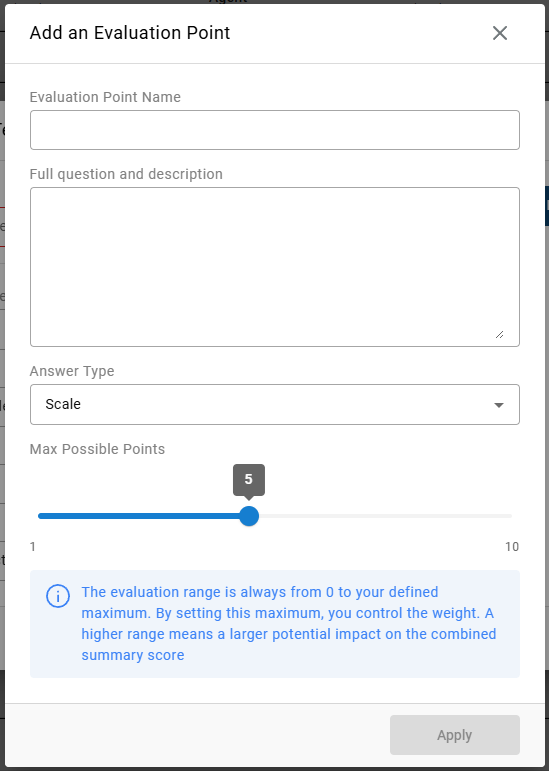
Evaluation Point Name: A short name for the metric being measured. Best practice is to keep this name short as it will be displayed in report column headers (e.g., "Proper Greeting", "Upsell Attempt").
Full question and description: Define exactly what you are measuring. The more descriptive you are, the better the AI will be at evaluating the agent's performance.
Example: "Did the agent professionally greet the customer and state their name as well as the company name?"
Answer Type: Select how you'd like the AI to grade this task:
-
Yes/No: Did the agent accomplish the task? Either full points will be awarded (Yes) or no points will be awarded (No).
-
Scale: Allows the AI to grade the task on a scale, awarding maximum points if fully satisfied or partial points if the goal is partially met.
-
Text Response: The AI will provide a brief written reply. For example, you might ask "How could the agent be more professional?" and the AI will provide feedback.
NOTE: Text responses are not measurable values and cannot be included in score calculations or KPI formulas.
Max Possible Points or Points for Yes: This setting applies to Yes/No or Scale answer types. It does not apply to the Text Response type.
-
Yes/No: Defines how many points are awarded for a "Yes" outcome. "No" results in zero points.
-
Scale: Defines the range of the scale. The lowest possible outcome is always zero, while the maximum points can be set from 1 to 10. The AI may award any score within that range.
Example Evaluation Point:
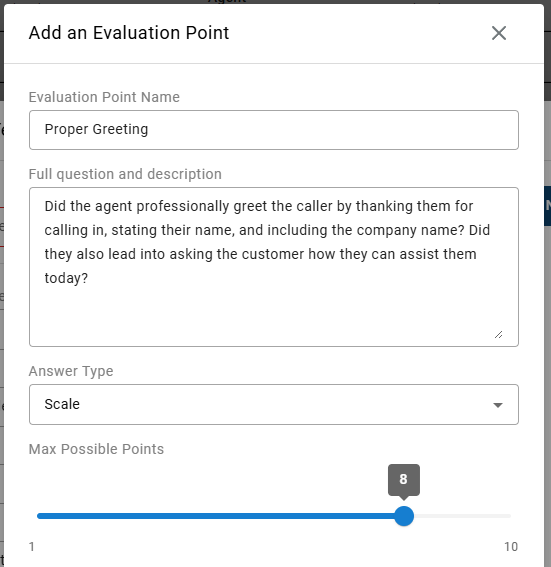
Apply your changes when ready.
Evaluations are limited to transcript contentThe source for performing an evaluation is a text transcript. An evaluation cannot detect an agent's audible tone directly, but it can use the dialogue to help identify tone.
Additionally, evaluations are not timestamp-based. For example, the AI cannot detect if an agent asked for the customer issue within the first 15 seconds of a call. It can, however, determine if the agent pursued the issue near the beginning of the call. AI has a relative understanding of call flow but does not use a timer.
Additional Evaluation Points and Ordering
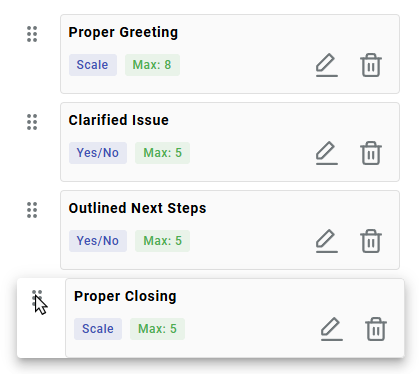
Once you've added your first evaluation point, you may add more to the template by selecting "New Evaluation Point" again.

You may re-order points by clicking and dragging the drag icon next to the point name.
Managing Existing Evaluation Templates
Templates can be managed from the QA Evaluation Templates menu.
Editing an Evaluation Template
To edit an existing template, select the "Edit" icon inline with the template name.
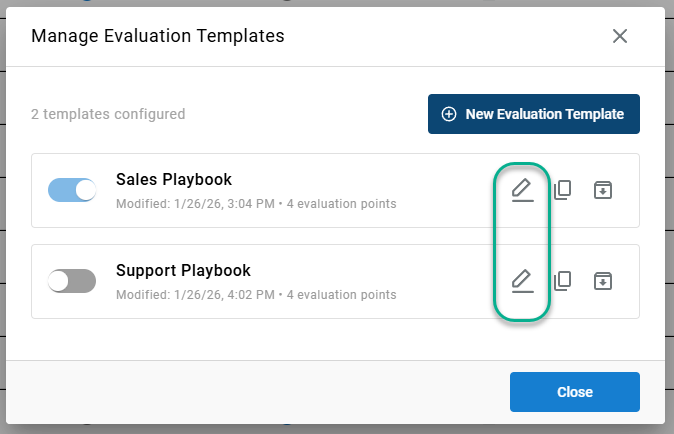
Changes to an existing template are not retroactiveTemplate edits apply to future calls only. Grades for calls evaluated prior to these changes will remain unchanged.
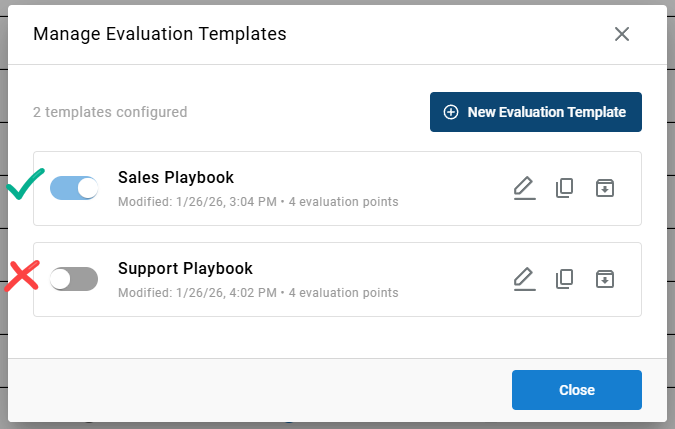
Enabling an Evaluation Template
To begin seeing results for completed calls, ensure the toggle next to the template name is Enabled:
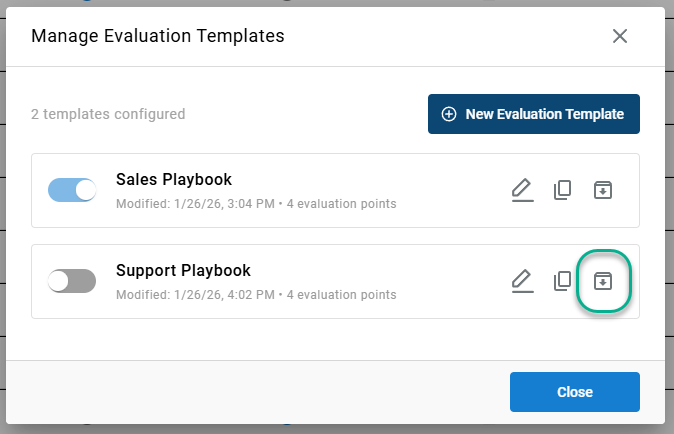
Archiving a Template
Archiving a template will disable it and hide it from the primary list.
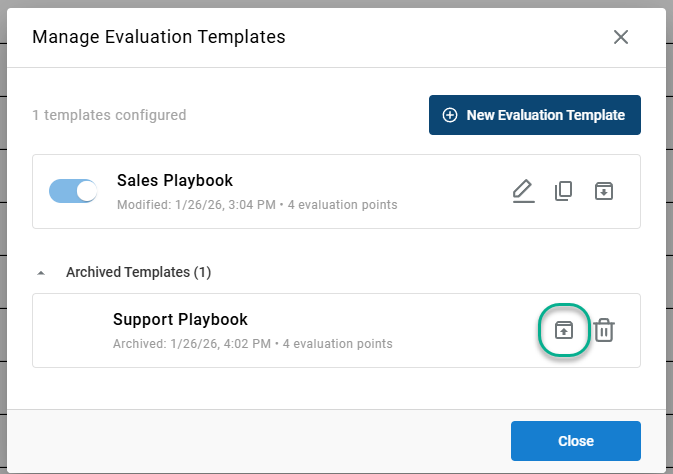
To recover an archived template, select "Archived Templates"...
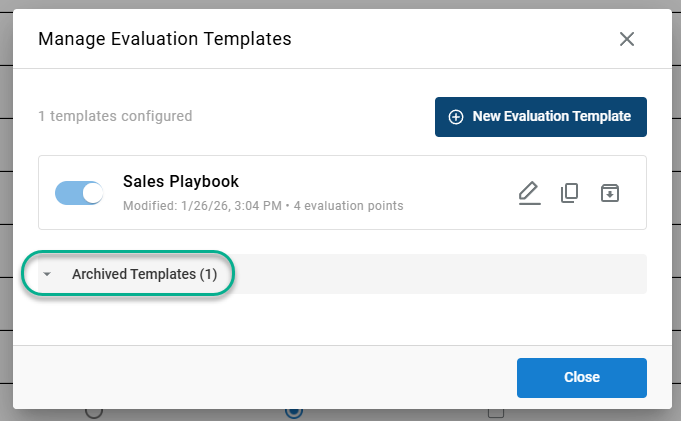
...then select the Restore Template icon.
Deleting a Template
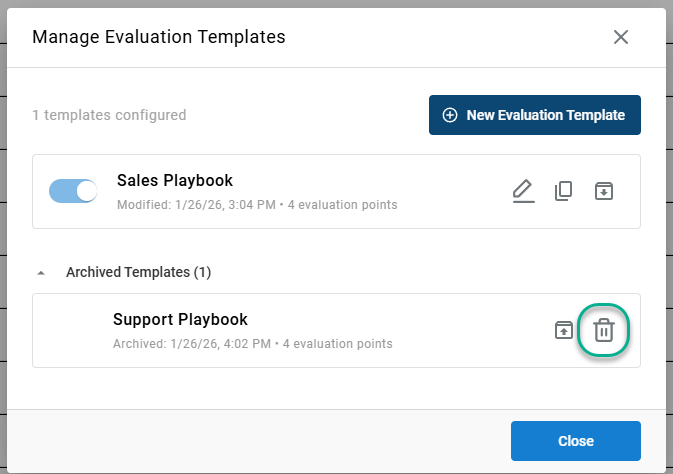
To prevent accidental deletion, a template must first be archived. Once a template is in the Archived Templates list, you will have the option to delete it permanently.
Note: This action cannot be undone.
Updated 6 months ago