
Wallboards — Editor
The Wallboard Editor is a drag-and-drop interface for building and configuring real-time contact center dashboards.
Widgets can be added, resized, and arranged on the canvas to create layouts optimized for large displays or supervisor views. Each widget is configurable — specific queues, skills, or agent groups can be selected as data sources, and thresholds can be applied to visually indicate normal, warning, or critical conditions.
Wallboards update automatically with live data and are intended for continuous display on monitors or TVs, providing at-a-glance insight into current operational status without requiring manual refreshes.
Creating a Wallboard
-
Click
New Wallboard
-
Select a starting point:
Custom— starts with an empty canvas- Any standard Xima Wallboard template
-
Enter a title for the wallboard
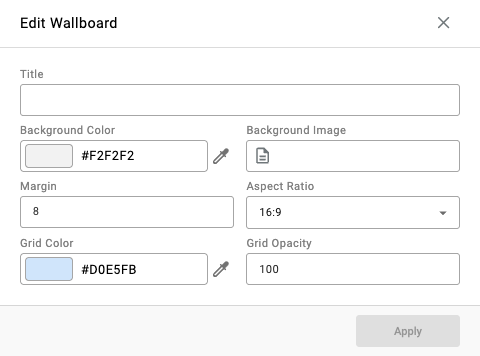
-
Configure optional settings as needed:
| Field | Description |
|---|---|
| Background Color | Sets the wallboard's background color. |
| Background Image | Sets an uploaded image as the wallboard's background. |
| Margin | Sets the spacing around the edge of the wallboard canvas. |
| Aspect Ratio | Sets the canvas's width-to-height proportions. |
| Grid Color | Sets the color of the alignment grid used when placing widgets. |
| Grid Opacity | Sets the visibility of the alignment grid, as a percentage. |
- Click
Applyto open the wallboard in the editor - Click
Save and Edit(next to the wallboard options) to apply subsequent configuration changes
Wallboard Options
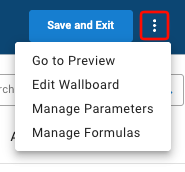
The ellipsis in the top right of the editor opens wallboard-level options:
Go to Preview— opens a live preview of the wallboard as currently configuredEdit Wallboard— opens the wallboard configuration settingsManage Parameters— configure widget parameterization (see below)Manage Formulas— create custom metrics calculated from existing metric values (see below)
Manage Parameters
Parameters allow wallboard widgets to be filtered dynamically by a set criteria, avoiding the need to create separate wallboards for each agent, group, or skill. Widgets can be parameterized by:
AgentGroupSkill
Manage Formulas
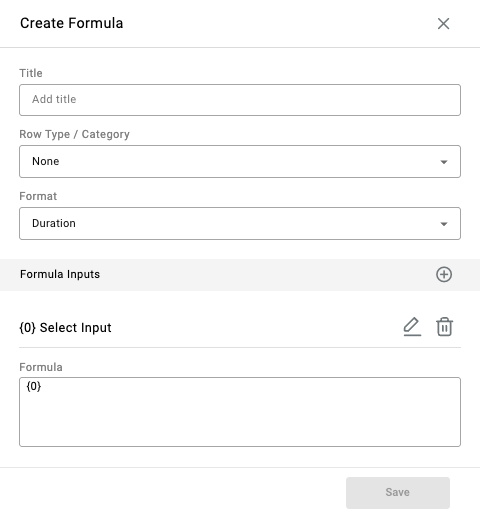
Custom metrics can be created by combining existing metrics using a formula expression. Each formula requires:
| Field | Description |
|---|---|
| Title | Name of forumula |
| Row Type / Category | Agent, Group, Call Direction, Account Code, Skill, or None |
| Format | Count, Decimal, Duration, Percent, Boolean, or Text |
| Input (s) | The metrics to use in the formula, referenced by index ({0}, {1}, etc.) |
| Formula | The formula expression combining the inputs |
For example, to add metric A ({0}) and metric B ({1}):
{0} + {1}Updated 3 months ago