
AI Agent — Publish
The Publish step reviews an AI Agent's whole configuration for blockers and advisories, runs three checks, then makes the changes live on every channel at the same moment.
Publish is the final step of the Agent Builder and is required to go live. It uses AI to review the whole AI Agent configuration for concerns, conflicts, and blockers, then makes the changes live on every channel at once. What is live keeps running until the review passes, so a stopped or blocked publish leaves customers on the previous version.
Unlocks After ChannelsPublish unlocks once Channels is complete.
Review and publishat the bottom of the screen jumps to Publish from any step.
Accessing Publish
Publish is accessible to accounts with Admin permissions.
- Navigate to
AI Configuration > AI Agent Profilesand select the pencil icon next to an AI Agent - Select
Publishin the step list; the workspace shows advisories and blockers at the top, followed byThe whole agentandDismissed
Advisories and Blockers
At the top, the builder lists anything it found when it read the setup as a whole. The step list summarizes them too — for example, Nothing blocking · 2 advisories to read, on Publish.
| Type | Description | Stops Publishing |
|---|---|---|
| Blocker | Something that must be fixed first, such as a channel with no escalation destination | Yes |
| Advisory | Worth a second look, but optional | No |
Advisories often point out things that are hard to spot one step at a time:
- Inconsistent identity — the bot introduces itself under a different name on voice than on messaging. The builder shows the conflicting lines side by side, with where each was written
- Documents and tables disagree — a Knowledge document and a Lookup table give different values for the same detail, so a customer could get a different answer depending on which one the bot reads. Update whichever is out of date
The Whole Agent
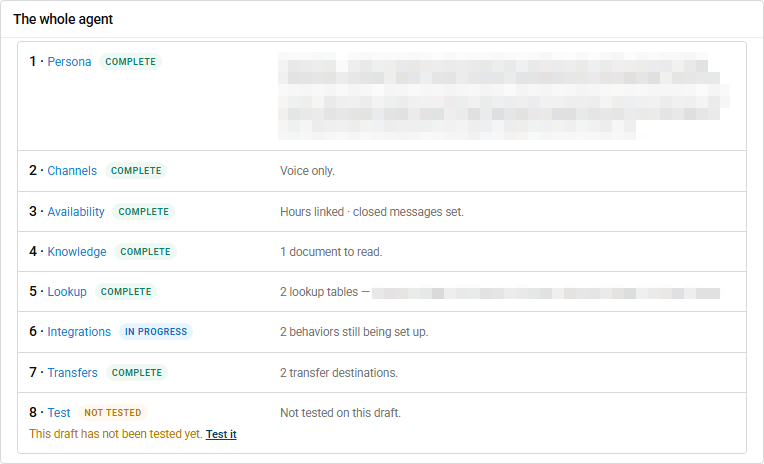
A summary of every step with its status — for example, Complete or Not tested — and a one-line description. Selecting a step name goes straight to it.
Dismissed
Observations accepted rather than fixed are kept here, with when they were dismissed, so other administrators can see what was waved through. A dismissed observation is a decision that was taken, not a problem that went away. Select Reopen to put it back on the step it belongs to.
Publishing the AI Agent
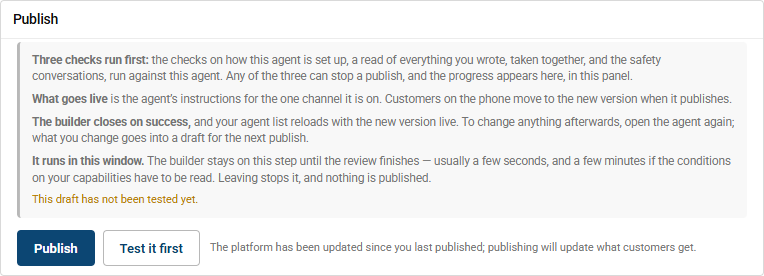
- Select
Publish, orTest it firstto go to the Test step. The panel shows the current status — for example,Nothing has changed since you last published - Three checks run first, with progress shown in the Publish panel: the checks on how the bot is set up, a read of everything written taken together, and safety conversations run against the bot. Any of the three can stop a publish
- The bot's instructions for each channel go live together, so customers on chat and on the phone move to the new version at the same moment
- On success, the builder closes and the AI Agent Profiles list reloads with the new version live
Stay on the Publish Step Until It FinishesPublishing runs in the builder window. It usually takes a few seconds, or a few minutes if capability conditions need to be read. Leaving the step stops it, and nothing is published.
After Publishing
- The header shows
Live · nothing unpublished - To change anything, reopen the AI Agent from AI Agent Profiles. Changes go into a new draft and wait for the next publish
- Knowledge documents and Lookup tables are the exception: they go live within about 30 seconds of saving, without publishing — see Knowledge and Lookup
Once live, a messaging AI Agent answers the conversations routed to it, and a voice AI Agent answers calls sent to it by an IVR — see Routing Conversations to an AI Agent.
Checklist
- Every blocker is fixed
- Every advisory is either fixed or deliberately dismissed
- The Publish step stayed open until the builder closed
- The AI Agent shows as live in AI Agent Profiles
Updated about 3 hours ago