
Skills — Canned Messages
Canned Messages are predefined chat and SMS responses agents can insert with one click, with placeholders for the agent and customer name and an option to send automatically as the first message of an interaction.
Canned Messages give agents a library of pre-written responses to insert into a web chat or SMS conversation instead of typing the same text repeatedly. They are configured per skill, under that skill's Messaging settings, and are available to every agent handling interactions for that skill.
Configuring Canned Messages
- Navigate to
Contact Center > Manage Skills - Select the skill to configure, then select the
Messagingtab - Select the
...menu next toCanned Messages, then select the edit option - All canned messages configured for the skill are listed; select
Add Messageto create a new one
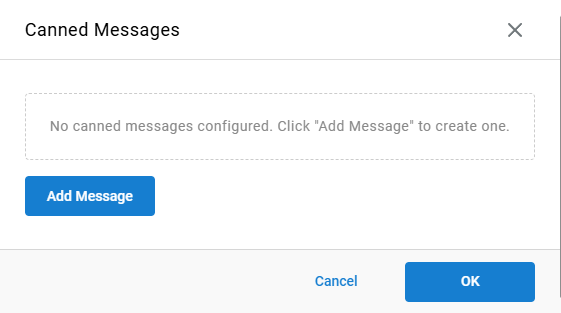
Adding a Canned Message
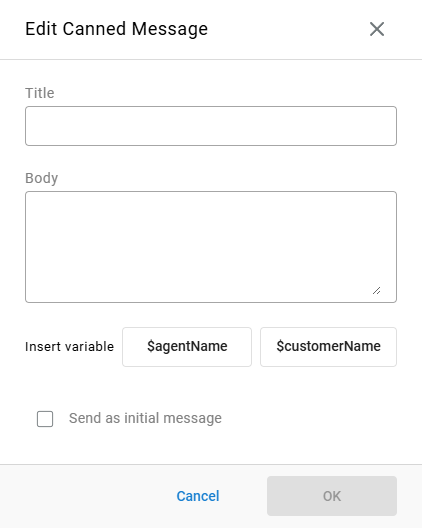
| Field | Description |
|---|---|
Title | An internal label used to identify the message in the list; not shown to the customer. |
Body | The message text sent to the customer when the agent selects this canned message. |
Send as initial message | When enabled, sends this message automatically as the first message of the interaction, without the agent needing to select it. |
Insert VariableWhile editing the
Bodyfield, selecting$agentNameor$customerNameunderInsert variableinserts a placeholder at the cursor position. Each placeholder is replaced with the corresponding agent's or customer's actual name when the message is sent.
Editing or Deleting a Canned Message
- From the
Canned Messageslist, select the message to change - Select
Editto update theTitle,Body, orSend as initial messagesetting, or selectDeleteto remove the message - Select
OKto save changes, thenSaveon the skill to apply them
Updated 3 months ago