
Scheduling a Report
How to schedule a report for automatic, recurring delivery by email from My Reports.
Reports can be scheduled to run automatically — hourly, daily, weekly, or monthly — and delivered directly by email instead of being run manually each time.
Opening the Schedule Window
Reports can be scheduled from two places in My Reports:
- Selecting the
...icon next to an individual report, then selectingSchedule - Selecting the
...menu in the top right corner of the page, then selectingManage Schedules
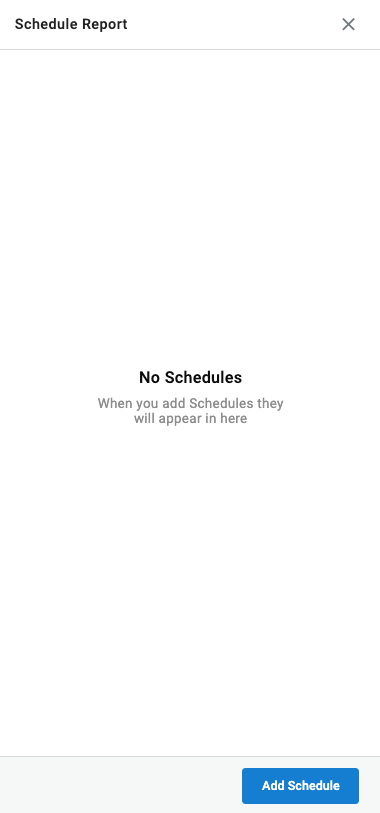
Both open the Schedule Report window. Add Schedule starts a new schedule; existing schedules can also be edited from the same window at any time.
Step One: Configuring the Schedule
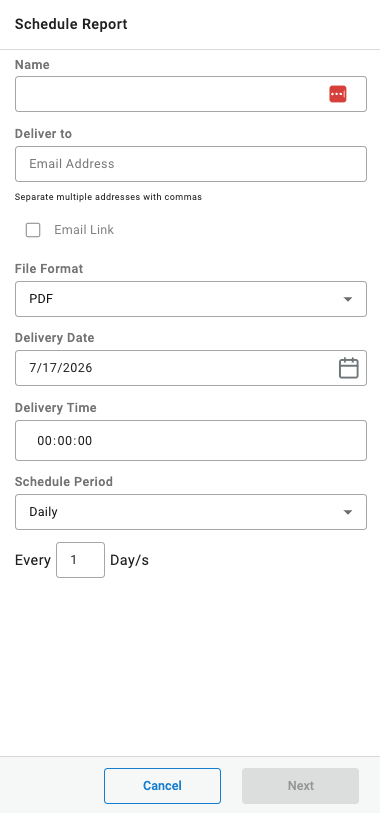
The first step defines the schedule itself, independent of which report(s) it applies to.
- Name the schedule
- Enter the email address the report should be sent to (multiple addresses can be separated by commas)
- Choose whether to include a link to the report in the email
- Select a file format: PDF, XLS, HTML, CSV, or JSON
- Select the delivery date and time
- Select the delivery frequency
Frequency Options
- Hourly — runs the report every hour throughout the day
- Daily — runs the report daily, or every second, third, etc. day
- Day of Week — runs the report only on specific selected days
- Weekly — runs the report every week, or every second, third, etc. week
- Monthly — runs the report every month, or on specific months, by date or by a recurring weekday (for example, the first Sunday of the month)
Once a frequency is set, the schedule continues to follow the same pattern going forward — a weekly report, for example, continues to cover the first day of the week through the last.
Step Two: Selecting the Reports
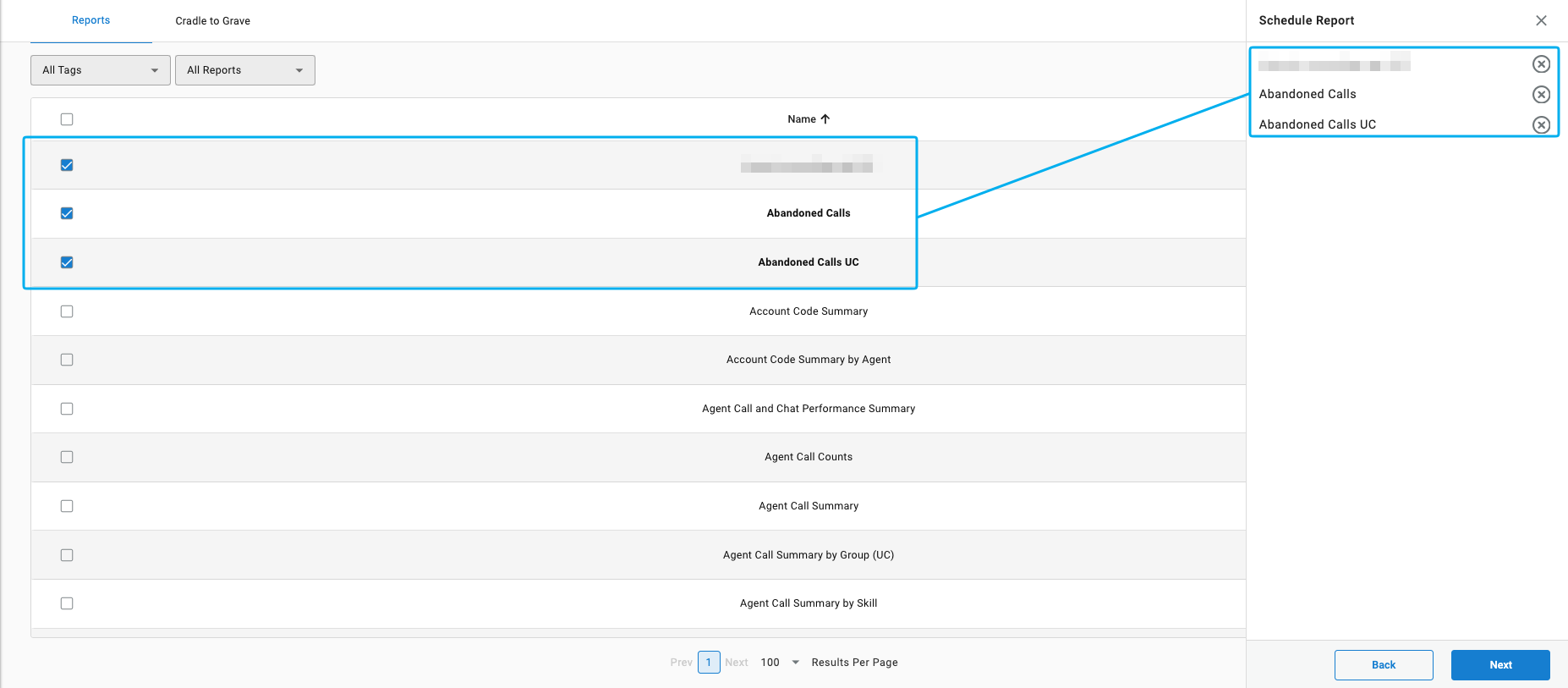
The second step selects which report(s) the schedule applies to. Any number of saved reports can be added to the same schedule by selecting the checkbox next to each.
Step Three: Configuring the Reports
The last step configures the timeframe, rows, and criteria for each selected report, the same as configuring a report to run manually, with one difference specific to scheduled delivery:
Report Timeframe
Starts and Ends define a recurring window rather than fixed dates. For example, a monthly schedule set to run from the 1st through the 30th of one month continues that same first-to-last-day pattern in every following month.
Selecting Finish saves the schedule.
Updated 3 months ago