
C2G — Examining the Call
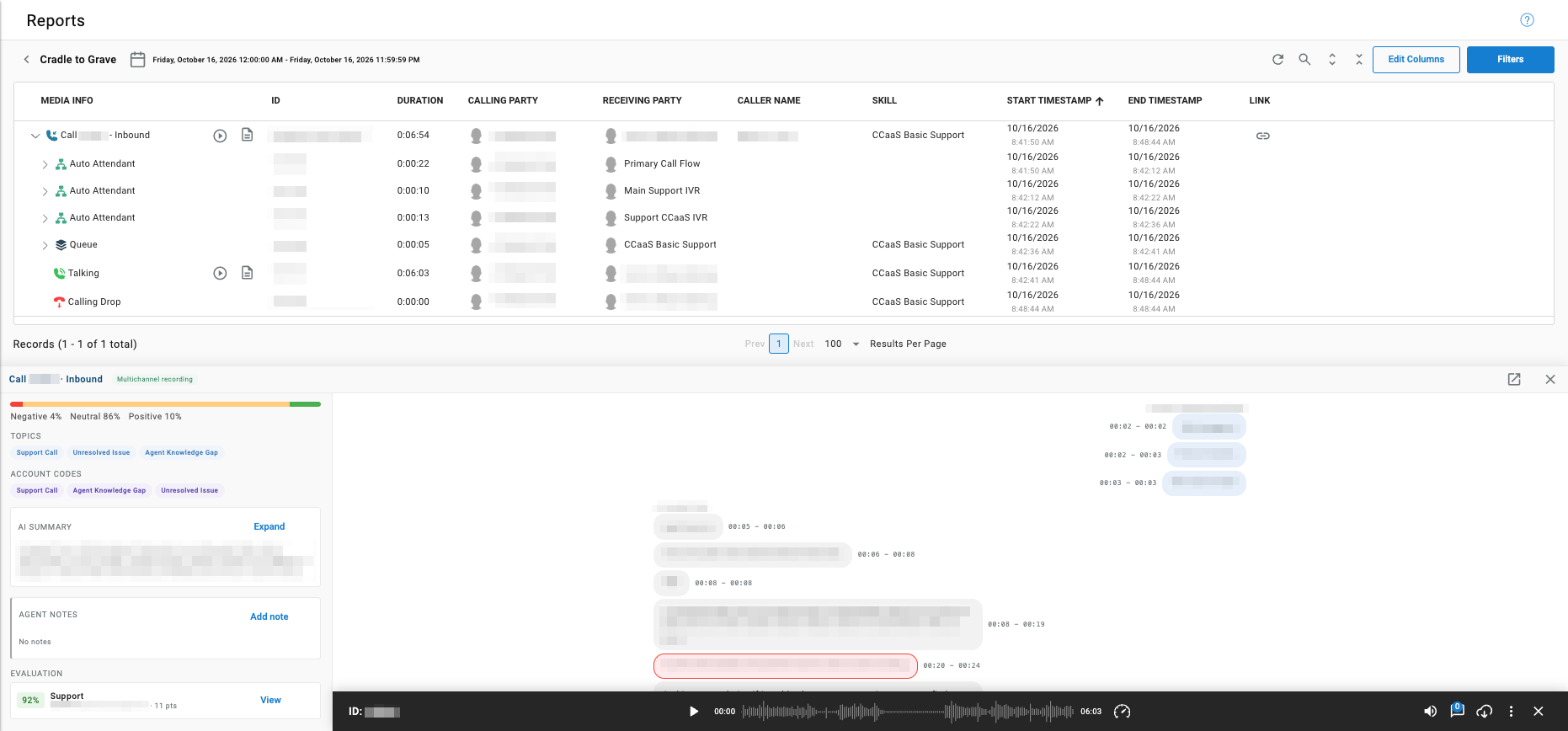
Opening an interaction's recording or transcript in Cradle to Grave shows its playback, transcript, sentiment, topics, account codes, AI summary, agent notes, and QA evaluation in one detail panel.
Examining an interaction in Cradle to Grave opens a detail panel below the interaction list that brings together everything recorded about it. Voice calls and chats share the same detail view, so a call's transcript and a chat's transcript are reviewed, scored, and evaluated the same way.
Opening the Detail Panel
- Navigate to
Reports > Cradle to Grave - Select the
RecordingorTranscripticon on an interaction row
The detail panel opens at the bottom of the page. Its header shows the interaction type and direction — for example, Call · Inbound — along with a label for the type of recording, such as Multichannel recording. The icons in the top-right corner of the panel open it in a separate view or close it.
Interaction Summary
The left side of the panel summarizes the interaction.
| Section | Description |
|---|---|
| Sentiment | A bar showing the share of the transcript scored Negative, Neutral, and Positive — for example, Negative 4%, Neutral 86%, Positive 10%. See Transcription Topics for how sentiment is scored |
Topics | The topics AI transcription tagged to the interaction |
Account Codes | The account codes applied to the interaction, including topics configured to apply automatically as account codes |
AI Summary | An AI-generated summary of the interaction. Select Expand to read the full summary |
Agent Notes | Notes added to the interaction. Select Add note to add one |
Evaluation | The interaction's AutoQA evaluation result — the total score as a percentage, the evaluation template, the agent who was graded, and the points awarded. Select View to open the full evaluation; see QA Evaluation Templates |
Transcript
The right side of the panel shows the transcript, one message per line, with the start and end time of each line within the interaction — for example, 00:05 – 00:06. The two parties' lines appear on opposite sides of the transcript.
Playback Controls
For a recorded call, a player runs along the bottom of the panel.
| Control | Description |
|---|---|
ID | The interaction's ID |
| Play/Pause | Starts or pauses playback |
| Timeline | The waveform of the recording, with the current position and total length |
| Playback Speed | Changes the playback speed |
| Volume | Adjusts or mutes playback volume |
| Download | Downloads the recording in either WAV or Opus format |
| More Options | Additional actions for the recording |
| Close | Closes the player |
Choosing a Download FormatAn
Opusfile is roughly one-sixteenth the size of the same recording inWAV, which helps recordings stay within CRM upload limits.
Sharing a Link to an Interaction
The Link column provides a URL that opens Cradle to Grave filtered to a single interaction. The column is hidden by default; enable it from Edit Columns.
- Select the link icon on an interaction row — the icon appears on top-level interaction rows only, not on expanded call legs
- The URL is copied to the clipboard, and
Link copied to clipboardconfirms it - Opening the URL loads Cradle to Grave showing only that interaction
Recipients Must Be Signed InThe link opens the interaction only for a recipient who is already signed in to the same CCaaS tenant. A recipient who is signed out is taken to the login page, and the link to the interaction is not kept after signing in.
Cradle to Grave Link Web Service ParameterThe same URL is available to web service integrations as the
Cradle to Grave Linkparameter, for both calls and chats. It replaces theAudio Recording Linkparameter, which is deprecated and no longer offered for new configurations; existing configurations that already use it continue to work.
Updated about 4 hours ago