
Call Park
Available with 5_64_1 and above
Requires Call Hub and either Call Link or Xima WebRTCXima CCaaS' Call Park is not available for all sites yet. If you do not know if you have Call Hub enabled or if you are a good candidate for it, feel free to contact Xima Support
Enabling Call Park
-
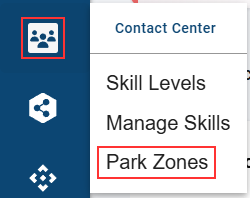
Navigate to the Contact Center menu and select Park Zones
-
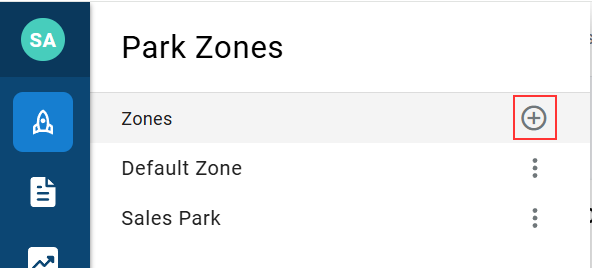
Within the Park Zones menu, select the + icon. This will open the New Park Zone menu
-
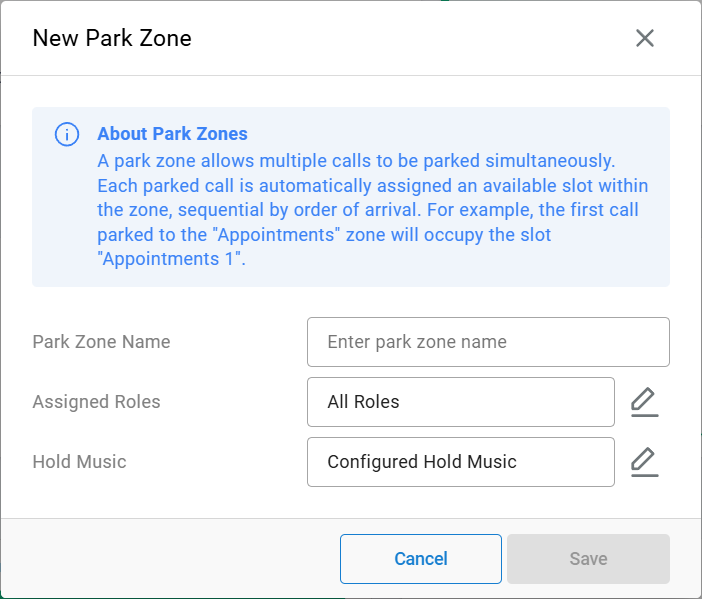
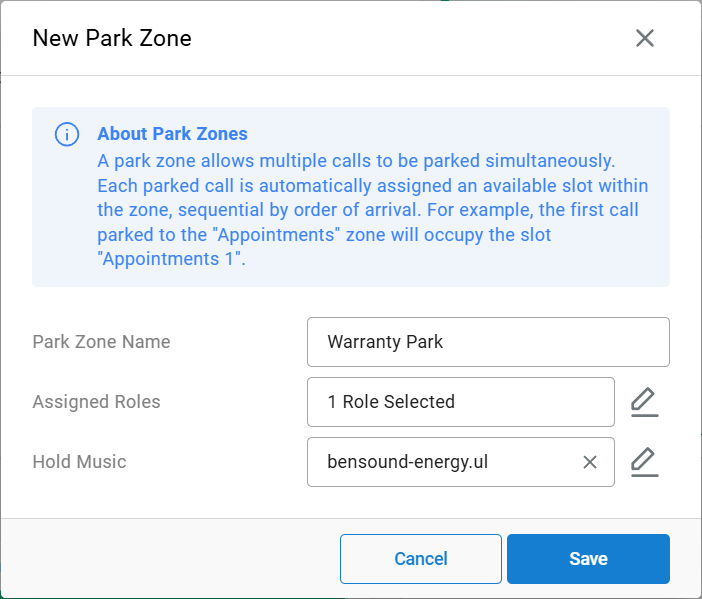
Within the New Park Zone menu, please define the following:
-
Park Zone Name
- Any name can be used, but it should make sense for the people assigned to it
-
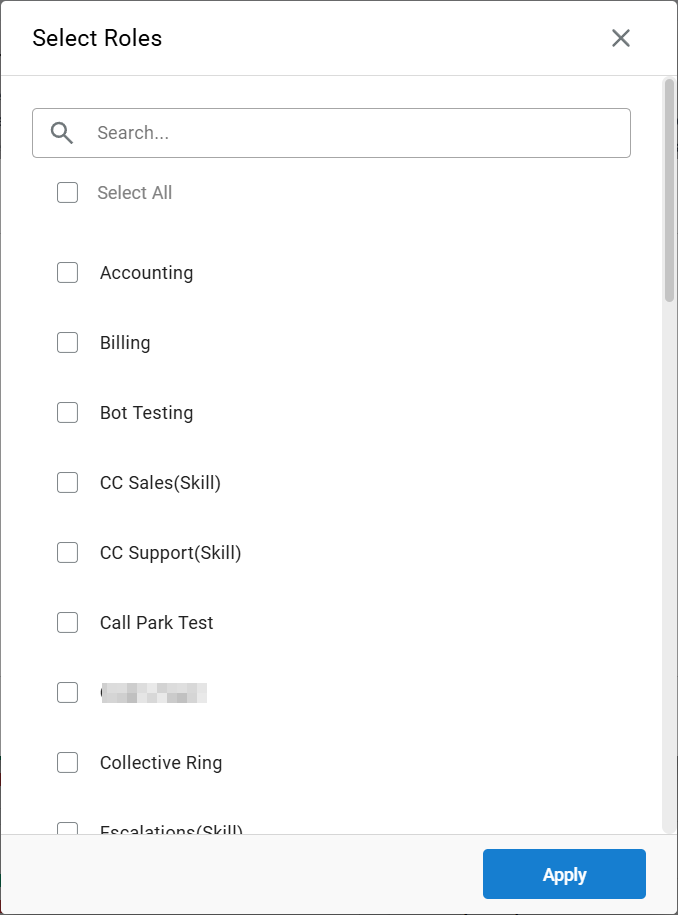
Assigned Roles
-
You can assign park zone access to multiple Skills/Groups.
-
This determines who can park AND/OR retrieve a call from the park zone
-
-
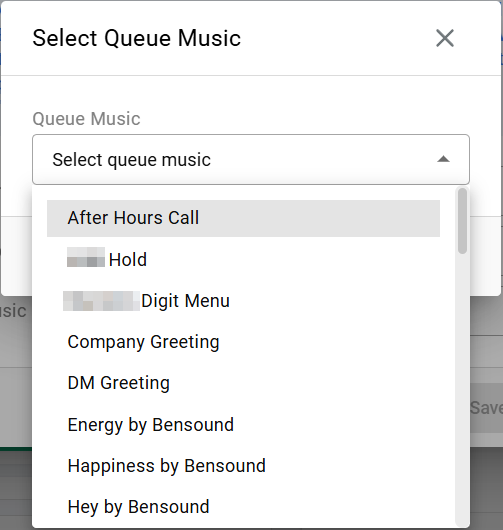
Hold Music
-
This is the music the parked person will hear while waiting
-
-
Park Zone Example:
-
-
Save your changes
Parking and Retrieving a Call
With a Park Zone in place, Agents should be able to park and retrieve a call quickly
Park a Call
-
Take a call as normal
-
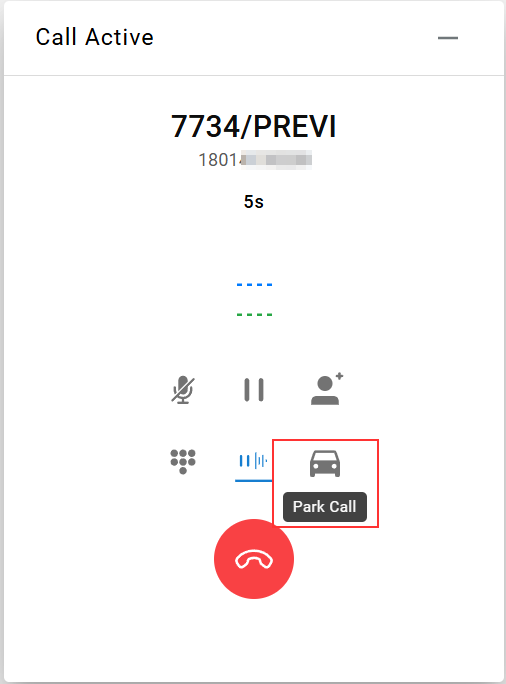
Click the Park Call icon
-
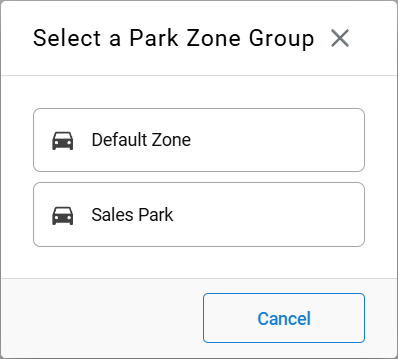
Choose a Park Zone Group from the next menu
-
Confirm the call is parked

- It should show up immediately as one parked call sitting in that zone, ready for pickup
Retrieving a Parked Call
-
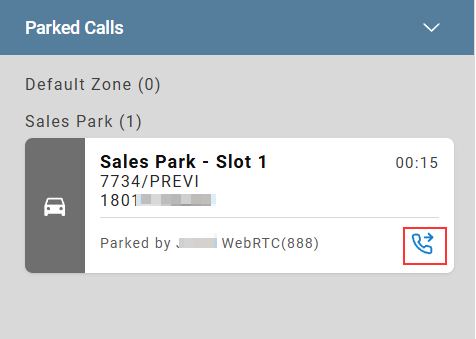
Find the parked call by clicking on the "Parked Calls" button in the lower-left
-
Click the blue Retrieve Call button to answer the call
-
Confirm the call is gone from the zone

Updated 2 months ago