
Create a Report
Create Report is the report builder used to design a custom report from a row type, columns, and an optional summary.
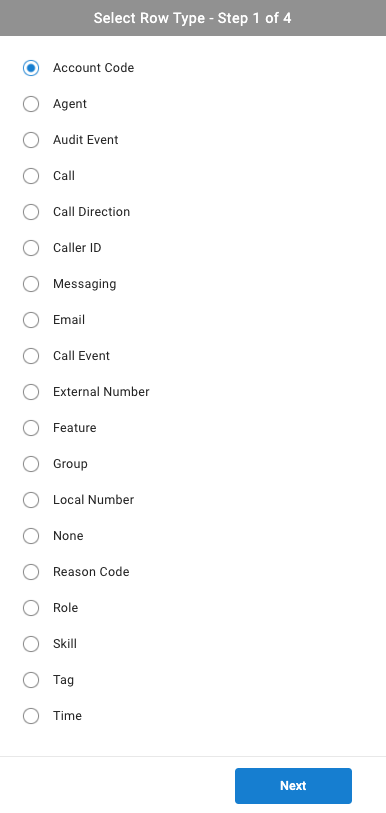
Create Report builds a custom report from the ground up, rather than relying on one of the standard reports already provided. Building a report follows the same four stages regardless of what the report is meant to show: selecting a row type, adding columns, defining an optional overall summary, and finalizing the report.
Accessing Create Report
Create Report is accessible to accounts with Supervisor or Admin permissions.
- Navigate to
Reports > Create Report - The row type selection screen is presented, listing every available row type to build the report around
Building a Report
- Select a row type — see Row Types for how row types map to the underlying report styles
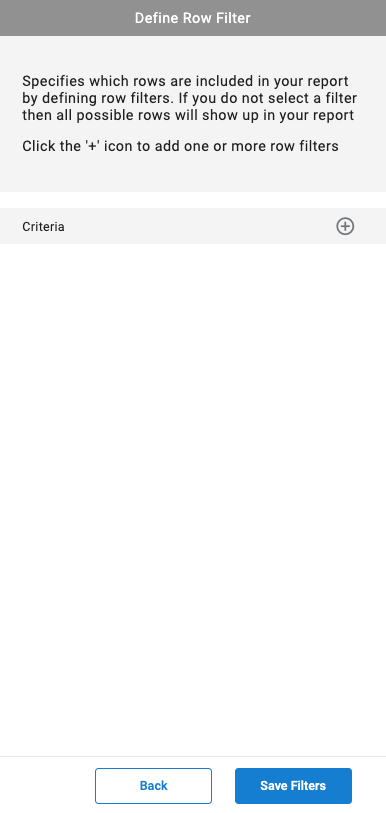
- For a record-level row type, optionally narrow which rows are included — see Row Filter
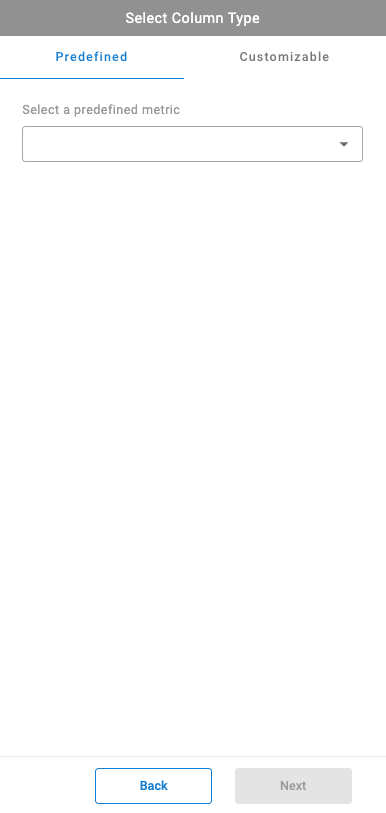
- Add one or more columns from the
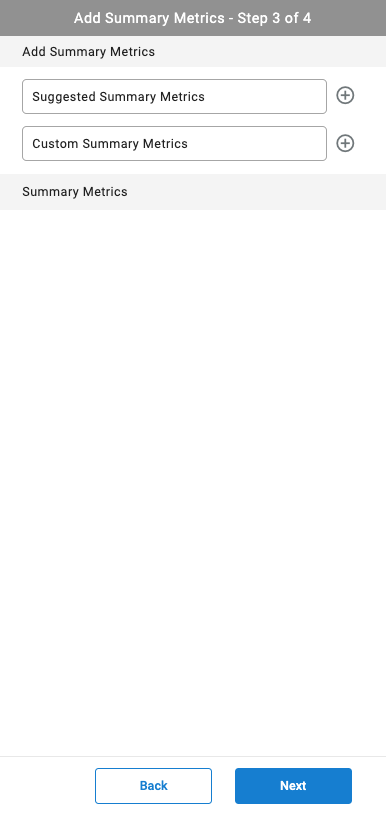
PredefinedorCustomizabletabs — see Column Types - Optionally select which column summaries should display in an overall summary at the top of the report — see Summary Metrics
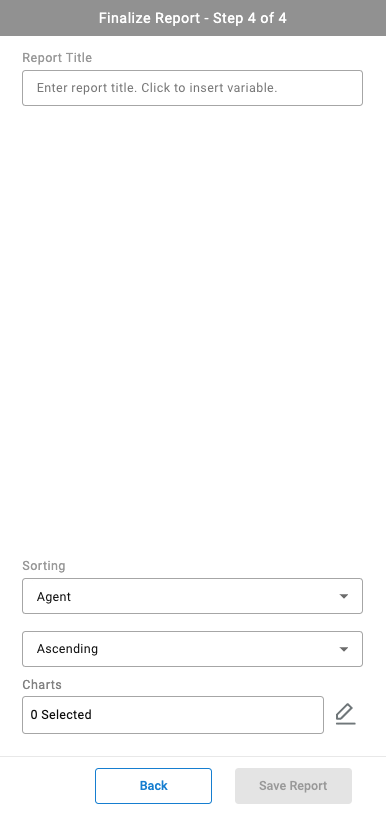
- Finalize the report: set its title, choose a sort column, and optionally add charts, then select
Save Report— see Finalize the Report
Once saved, a custom report behaves the same as a standard report — it appears in My Reports and can be run, scheduled, exported, or assigned to roles and tags the same way.
Every row type falls into one of three report styles — Summary, Record-Level, or Time-Based — which determines what a report's rows represent.
For a record-level row type, optionally narrows which individual records are included in the report.
Columns come from a Predefined tab of ready-made metrics or a Customizable tab built from individual filter criteria.
Adds one or more optional summary values, suggested from existing columns or built custom, to the top of the report.
Sets the report's title, sort order, and optional charts before saving.
Updated 3 months ago