
Reports — Column Types
How predefined and customizable columns are added to a report, and how existing columns are edited or removed.
Every column added to a report in Create Report comes from one of two tabs: Predefined, for ready-made metrics that need little adjustment, or Customizable, for metrics built up from individual filter criteria. Both tabs are available regardless of the row type selected.
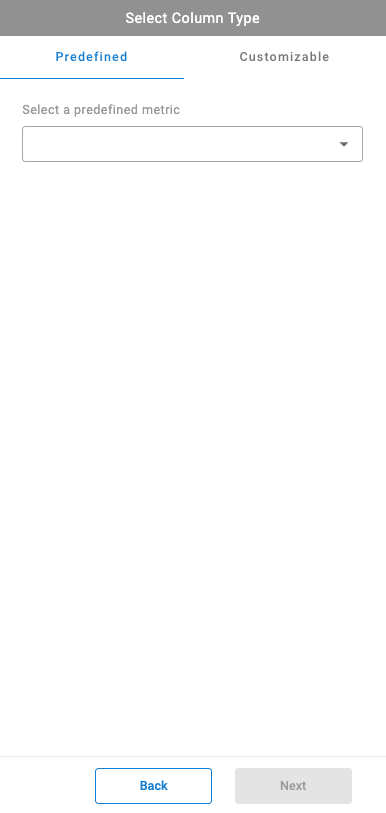
Predefined Columns
The Predefined tab lists ready-made column types for the selected row type, such as Answered Call Count. Selecting a column type presents a column header field — left at its default title or renamed — along with any minimal filter options specific to that column type.
- Select a column type from the
Predefinedtab - Enter or adjust the column header
- Select
Add Column
Customizable Columns
The Customizable tab offers the same metric options as Predefined, but with the flexibility to build the metric from individual filter criteria rather than a fixed definition.
- Select the
+icon next toCriteria - Search for and select the desired filter criteria
- Configure the criteria's associated fields
- Select
Add Column
Saving a Customizable Column as PredefinedChecking
Save as Predefined Columnwhile building a customizable column makes that same column available from the Predefined tab on future reports, instead of rebuilding it from criteria each time.
Editing an Existing Column
Columns already on a saved report can be edited or removed without rebuilding the report from scratch.
- Hover over the column header on the report
- Select the ellipses next to the column name
- Select
Editto reselect a predefined value or adjust the customizable filters, or selectDeleteto remove the column
Updated 3 months ago