
Desktop Client — Installation
How to download and install Desktop Client through the CCaaS web portal.
Desktop Client is downloaded and installed directly from the CCaaS web portal, then used to connect into the CCaaS Admin Client.
Installing via the CCaaS Web Portal
-
Open a browser to the CCaaS web portal URL provided for the organization (for example,
https://<hostname>.xima.cloud/web/) -
Log in with the assigned username and password
-
Navigate to
Launch Client > Desktop ClientIf Desktop Client is not yet installed, a
Desktop Client Not Detectedscreen displays with download instructions for the detected operating system.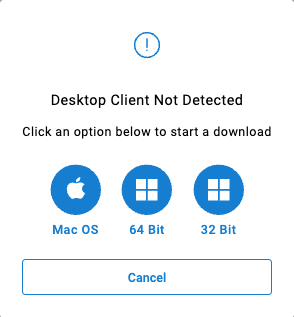
-
Download and run the installer for the current operating system
-
Once installed, navigate to
Launch Client > Desktop Clientagain -
Select
Open Xima CCaaS Desktopfrom the browser prompt -
Log in using the same web portal credentials to connect into the CCaaS Admin Client
Updated 2 months ago