
Managing Formulas
Manage Formulas creates a custom metric from a formula expression while building a report in Create Report, applied as a column wherever its row type matches.
Formulas create a custom metric from an expression combining existing metric values, in the same format as Manage Formulas on the Wallboard Editor. Once saved, a formula is applied as a column wherever its Row Type / Category matches the row type selected for the report.
Opening Manage Formulas
- In Create Report, select a row type
- Select the
⋮menu at the top of the report builder - Select
Manage Formulas
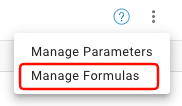
The Manage Formulas window lists every formula already defined for the report.
Formula Fields
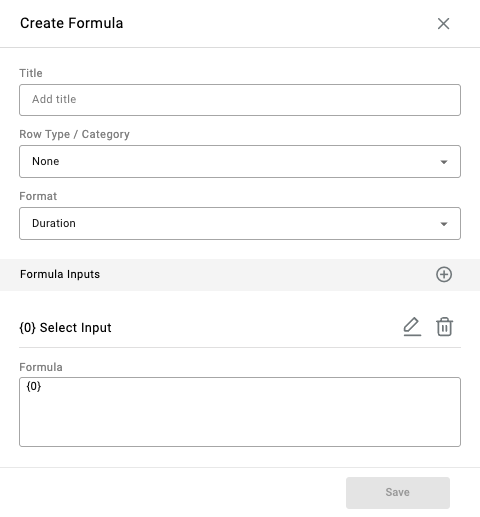
| Field | Description |
|---|---|
Title | Name of the formula |
Row Type / Category | The row type the formula applies to — see Row Types for the full set available in Create Report |
Format | Count, Decimal, Duration, Percent, Boolean, or Text |
Input(s) | The metrics used in the formula, referenced by index ({0}, {1}, etc.) |
Formula | The formula expression combining the inputs |
For example, to add metric A ({0}) and metric B ({1}):
{0} + {1}Formulas as Columns
A formula becomes available as a column option while building a report whose selected row type matches the formula's Row Type / Category.
Updated about 1 month ago