
UC SMS/MMS Queues
Enables SMS on a UC Call Queue so a phone number can queue text messages, or routes an SMS-enabled number directly into a CCaaS skill.
A phone number provisioned for SMS can be queued through a UC Call Queue the same way a voice call is, or routed directly into a CCaaS skill for handling in the Contact Center.
Enabling SMS on a Call Queue
The SMS tab is available on a Call Queue's add or edit screen for any queue whose Type is not Call Park — see UC Call Queues. Toggling Enable SMS to Yes on that tab reveals the following fields:
| Field | Description |
|---|---|
| Initiation Keyword | The keyword a texter must send to enter the SMS queue |
| Initiation Message | The response sent when the conversation begins |
| Initiation Needed Message | The response sent if the texter starts without using the Initiation Keyword |
| Termination Keyword | A keyword (such as DONE) that lets the texter end the chat |
| Termination Message | The message sent when the chat ends |
| No Agents Message | The response sent if no agents are available |
Selecting Save applies the change to the queue.
Assigning the Number to the Queue
- Select
Inventoryfrom the top of the Xima UCaaS Admin Portal, thenSMS Numbers - Existing SMS-provisioned numbers are listed on this page
Selecting the Pencil icon on a number opens its edit fields:
| Field | Description |
|---|---|
| Destination | Where a text sent to this number is routed — see below |
| Number / Extension | The user's extension or Call Queue the number routes to, corresponding to the selected Destination |
Selecting Save applies the change.
Destination
| Destination | Description |
|---|---|
| Available Number | Leaves the number unassigned and available for future use |
| User | Sends texts to a specific user's extension |
| Call Queue | Sends texts into the assigned Call Queue's SMS queue |
Once configured, texting the number enters the caller into the assigned Call Queue, User, or Available Number.
Routing SMS Directly into a CCaaS Skill
Rather than queuing through a UC Call Queue, an SMS-enabled number can instead be routed straight into a CCaaS skill using URL to Skill Mappings.
Point the Number at the Load BalancerThe number's destination should be set to the load balancer's extension rather than a specific queue or user. Routing information comes from the API rather than from the phone number's own configuration, so the load balancer does not need to handle routing itself.
-
While logged in as an Administrator, navigate to
Admin (System) > System Settings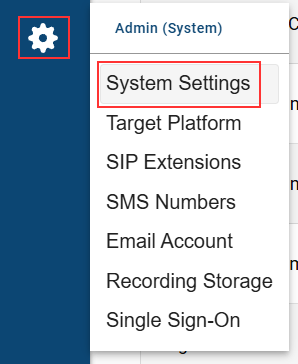
-
Click on the
Messagingmenu, and then select the pencil next toMessaging Configuration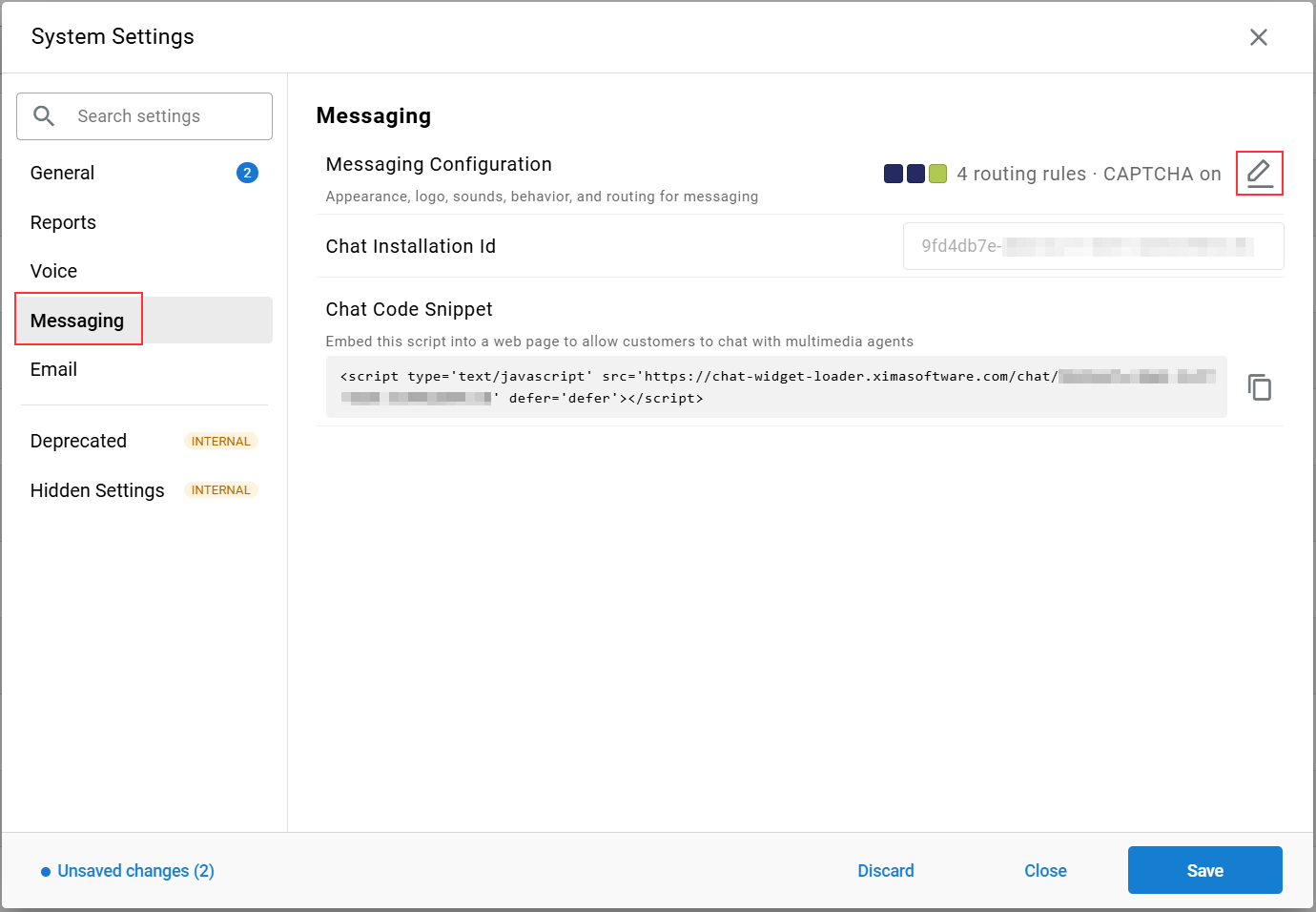
-
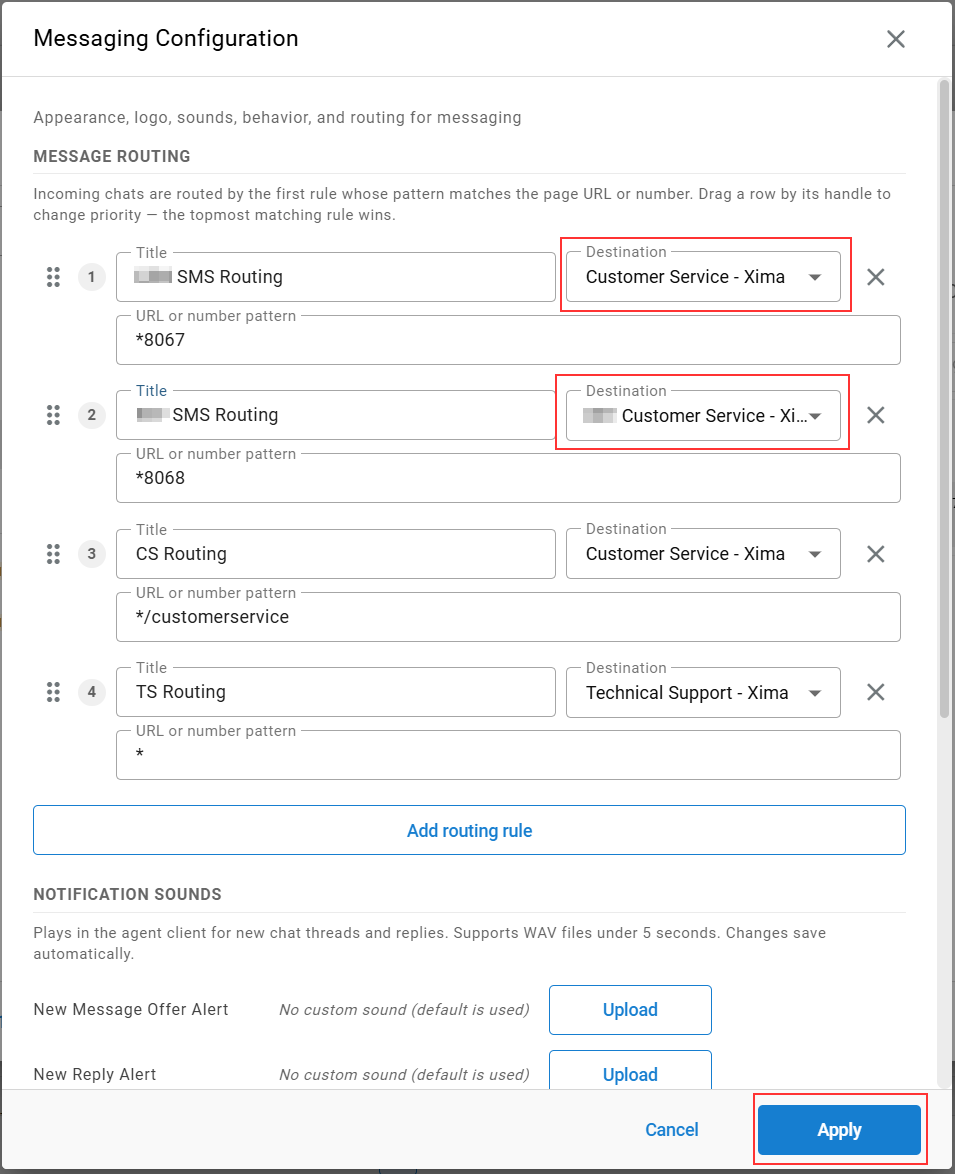
Configure a mapping that routes the phone number to a Skill Destination, using wildcard pattern matching against the number
-
Adjust the priority order of mappings as needed, since multiple patterns can potentially match the same number
-
Select Apply and then Save
Agent Experience
- The Webchat/SMS channel icon appears solid when the agent is available to receive messages
- An incoming SMS presents a Chat Offer screen, which the agent can Accept or Reject
- Accepted messages are handled through the Active Media panel
- Selecting
End Chatfollowed byFinishcompletes the interaction
Agents can also start a new outbound SMS from CCAC by selecting +, then New SMS. SMS interactions appear in Cradle to Grave under the Chat Media Type column and can be reviewed via View Chat.
Updated 25 days ago