
Report Skin Editor
Configures the colors, fonts, layout, and branding applied to a report skin, including creating a custom skin from the built-in default.
Report Skin Editor controls the color scheme, fonts, layout, and branding applied when a report is generated. CCaaS includes a read-only Xima CCaaS (default) skin, and a custom, editable skin can be created from it.
Opening Report Skin Editor
- From My Reports, select the
...menu in the top right corner - Select
Report Skin Editor
The Xima CCaaS (default) skin displays by default, with a live preview on the left and its configuration fields on the right.
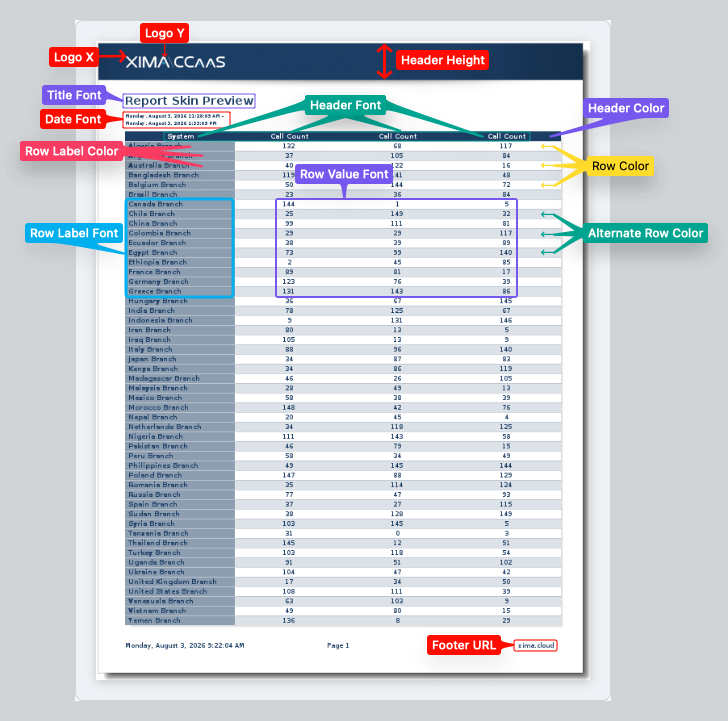
Built-In Skins
Built-In Skins Are Read-OnlyA built-in skin, marked
BUILT-IN, cannot be edited directly. SelectingCreate editable copycreates an editable,CUSTOM-tagged copy pre-filled with the same values.
The Skin dropdown in the top right switches between all available skins. A skin marked DEFAULT is the skin currently applied when a report is generated, and a custom skin can also be set as the default.
Creating a Custom Skin
- Select
Newin the top right corner - Enter a
Skin name - Configure the desired colors, fonts, layout, and images (see below)
- Select
Save
The Live Preview panel updates to reflect changes as they are made.
Colors
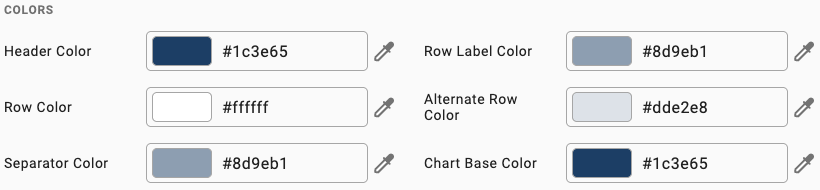
| Field | Description |
|---|---|
| Header Color | Background color of the table's header bar |
| Row Label Color | Background color of the row's background |
| Row Color | Background color for standard (odd) rows |
| Alternate Row Color | Background color for alternating (event) rows, used to visually separate rows in a table |
| Separator Color | Color of dividing lines between sections |
| Chart Base Color | Base color applied to charts generated using the skin |
Each color field accepts a hex value directly, or can be set using the color picker (eyedropper icon).
Fonts
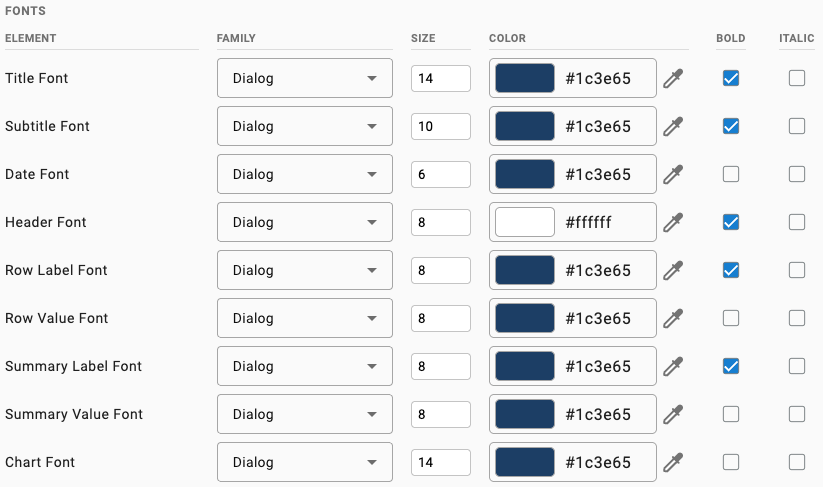
| Element | Description |
|---|---|
| Title Font | The report's main title |
| Subtitle Font | The report's subtitle, when present |
| Date Font | The date range or generation date shown on the report |
| Header Font | Column headers within the report table |
| Row Label Font | Row label text |
| Row Value Font | Row value text |
| Summary Label Font | Summary row labels |
| Summary Value Font | Summary row values |
| Chart Font | Text rendered within charts |
For each element, Family, Size, and Color can be set, along with Bold and Italic toggles.
Layout
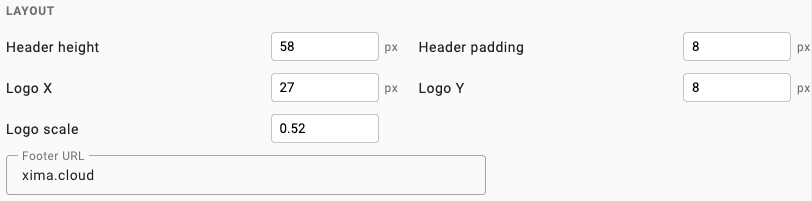
| Field | Description |
|---|---|
| Header height | Height, in pixels, of the header bar |
| Header padding | Padding, in pixels, applied inside the header bar |
| Logo X | Horizontal position, in pixels, of the logo within the header |
| Logo Y | Vertical position, in pixels, of the logo within the header |
| Logo scale | Scale factor applied to the logo image |
| Footer URL | URL displayed in the report's footer |
Images
| Field | Description |
|---|---|
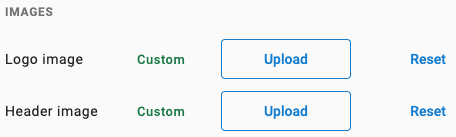
| Logo image | Custom logo image displayed in the header. Upload replaces the current image; Reset restores the default |
| Header image | Custom background image for the header. Upload replaces the current image; Reset restores the default |
Exporting and Importing a Skin
- Select
Exportat the bottom of Report Skin Editor to save the current skin to a file - Select
Importto load a previously exported skin file
Exporting a skin allows it to be shared between CCaaS instances, similar to importing and exporting a report.
Updated 3 months ago