
Call Routing from 3CX
Routes 3CX calls into a skill either directly through a dedicated extension or by tagging a DID and matching it with a Call Routing Rule.
A 3CX call reaches CCaaS by pointing its destination at a SIP extension registered to CCaaS. Which method fits depends on whether each skill has its own dedicated extension, or a smaller number of extensions need to serve multiple skills.
Routing Directly to an Extension
When a skill has its own dedicated CCaaS-registered extension, any 3CX entry point can be pointed straight at it — no additional CCaaS-side configuration is needed.
- A DID's Inbound Rule can set
Route Calls todirectly to the extension - A Digital Receptionist menu option can use
Connect to Extensionto reach it
Prerequisite — SIP ExtensionsThe extension must already be registered to CCaaS — see SIP Extensions.
Routing via a Call Routing Rule
When multiple DIDs need to fan into skills without a dedicated extension for each, a tag applied in 3CX is matched against a CCaaS Call Routing Rule instead.
Tagging the DID in 3CX
-
In the 3CX portal, navigate to
Inbound Rules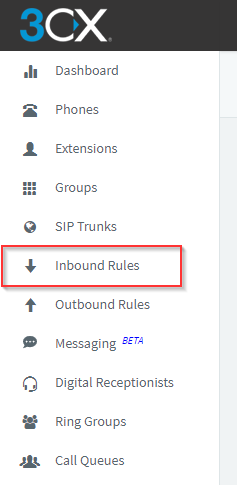
-
Select the DID to route to a skill
-
In the
Namefield, enter a tag identifying the destination skill (for example,Support) -
Under
Route Calls to, confirm the DID is routed to the extension registered as the CCaaS virtual handset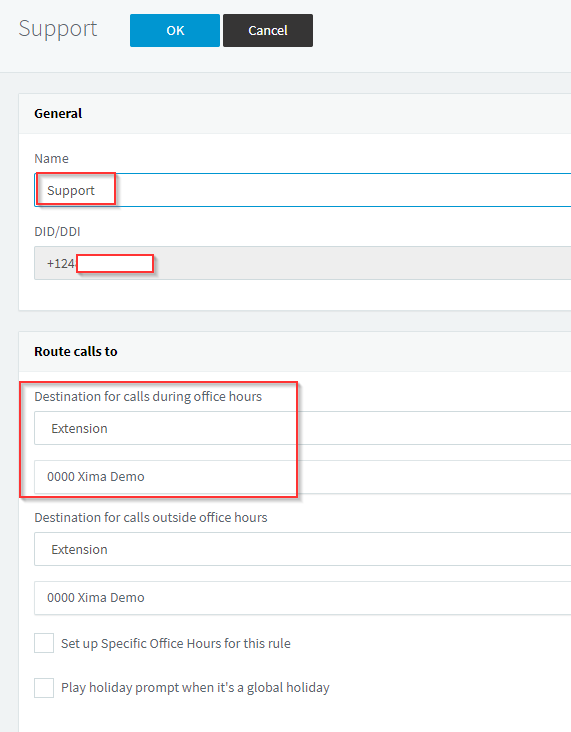
-
Select
OK
Prerequisite — SIP ExtensionsThe extension selected under
Route Calls tomust already be registered to CCaaS — see SIP Extensions.
Configuring the Matching Routing Rule in CCaaS
- Navigate to
Routing Configuration > Call Routing - Select
+to add a new rule - Complete the following fields:
| Field | Description |
|---|---|
| Routing Rule Name | A descriptive name for the rule |
| SIP Header | From |
| Matching | Contains is recommended |
| Value | The tag entered in the Inbound Rule's Name field |
| Destination | The skill the call should route to |
- Select
Done, thenMake Liveto activate the rule
Updated 3 months ago