
WebRTC Agent Voicemail
Available with 5_62+
Requires Call HubAgent voicemail via Xima WebRTC is not available for all sites yet. If you do not know if you have Call Hub enabled or if you are a good candidate for it, feel free to contact Xima Support
Enabling Agent Voicemail as an Overflow Destination
-
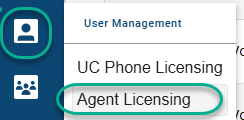
Navigate to User Management and select Agent Licensing
-
Find the applicable agent and select the "..." and select edit.
-
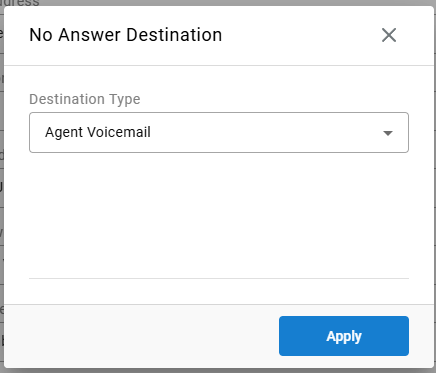
Locate "No Answer Destination" and select the edit icon

-
For the Destination Type, select "Agent Voicemail"
-
Save your changes
No Answer Destination Does Not Apply for Skill CallsIf the agent is presented a queued call and does not answer, the call will roll to the next available agent. The No Answer Destination option defined above applies for direct, internal, or transferred calls to the agent. If the agent does not answer those call, the destination will be utilized.
Managing Voicemail Greetings for Agents
Agents will be able to configure multiple voicemail greetings and may choose which ones apply when they are logged into the contact center and when they are logged out of the contact center.
-
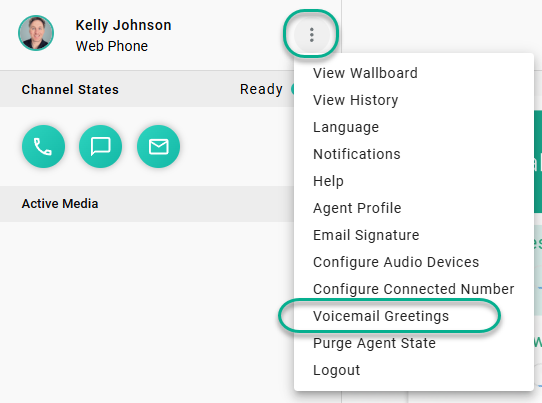
Agents will need to log into CCAC and select the ellipsis "..." near their name in the top left
-
Select "Voicemail Greetings"
-
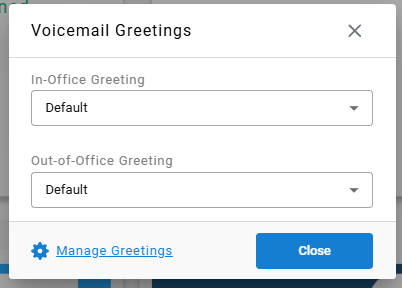
If custom greetings have not been selected, you'll find "Default" is set for both greeting types.
-
The default message is: "The person you are trying to reach is unavailable at this time. Please leave your name, number, and a brief message and your call will be returned as soon as possible"
-
-
You may select the dropdown for each greeting type to select the applicable message (if previously uploaded.
-
To upload a new greeting, select "Manage Greetings" in the bottom left
- Here you will find a list of all messages previously recorded for the agent and the ability to add new greetings via file upload or recording over your computer microphone.
- When naming a new greeting, it is best practice that it be clearly named for its purpose so that it's discernible from future greetings added.
-
Once you've added and/or selected the greetings you need for in-office and out-of-office, be sure to save your changes
In-Office vs Out-of-Office GreetingsThe in-office greeting will be heard if the agent is logged into the contact center but missed the call. The out-of-office greeting is heard when the agent is not logged into the contact center.
Best practices include using your greetings to manage caller expectations. Let them know whether they should expect a quick call back or if it might take a business day or more for you to respond.
Reviewing Voicemails as an Agent
When a pending voicemail exists for an agent, they'll see a new card in the bottom left of their CCAC:
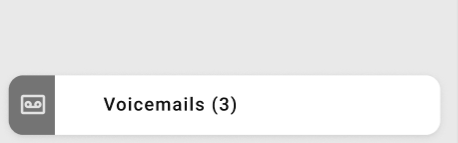
Selecting this card will auto-load all agent voicemails in a history view. This is done by auto-selecting the applicable filters in the History View
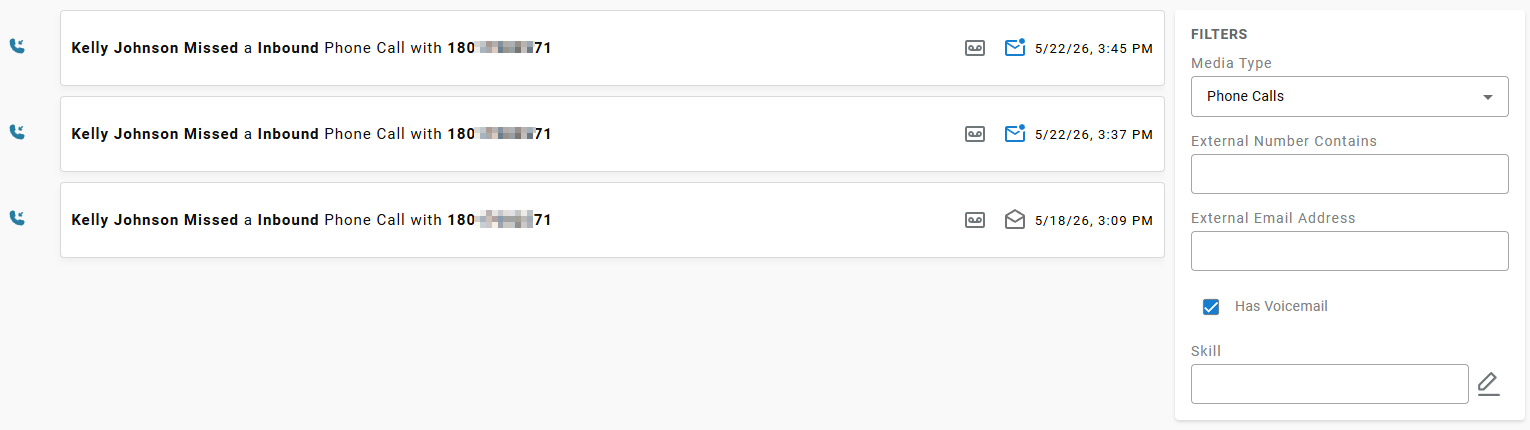
Pending voicemails will remain blue with an unopened icon:

Selecting the voicemail icon will open the voicemail for review:

To change a reviewed voicemail back to a pending state, select the opened mail icon:

Updated 5 months ago