
Agent Voicemail
Agent Voicemail under CallHub lets a missed call route to a personal voicemail box, with configurable greetings and an in-app review workflow.
Requires CallHubAgent Voicemail as described on this page requires CallHub mode (CCAC version 5.62+) and is not available for every site. See Confirming CallHub Mode Is Active.
Agent Voicemail gives an agent a personal voicemail box that can be configured as the overflow destination for missed direct calls, with separate greetings for when the agent is logged into the contact center versus logged out.
Enabling Agent Voicemail as an Overflow Destination
Only administrators can assign Agent Voicemail as an agent's overflow destination.
-
Navigate to
User Management > Agent Licensing -
Locate the agent, select the ellipsis next to their name, then select
Edit -
Locate
No Answer Destinationand select the edit icon
-
For
Destination Type, selectAgent Voicemail -
Save the changes
No Answer Destination Does Not Apply to Skill CallsIf an agent is presented a queued call and does not answer, the call rolls to the next available agent.
No Answer Destinationapplies only to direct, internal, or transferred calls placed to the agent; if the agent does not answer one of those calls, the configured destination is used.
Managing Voicemail Greetings
An agent can configure multiple voicemail greetings and choose which apply while logged into the contact center versus logged out.
-
In CCAC, select the ellipsis near the agent's name in the top-left corner
-
Select
Voicemail Greetings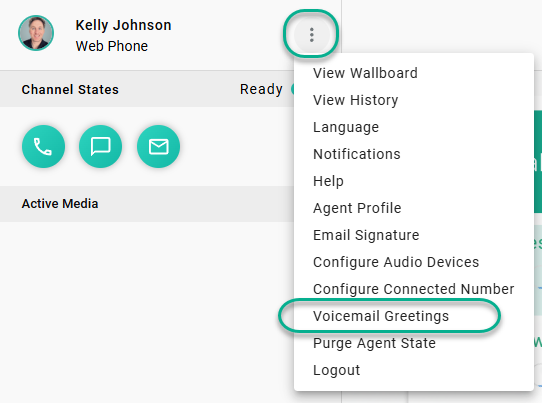
-
If no custom greetings have been selected,
Defaultis set for both greeting types; the default message is: "The person you are trying to reach is unavailable at this time. Please leave your name, number, and a brief message and your call will be returned as soon as possible." -
Select the dropdown for each greeting type to choose a previously uploaded message
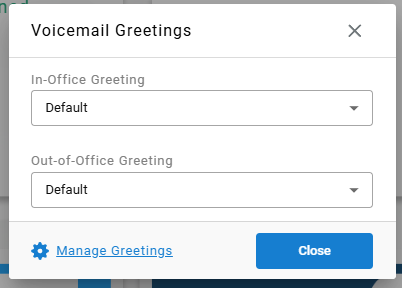
-
To upload a new greeting, select
Manage Greetingsin the bottom-left; this lists all previously recorded messages and allows adding new greetings via file upload or a microphone recording — greetings should be named clearly for their purpose so they remain discernible as more are added -
Save the changes once the in-office and out-of-office greetings are set
In-Office vs. Out-of-Office GreetingsThe in-office greeting plays when an agent is logged into the contact center but misses a call. The out-of-office greeting plays when the agent is not logged into the contact center. Greetings should set caller expectations — for example, whether to expect a quick call back or a longer delay.
Reviewing Voicemails as an Agent
- A pending voicemail displays as a card in the bottom-left of CCAC
- Selecting the card auto-loads all voicemails in the History view by applying the applicable filters
- Pending voicemails remain blue with an unopened icon; selecting the voicemail icon opens it for review
- Selecting the opened mail icon returns a reviewed voicemail to a pending state
Pending

Voicemail

Read

Updated about 1 month ago