
User Interface
An overview of the Contact Center Agent Client (CCAC) layout and its primary interface elements.
The CCAC interface is organized into a left-side panel containing availability controls and active media, with the main content area to the right displaying call or chat details, wallboards, and history views. The core controls visible at all times are the agent profile area, Channel States, and Active Media.
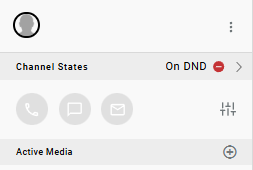
Main Content Area
The content area is context-sensitive and changes based on the current state:
| State | Content Displayed |
|---|---|
| Idle | Default view or wallboard(s) (if configured) — navigate with side arrows. |
| Active | Interaction panel appears with Details, Notes, and Codes tabs. The Active Media tab will list all active interactions. |
| View History | Call history and activity (including chat and email) log for the agent. |
Details, Notes, and Codes
When an interaction is active — or when a record is opened from View History — three tabs appear in the main content area for interacting with or reviewing that interaction.
- Details — Displays the metadata for the interaction. This tab is read-only.
- Notes — Allows free-text notes to be added to the interaction. Notes are saved against the record and visible alongside it in Cradle to Grave. Multiple notes can be posted to a single interaction.
- Codes — Allows one or more account codes to be associated with the interaction for reporting and categorization purposes. Codes must be pre-configured and assigned to the agent before they appear in the dropdown, and are commonly derived from the same AI topics configured for transcription.
Agent Option Menu
Located in the upper-left corner of the panel, the agent profile area displays the agent's name and avatar. Clicking the ellipsis icon (...) to the right of the avatar and name opens the agent options menu.
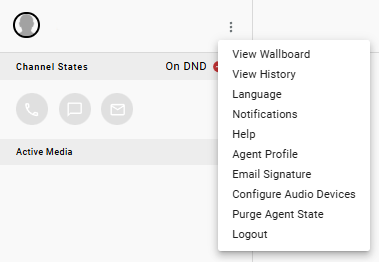
| Option | Description |
|---|---|
| View Wallboard | Opens real-time wallboard(s) shared with the agent's assigned role(s) |
| View History | Switches the main view to call history and activity (including chat and email) for the agent |
| Language | Changes the display language of the CCAC interface |
| Notifications | Manages notification preferences for the agent |
| Help | Links to CCAC documentation |
| Agent Profile | Opens the agent's profile settings, including recording mode, sourced from the agent's licensing and UC licensing |
| Email Signature | Configures the agent's email signature used in email channel interactions |
| Configure Audio Devices | Selects the microphone and speaker devices used by the WebRTC softphone |
| Purge Agent State | Resets a stuck or stale agent state when availability does not reflect correctly |
| Logout | Ends the current CCAC session, prompting a reason selection if Busy Codes are configured, consistent with the reason selection on the Channel States toggle |
Log Out Before Closing the BrowserClosing the browser tab without logging out may leave the agent session active. Administrators can monitor and manage active sessions from the administrative interface.
Notifications
Selecting Notifications opens a list of pop notifications — covering DND, extension logout, group logout, inbound calls, internal calls, and outbound skill activity — that can be individually toggled on or off, saved with Save.
Confirm Before DisablingAn agent should confirm with a supervisor or manager before turning off any notification, since some notifications may be relied on for skill-based coverage.
Notification Permissions Depend on the Load EnvironmentBrowser-level notification permission is only required when CCAC is loaded in a web browser. This permission step does not apply when CCAC is loaded through a standalone desktop client instead.
Inbound Desktop Notifications
Enabling Inbound Desktop Notifications requires an additional browser-level permission grant.
-
Toggle
Inbound Desktop Notificationson and selectSave -
Select
Allowon the browser's notification permission prompt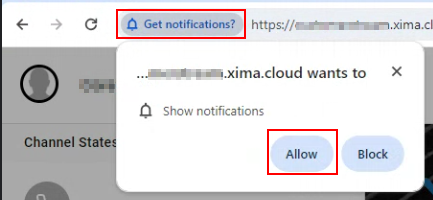
-
Within the operating system's notification settings for the browser, confirm notifications are enabled and banners/sounds are turned on
Change Password
An agent's CCAC password defaults to their extension number and can be changed at any time.
- Select
Agent Profilefrom the agent options menu - Select
Reset Password - Follow the instructions in the emailed reset link to set a new password
Purge Agent State
Purge Agent State clears a stuck or stale CCAC state — for example, when a call event does not properly end on the CCaaS side.
Requires EnablementThis option requires Xima Support to enable the feature toggle for the tenant before it appears in the agent options menu.
Does Not End the Underlying CallPurging the agent's state only clears the CCaaS-side call state — it does not hang up the actual phone or softphone call, which continues to be connected. Once purged, the agent returns to Ready and may immediately be routed a new call.
Channel States
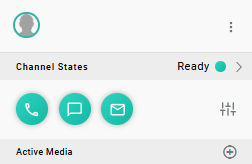
The Channel States section sits directly below the agent profile area and is the primary availability control surface. It displays both the agent's current Ready/Not Ready state and the individual media channel icons.
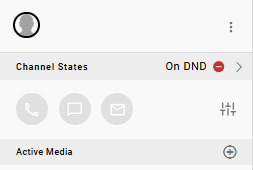
Not Ready State
Ready State
Agent States
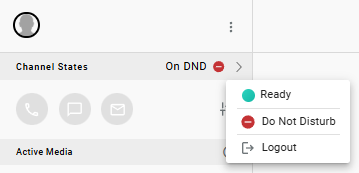
The toggle at the top of the Channel States row controls whether the agent is available to the contact center queue:
- Ready (green indicator) — The agent is available to receive inbound interactions routed through their assigned skills
- On DND (red indicator) — The agent is Not Ready; no skill-based interactions will be delivered.
Clicking the row or the toggle switches the state. If Busy Codes have been configured and assigned, switching to Not Ready prompts a reason selection window before the state change is applied.
CC DND is independent of Phone-level DNDAn agent on CC DND can still receive direct extension calls that bypass the contact center queue.
Activating Do Not Disturb directly on the physical phone sets DND at the extension level — this affects all calls to that extension, not just contact center traffic. A small red indicator on the channel icon in CCAC will reflect that the phone is on DND.
Channel Icons
Channel States determine which media types the agent is actively available to receive. When a channel icon is blue, the agent is available to receive interactions on that channel.
Each channel is represented by icons:
| Icon | Channel | Active State |
|---|---|---|
| Phone | Voice | Green when the agent is available to receive inbound queue calls |
| Message | Web Chat | Green when the agent is available to receive inbound chat sessions |
| Envelope | Green when the agent is available to receive inbound email interactions |
When the agent is On DND, all channel icons appear grayed out regardless of their individual settings.
Toggling Skill(s)
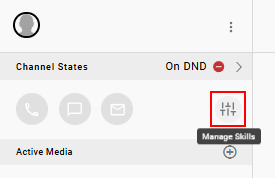
The sliders icon on the right side of the channel icons opens the Manage Skills panel. This control allows the agent to log in or out of individual skill groups without changing the overall Ready state.
- Toggle each skill group on or off individually
- Use the
Toggle Alltoggle at the top of the panel to adjust all skills at once
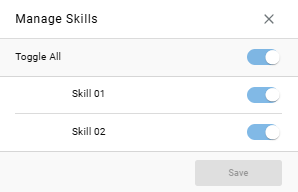
An agent who has deselected all skill groups will not receive inbound queue interactions even if their Ready state is active.
Active Media
The Active Media section at the bottom of the left panel is where live interactions appear during a call or chat session.
Clicking + icon opens the new interaction menu:
- New Call — Opens the pad interface to place an outbound call
- New SMS — Opens the pad interface to place an outbound SMS
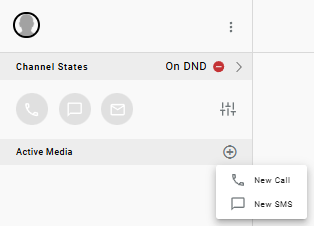
When an active interaction is present, the Active Media section displays the interaction details and expands to show the media controls alongside the Details, Notes, and Codes tabs in the main content area.
New Call
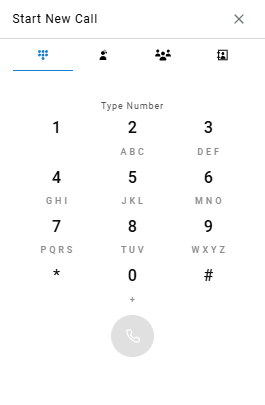
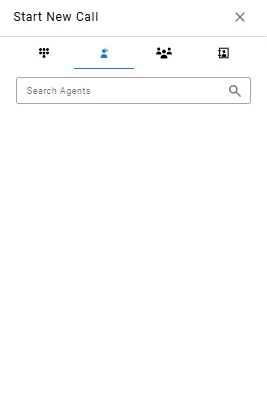
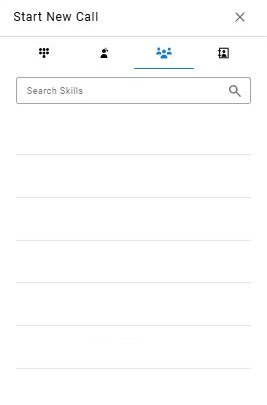
Initiates an outbound voice call from the agent's extension. The dial interface provides multiple ways to reach a destination — by manually entering a number, selecting an internal agent or skill group, or choosing a saved contact.
- Dial Pad — Manual number entry for dialing any external or internal number
- Internal Agent Contacts — List of available CCAC agents that can be reached directly
- Internal Skill Contacts — List of skill groups that can be dialed to call into a skill (queue)
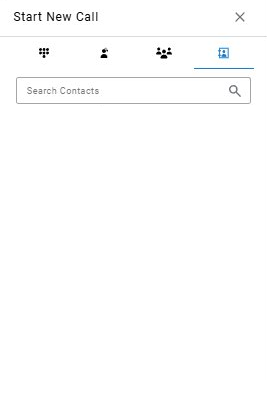
- Phonebook Contacts — Saved contacts from the CCaaS phonebook
Dial Pad
Internal Agent Contacts
Internal Skill Contacts
Phonebook Contacts
New SMS
Initiates an outbound SMS conversation to an external number. The dial interface supports manual number entry or selecting a saved contact.
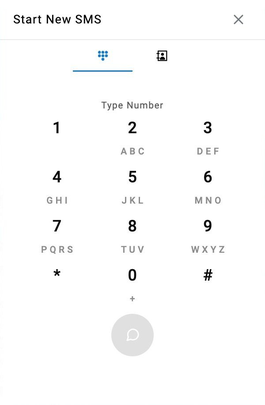
- Dial Pad — Manual number entry for sending an SMS to any external number
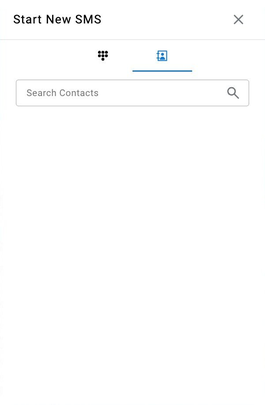
- Phonebook Contacts — Saved contacts from the CCaaS phonebook
The currently assigned outbound number is displayed in the dial interface — this is the number the recipient sees as the sender. If more than one labeled number is available, a different one can be selected from the dropdown next to the displayed number.
Only Labeled Numbers Are SelectableOnly SMS-enabled numbers that have been labeled by an administrator appear in this dropdown — see SMS Numbers for how numbers are labeled and made available to agents.
Dial Pad
Phonebook Contacts
Updated about 2 months ago