
Forwarding Rule for Failover
Forwards calls to a secondary CCaaS Call Queue if the primary Call Queue becomes unavailable, so calls continue to be delivered during an outage.
A Custom Rule on the primary RC/ACO Call Queue can forward calls to a secondary CCaaS Call Queue on demand, providing a manual failover path if the primary queue stops functioning correctly.
Creating the Rule
The rule is created on the primary Call Queue and forwards to a secondary queue that routes to CCaaS.
Rule Activates ImmediatelySaving the rule activates it immediately, routing calls to the secondary queue right away.
-
Log into the RC/ACO admin portal
-
Navigate to
Phone System > Groups > Call Queues -
Create or select the primary Call Queue with the appropriate RC/ACO users assigned
-
Create a secondary CCaaS Call Queue that routes to the primary SIP extension — see Call Routing from RC/ACO
-
Within the primary Call Queue, open
Call Handling & Members > Custom Rulesand select+ Add Rule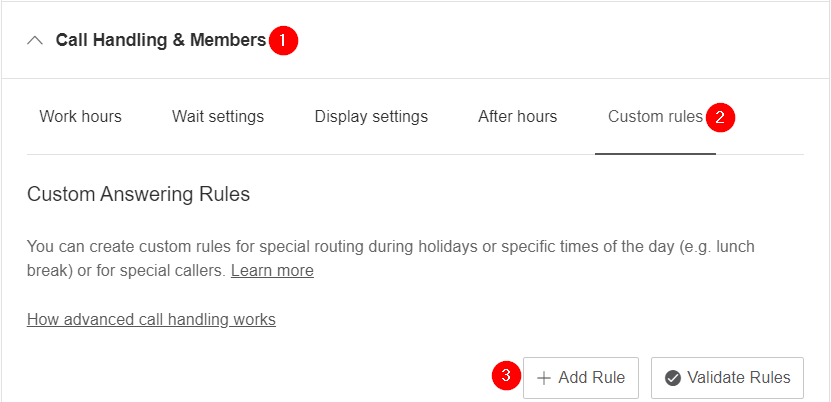
-
Select the
Date and/or Timecondition with aWeekly Schedule, enable every day, and check24 hours -
Set
Apply totoEvery dayand selectNext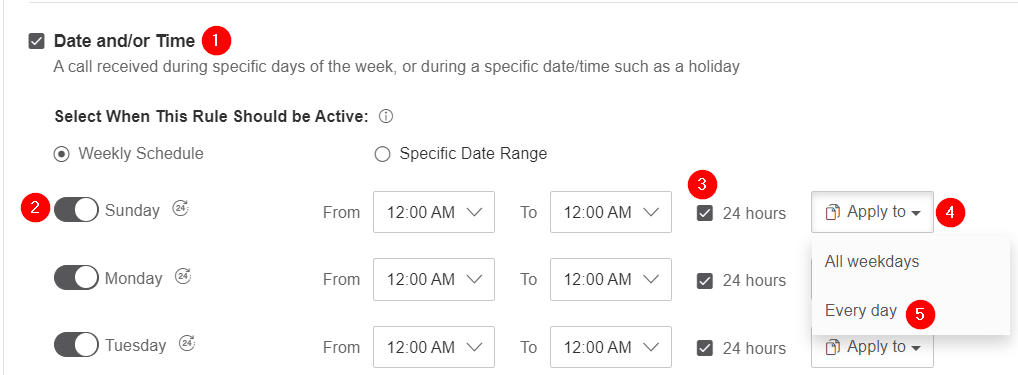
-
Select
Forward to extension, then select the extension for the secondary CCaaS Call Queue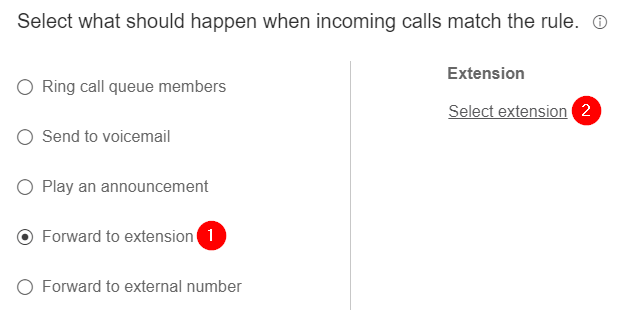
-
Name the rule and select
Save
Time-of-Day RoutingTime-of-day routing should be handled by the DID or IVR, not this custom rule — the rule itself should apply at all hours.
Using the Failover
Deactivating the rule reverses the failover and restores normal routing to the primary queue.
- Log into the RC/ACO admin portal
- Within the primary Call Queue, open
Call Handling & Members > Custom Rules - Locate the failover rule and toggle it off to deactivate forwarding
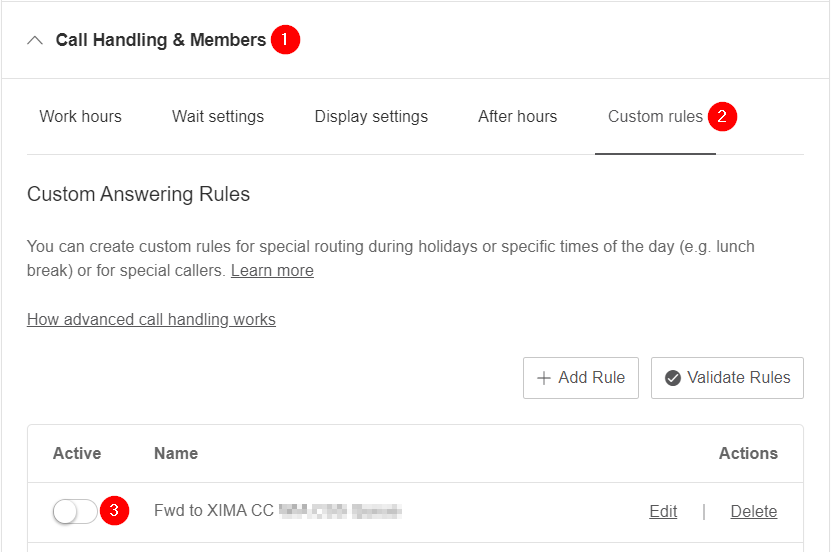
Calls then route to the primary Call Queue directly instead of forwarding to the secondary CCaaS Call Queue.
Updated 3 months ago