
Skills — Configuring an SMS Skill
Configuring an SMS Skill creates a skill named SMS that credits and reports on fresh outbound SMS messages, with canned messages agents can select when sending them.
Any skill can send and receive SMS messages if the site and its agents are properly licensed. A skill named exactly SMS serves a narrower purpose: reporting on fresh outbound messages — those an agent starts, rather than a reply to an inbound inquiry — and giving agents a set of canned messages to choose from when sending them.
Outbound Messages Are Credited to an "SMS" SkillAt this time, all outbound messages that are not replies to an inbound inquiry are credited to a skill named
SMS. This skill does not appear in the skill list by default and must be created manually.
Creating the SMS Skill
- Navigate to
Contact Center > Manage Skills - Confirm
SMSis not already a configured skill - Select
+to add a new skill - Name the skill exactly
SMS
Messaging Settings
Messaging settings configure how web chat and SMS/MMS interactions are handled within the skill group. These settings control the chat widget's appearance and availability state, how agents and customers are managed during inactive periods, and predefined response options available to agents.
| Field | Description |
|---|---|
| Invite Header Text | The header text displayed in the chat widget on the configured web page. |
| When All Agents Busy | Controls chat widget behavior when all agents are unavailable: options are to hide the chat box, offer email, or place the visitor in a chat queue. |
| When No Agents Logged In | Controls chat widget behavior when no agents are logged into the skill: options are to hide the chat box or offer email. |
| Canned Messages | Predefined responses agents can use to quickly address common questions or frequently repeated information. |
| Custom Chat Text | Customizes the display labels and text within the chat widget interface shown to visitors. |
| Agent Response Timeout | The maximum time an agent has to respond to a messaging interaction before the interaction is flagged, reassigned, or escalated based on system configuration. |
| External Party Timeout | The maximum time the system waits for a response from the customer before the messaging interaction is considered inactive and closed or escalated. |
| Auto Answer | When enabled, incoming messaging interactions are automatically accepted by the agent without requiring manual acknowledgment in CC-Agent Client. |
Adding Canned Messages for Outbound SMS
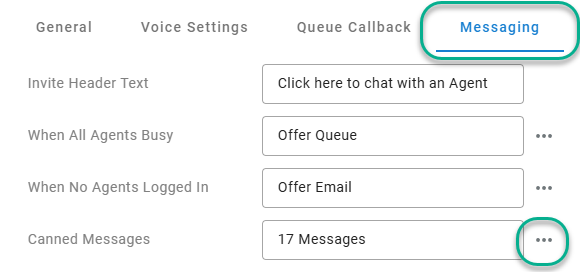
- Select the
Messagingtab on theSMSskill - Select the
...menu next toCanned Messages, then select the edit option - Add each canned message to make available for agent selection on new outbound SMS messages
- Select
Save
Configuring Canned MessagesSee Canned Messages for how canned messages are authored and managed more generally.
Updated 3 months ago