
Skill Playbooks
Skill Playbooks put the right reference content in front of agents at the moment they need it. You write a playbook once on a skill, and every agent handling an interaction on that skill sees it in a Playbook tab beside the conversation, whether the interaction is a call, chat, email or SMS.
What a Skill Playbook is
A Skill Playbook is a page of formatted reference content attached to a skill. It can hold anything an agent needs to handle that kind of interaction well, for example:
- Greeting and closing scripts
- Frequently asked questions and approved answers
- Policy reminders, such as refund rules or verification steps
- Troubleshooting steps
- Links to knowledge base articles, forms or internal tools
The content is static: agents see exactly what you wrote, the same for every interaction on that skill. It isn't generated or changed per interaction.
Why use it
- Faster, more confident agents. The answer is already open next to the interaction, so agents don't need to search a wiki, a shared drive or a sticky note while the customer waits.
- Consistent customer experience. Every agent on a skill works from the same script and the same policy wording, across every channel.
- Shorter ramp-up for new agents. New hires and agents covering an unfamiliar queue get the essentials for that skill on screen automatically.
- One place to update. Change the playbook on the skill, and agents see the new version on their next interaction. You don't need to send it out or retrain anyone on where to find it.
- Works across channels. One playbook covers voice, chat, email and SMS for that skill.
Configure a Skill Playbook
Who can do this: administrators who can edit skills in Manage Skills.
Playbooks are edited in the web admin only. The desktop admin client doesn't show or edit them, and saving a skill there doesn't remove an existing playbook.
- Open Manage Skills and select the skill you want to add a playbook to.
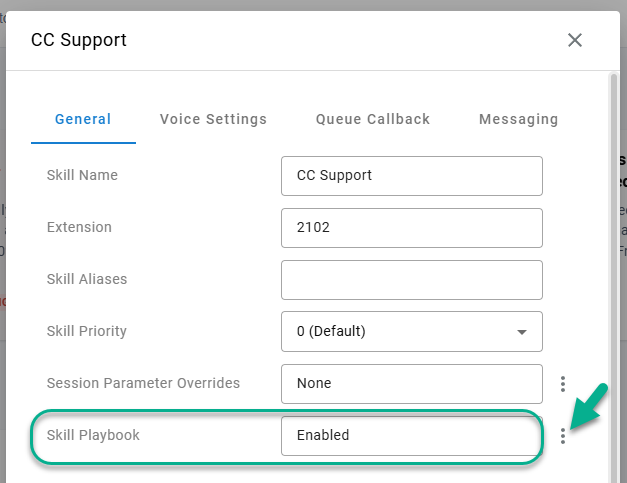
- On the General tab, find the Skill Playbook row. It shows Enabled or Disabled.
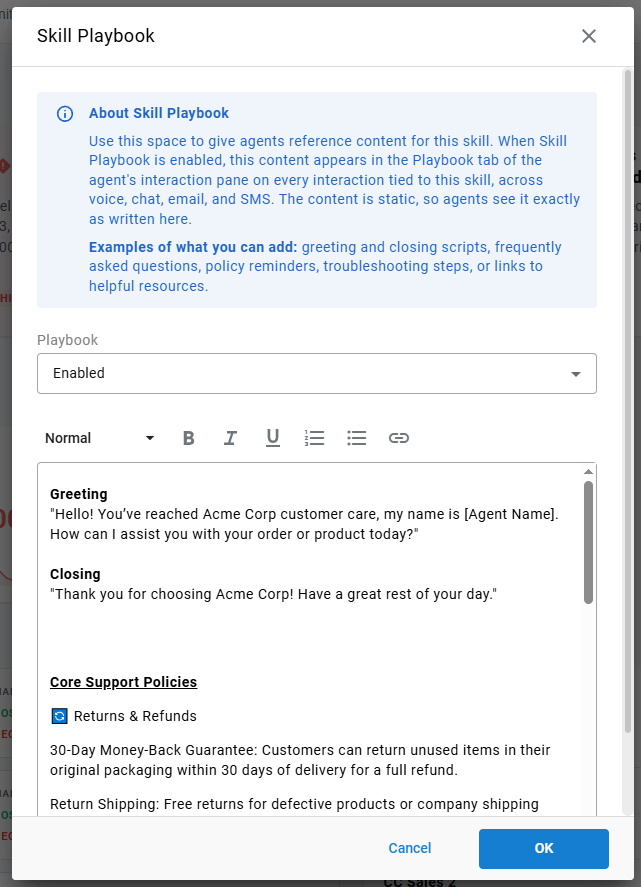
- Select the ⋮ button on that row. The Skill Playbook dialog opens.
- Set Playbook to Enabled.
- Write the content in the editor (see Formatting options).
- Select OK to close the dialog.
- Select Save on the skill.
Important: OK only closes the Skill Playbook dialog. The playbook isn't saved until you save the skill itself. If you cancel out of the skill, the playbook changes are lost.
Formatting options
The editor toolbar offers:
| Option | Use it for |
|---|---|
| Heading / Subheading | Section titles, such as "Greeting" or "Refund policy" |
| Bold, Italic, Underline | Emphasis |
| Numbered list | Steps the agent should follow in order |
| Bulleted list | Checklists and key points |
| Link | Web pages (https:// or http://) and email addresses (mailto:) |
Anything else is removed when the playbook is saved, including when you paste content from another document. Images, tables, colors, fonts and other heading sizes aren't kept; the text inside them is kept where there is any.
Length limit
A playbook can hold about 1,200 words of formatted text (10,000 characters of underlying formatted content). Once a playbook reaches 80% of the limit, the dialog shows how much of the limit it uses. Over the limit, the dialog shows The playbook is too long. Shorten it to save. and OK is unavailable until you shorten it.
Keep in mind that agents read the playbook beside a live conversation. Short sections with clear headings are easier to use than long paragraphs.
Turn a playbook off
Set Playbook to Disabled, select OK, then save the skill. Agents stop seeing the Playbook tab for that skill. The content stays on the skill, so you can turn it back on later without rewriting it.
You can't save a playbook that is Enabled but has no content. The dialog shows Add playbook content, or set the playbook to Disabled.
Tips for a useful playbook
- Lead with what agents need first, usually the greeting and verification steps.
- Use Heading for each topic, so agents can scan to the right section.
- Use numbered lists for anything that must be done in order.
- Link to the full article instead of copying long documents into the playbook.
- Review playbooks when policies change; there's one place to update per skill.
The agent experience
When an agent handles an interaction whose skill has an enabled playbook, a Playbook tab appears in the details pane next to the interaction, ahead of the Details, Notes and Codes tabs.
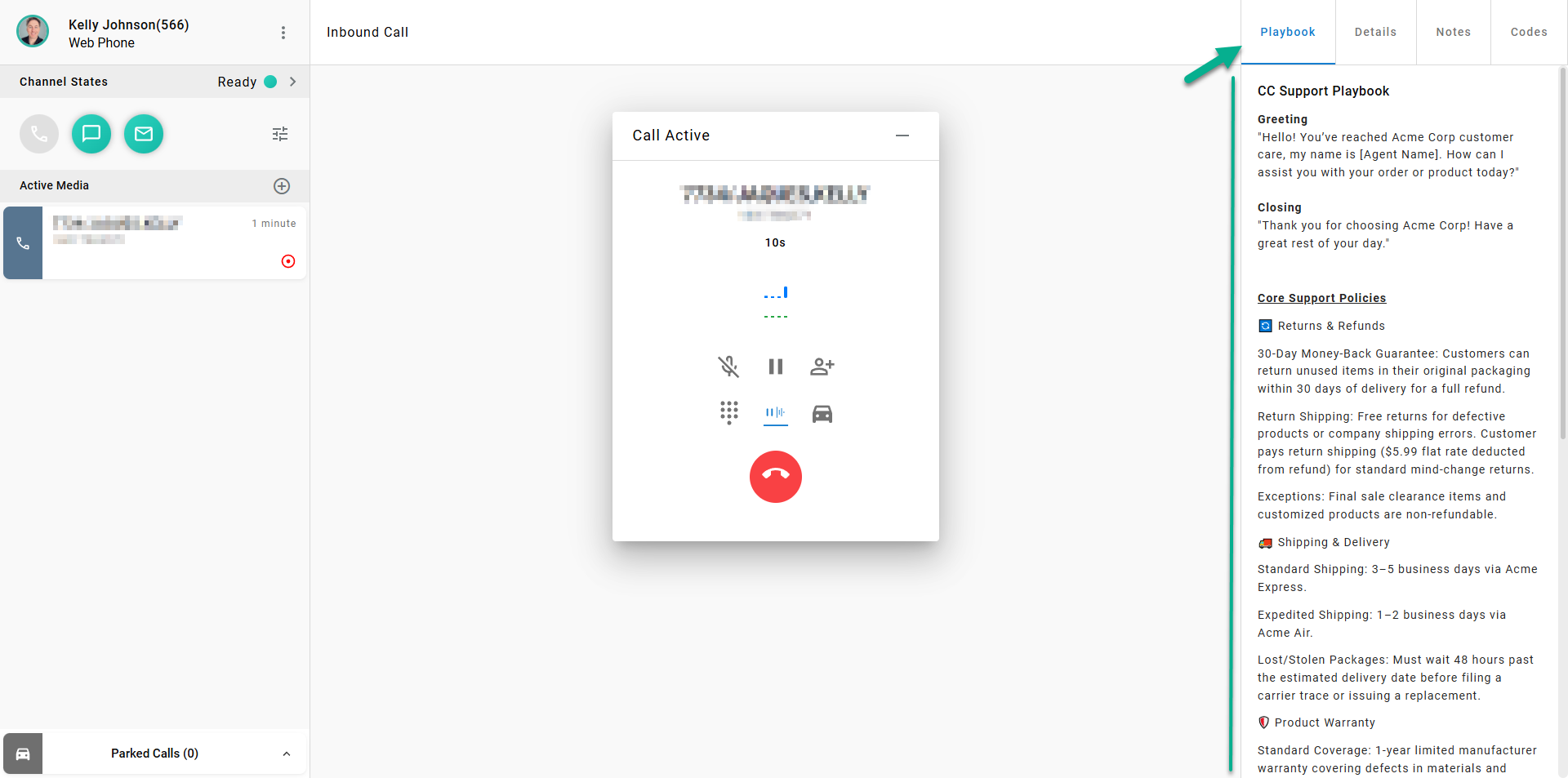
- It opens automatically. The details pane opens on the Playbook tab. The exception is an interaction handed off from an AI agent: it opens on the Handoff tab so the agent reads the AI summary first, and the Playbook tab is right next to it.
- It's titled with the skill, for example Billing Support Playbook, so the agent knows which guidance they're looking at.
- Every channel. The tab appears on calls, chats, emails and SMS conversations routed on the skill.
- Links open outside the agent app. Selecting a link opens it in a new browser window or the agent's email program, so the interaction stays in place.
- It follows the skill. If an interaction is transferred to a different skill, the tab switches to that skill's playbook. If the new skill has no playbook, the tab goes away.
- Read-only. Agents can read and use the playbook but can't change it.
- Only when there's something to show. Skills with no playbook, or with the playbook disabled, show no Playbook tab at all.
If the playbook can't load, for example because of a brief connection problem, the tab shows The playbook could not load. with a Retry button.
When agents see changes
Agents see an updated playbook on the next interaction they open after you save the skill. An interaction already open on the agent's screen can keep showing the version it loaded.
Frequently asked questions
Does a playbook replace the AI handoff summary?
No. They work together. The Handoff tab describes this specific customer and conversation; the Playbook tab gives the standard guidance for the skill.
Can I have different playbooks for voice and chat on the same skill?
No. A skill has one playbook, shown on every channel routed through that skill. If voice and chat need different guidance, use headings within the playbook, such as "On calls" and "On chats".
Is the playbook content recorded with the interaction?
No. The playbook is reference content for the agent. It isn't saved to the interaction record or included in reports.
Updated about 6 hours ago