
View History
View History displays an agent's interaction history within CCAC, providing a quick reference to past calls, messages, and emails with filtering and recording playback.
View History surfaces a paginated log of the agent's interactions — calls, messages, and email — directly within CCAC without leaving the agent interface. Records can be filtered by date range, media type, external number, or email address, and recordings and transcripts can be accessed directly from each entry. For full historical reporting across a broader date range or across other agents, supervisors should use Cradle-to-Grave.
Accessing View History
- Click the ellipsis icon (
...) next to the agent name in the upper-left corner of CCAC - Select
View Historyfrom the dropdown menu
The main content area switches to the history view, displaying the agent's most recent interactions.
History Log
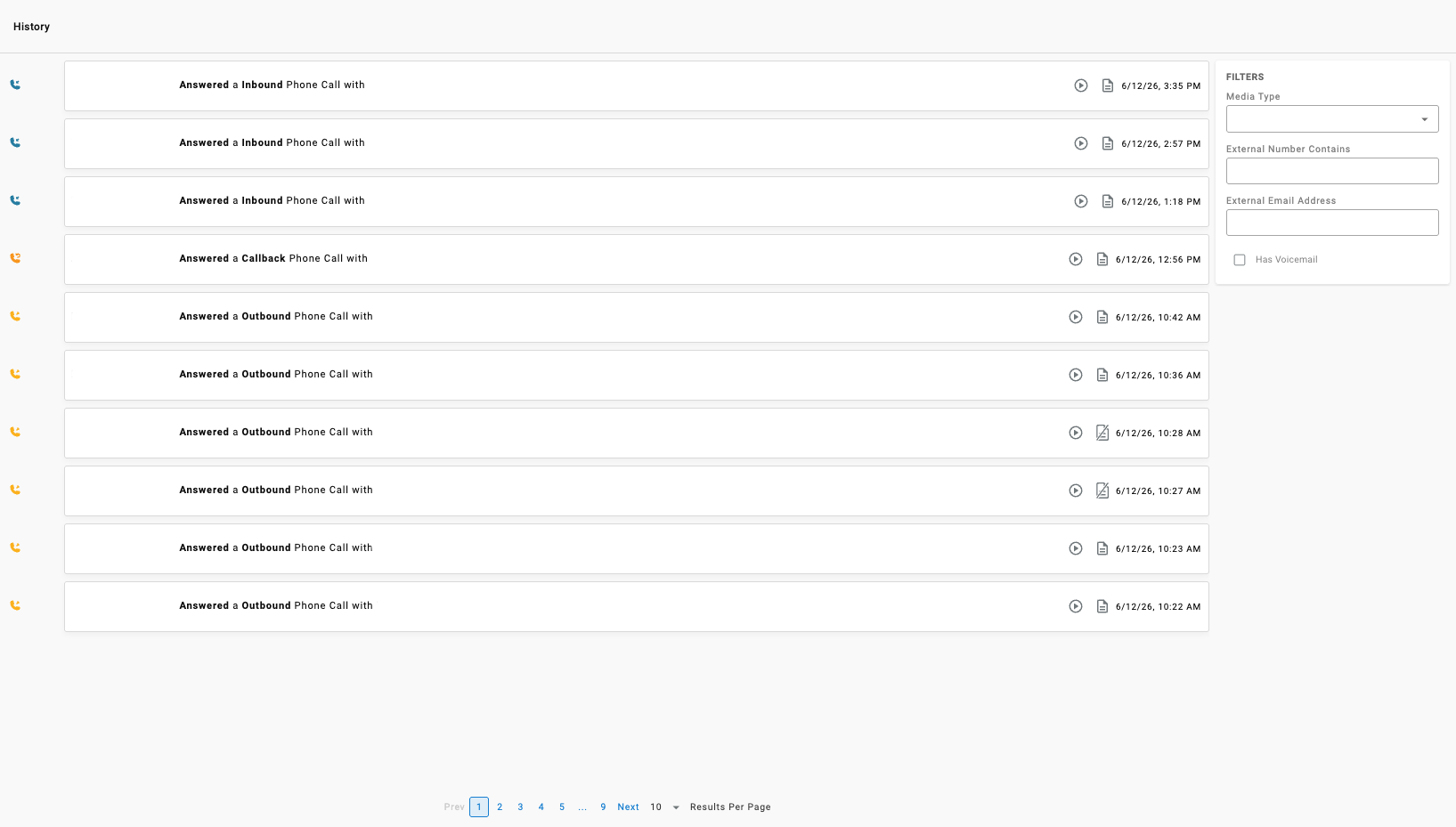
Each record in the log displays the interaction type, direction, and timestamp. Records are paginated and the number of results per page is configurable.
View History reflects recent interactions from the current session.It is not a full historical record — only the most recent interactions are shown.
Call History
The icon on the left side of each record indicates the call direction or type. Each icon is clickable and redials the external number associated with that record.

How a Redial ConnectsRedialing from a WebRTC device dials out immediately. Redialing from any other phone first calls the agent's extension, then places the outbound call once answered.
Inbound

Outbound

Callback

- Inbound — external number reached the agent's CCAC via voice channel
- Outbound — external number was dialed to from the agent's CCAC via voice channel
- Callback — external number was dialed to via callback from the agent's CCAC via voice channel
Viewing a Call Record
Clicking a call record opens a detailed view of that interaction.
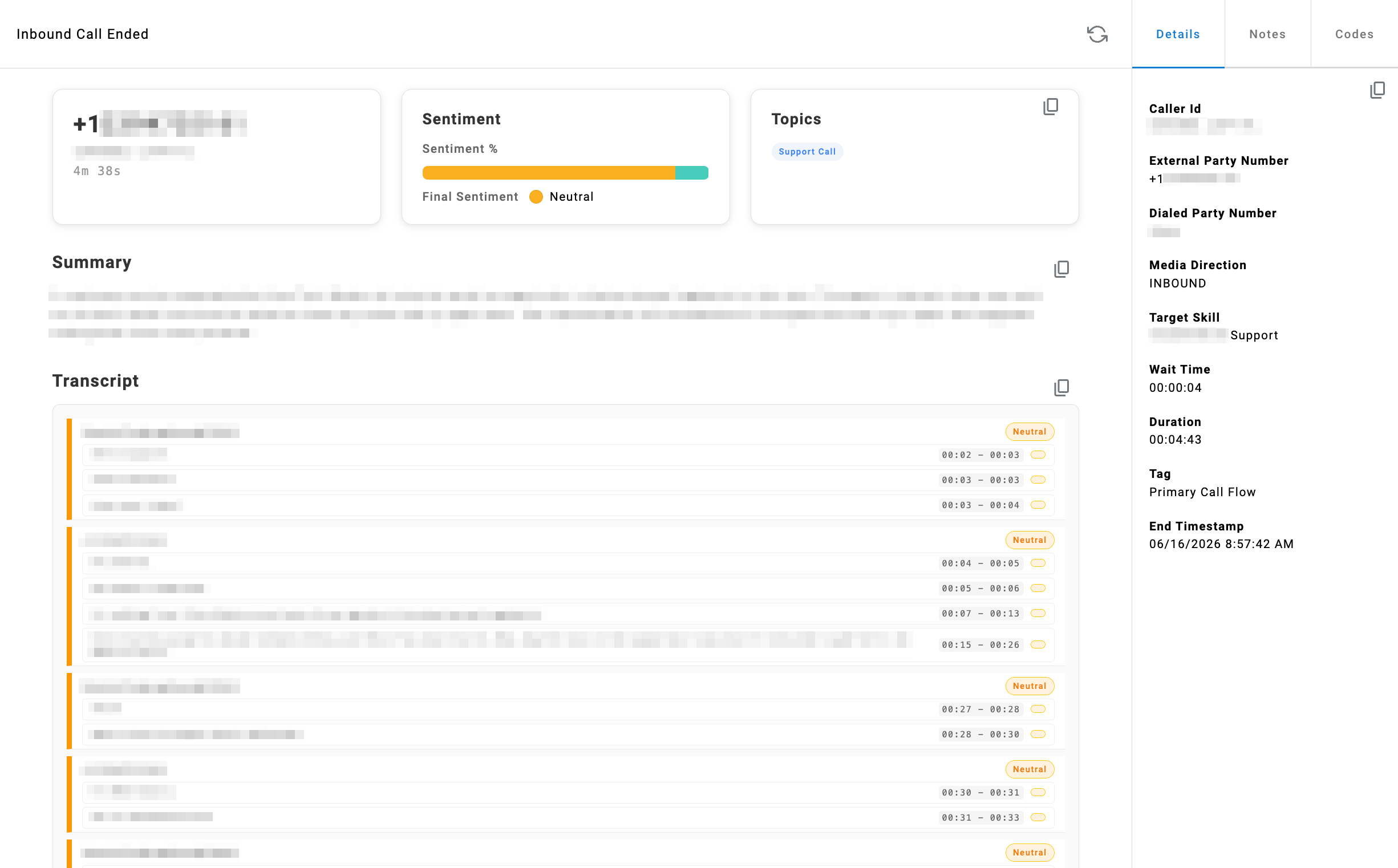
The main content area displays:
- Call Information — External number, external party location, and call duration
- Sentiment — A sentiment percentage bar and final sentiment label derived from the call transcription
- Topics — Transcription topics automatically associated with the call based on its content
- Summary — An AI-generated top-level summary of the call
- Transcript — A timestamped, speaker-segmented transcript of the full call with per-segment sentiment labels
The Details, Notes, and Codes panel on the right side of the view displays the call metadata, notes, and account codes attached.
Chat and SMS History
SMS

- SMS — external number was interacted via SMS channel
Viewing Chat and SMS Record
Clicking a chat or SMS record opens the full message thread for that interaction.
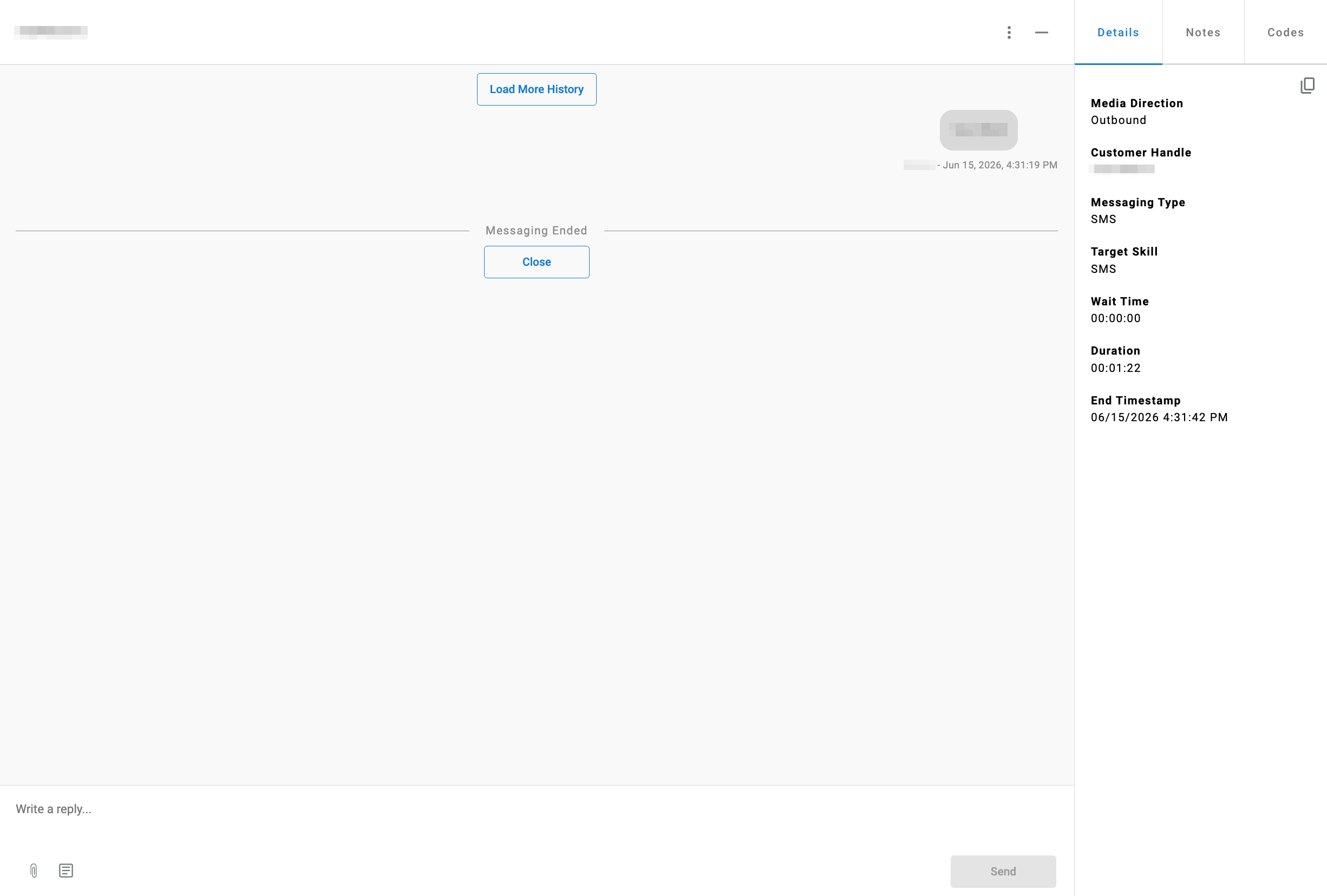
The main content area displays:
- Message Thread — The full conversation history between the agent and the external party, displayed chronologically. Older messages can be loaded using the
Load More Historybutton at the top of the thread. - Messaging Ended — A divider indicating where the session closed. A
Closebutton is shown at this point. - Reply Input — A text input at the bottom of the thread for composing a follow-up message, with attachment and canned response options.
Replies can only be sent if the Chat or SMS interaction session has not ended.
The Details, Notes, and Codes panel on the right side of the view displays the Chat or SMS metadata, notes, and account codes attached.
Record Actions
Two action icons appear on the right side of each record:
Play Recording

Read Transcript

- Play Recording — Plays the recording of the interaction, with controls to adjust volume, download the recording, and create a snippet of a portion of the recording
- Read Transcript — Opens the transcript of the interaction
Filters
The Filters panel on the right side of the history view narrows the log by one or more criteria. Filters can be combined.
- Date Range — Limits results to interactions within a selected start and end date
- Media Type — Dropdown that filters by interaction channel; one or more can be selected:
Phone Calls,Messaging, orEmails - External Number Contains — Filters records by a partial or full external phone number
- External Email Address — Filters records by the external email address associated with the interaction
- Has Voicemail — When checked, limits results to interactions that have an associated voicemail
Requires Agent VoicemailThe
Has Voicemailfilter is only meaningful for an agent with Agent Voicemail configured as a No Answer Destination.
Updated 2 months ago