
Reports — Summary Metrics
How an overall summary is added to a report during the Add Summary Metrics step in Create Report.
The Add Summary Metrics step in Create Report optionally adds one or more summary values to the top of the report, aggregated across every row. This step can be skipped by selecting Next without adding any metrics.
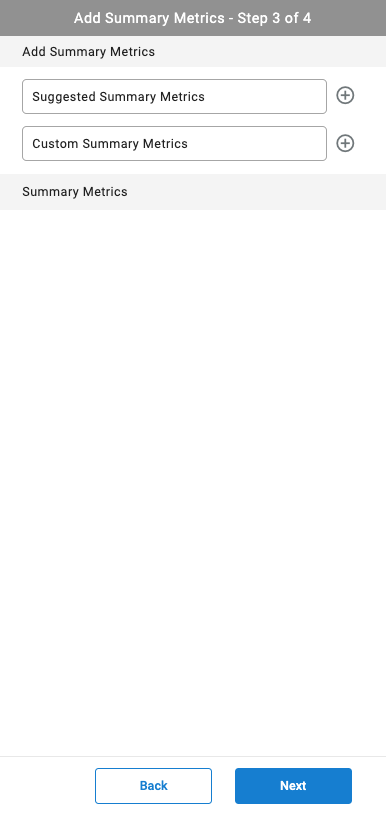
Suggested Summary Metrics
The Suggested Summary Metrics field offers ready-made summary values based on the columns already added to the report — for example, an overall total of a column already selected.
- Select the
+icon next toSuggested Summary Metrics - Select the desired metric
Custom Summary Metrics
The Custom Summary Metrics field builds a summary value from individual filter criteria, independent of the columns already added to the report.
- Select the
+icon next toCustom Summary Metrics - Search for and select the desired filter criteria
- Configure the criteria's associated fields
Summary Metrics List
Every metric added, suggested or custom, appears in the Summary Metrics list, where it can be reviewed before continuing to Finalize the Report.
Updated 3 months ago