
Submitting a Ticket
Why a web ticket is the right channel for a non-emergency issue, the fields on the ticket form, and what to include for a fast resolution.
Xima Support is available during operational business hours to help with any questions or service issues.
Why submit a Ticket?
A ticket creates a written, trackable record of an issue, and allows screenshots, logs, or recordings to be attached directly — details that are easy to lose in a phone call. It's the right channel for anything that isn't time-sensitive: configuration questions, non-urgent bugs, customization requests, and issues that don't block the contact center from operating.
Urgent Issues Should Be Called InThe ticket form itself notes that serious issues should be called in rather than submitted as a ticket. Urgent, time-sensitive severity 1–2 issues should go through Phone or After Hours instead.
Ticket Form
| Field | Description |
|---|---|
| Email Address | The requester's email address, used for ticket correspondence and status updates. |
| Serial Key | The account's serial key — in CCaaS, found hovering the account icon in the top-left and clicking About.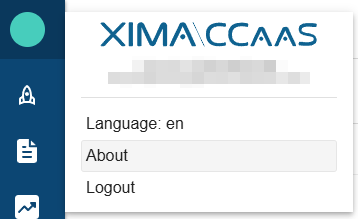 |
| Name | The requester's name. |
| Support Region | The requester's region, used to route the ticket to the right regional support queue — AMER, EMEA, or APAC. |
| Subject | A short summary of the issue. |
| Description | The details of the request — the more specific, the faster support can respond. |
| Report / Wallboard Customization Request | Selected if Professional Services was purchased for onboarding or post go-live customization work. |
| Site Type | Select Xima UC or Xima CCaaS. |
| Attachments | Screenshots, logs, or other supporting files. |
What to Include in the Ticket
A ticket that includes the following resolves faster, since it gives support staff what's needed to investigate without a follow-up round-trip:
- The account's Serial Key
- The affected extension, skill, or agent
- What was expected versus what actually happened
- The date and time of the affected call or interaction, so it can be located in Cradle to Grave
- Screenshots or a screen recording of the issue
- Browser and operating system, if the issue occurs in the CCaaS web interface
Updated about 1 month ago