
Email Routing
Email Routing Rules are used to automatically direct inbound emails to the most appropriate skill group based on predefined criteria.
Email Routing Rules filter and distribute inbound emails across the email channel. When a new email arrives, each rule's configured conditions are evaluated in order, and matching emails are routed to that rule's destination skill group.
At least one email address must be authenticated before Email Routing rules can be configured.
Accessing Email Routing
Email Routing is accessible to accounts with Supervisor or Admin permissions.
- Navigate to
Routing Configuration > Email Routing - All configured email routing rules are listed in the modal
Managing Email Routing Rules
Adding a Rule
Located at the top-right of the popup, click the + icon to add a new email routing rule
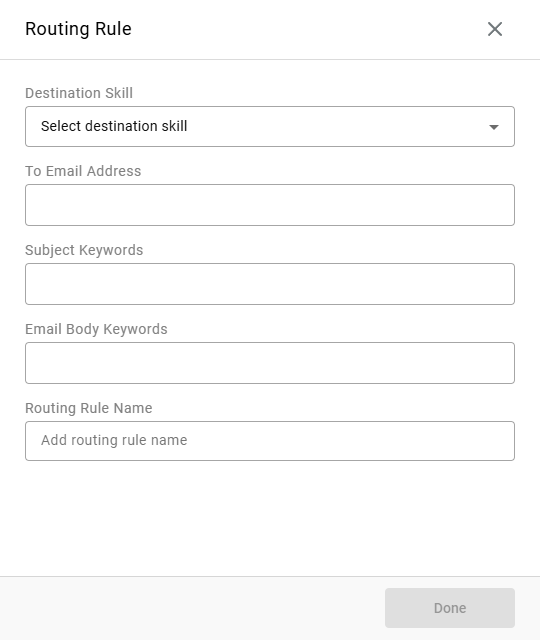
| Field | Description |
|---|---|
| Destination Skill | The skill group that handles emails matching this rule. |
| To Email Address | The authenticated email address used to route emails on CCaaS. Not required if only one email address is authenticated on the platform. |
| Subject Keywords | One or more keywords or phrases matched against the subject line of an incoming email. Press Tab after each entry to add it. |
| Email Body Keywords | One or more keywords or phrases matched against the body of an incoming email. Press Tab after each entry to add it. |
| Routing Rule Name | The name of the email routing rule. |
Click Done to complete and add the rule.
Applying Rules
Email rules are applied by ranks of the rule, where the top email routing rule is applied first before the next (e.g. rule number 1 will be applied before rule number 2).
Agent DistributionOnce an email reaches a skill group, agents are selected using Linear distribution, regardless of that skill group's configured Routing Algorithm setting. Higher-skilled agents are prioritized, with idle time used as a tiebreaker.
Updated 2 months ago