
CCAC on CCaaS - Potential Issues And Steps For Resolution
Summary
This article covers possible issues agents may experience on CCaaS while using CCAC, and steps these agents or supervisors can take to work through them.
General Items To Check
-
Have the agent log out of CCAC and their hard or soft phone and back in.
-
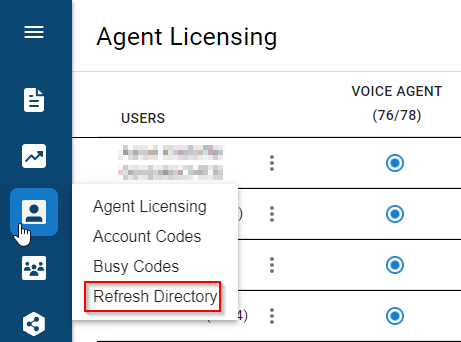
Refresh Users and Groups via Refresh Directory and see if the issue persists.
-
If the issue pertains to a single agent:
- Try clearing cache and cookies, or incognito mode, and launch a new browser to ensure there isn't bad data cached locally.
- You can also try logging in as that agent from another machine to rule out a local issue to that machine itself.
-
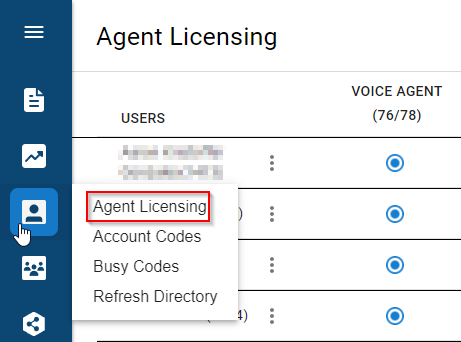
Check Phone Licensing to ensure the agent has the correct licensing.
Issue and Resolution
Agent Status is Stuck on Supervisor View
-
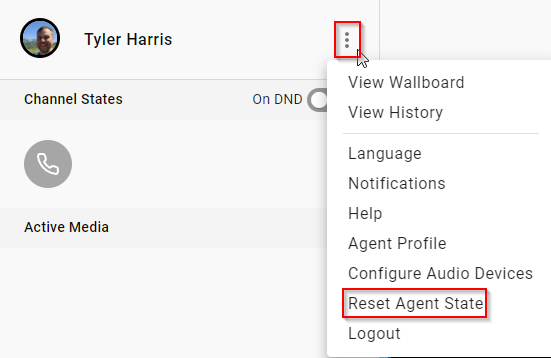
Click the ellipses next to the Agent's name in CCAC and select Reset Agent State.
-
Note: This will tell the system the agent is ready for a new call.
-
Do not select Reset Agent State if the agent is on an active call.
No Audio on a Call
-
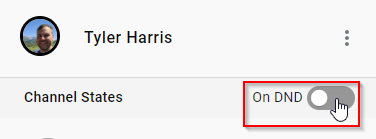
First, try toggling DND On / Off to interact with the page.
-
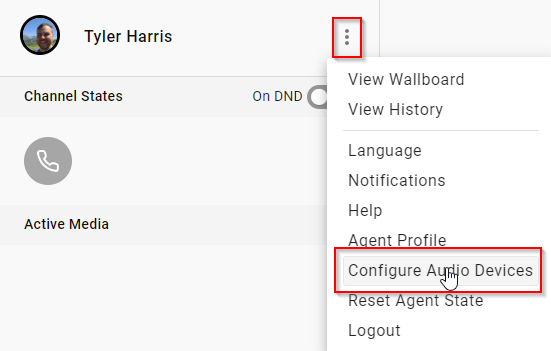
Second, check audio devices by clicking the ellipses and selecting Configure Audio Devices.
-
Hit F5 on your physical keyboard to refresh the full CCAgent web page. This forces a restart of the WebRTC negotiation and can resolve some issues.
-
If you can generate a test call to reproduce the issue,
chrome://webrtc-internals/would be useful to refer to while the test call is being placed.
If Agent Cannot Login or Go Ready in a Skill
-
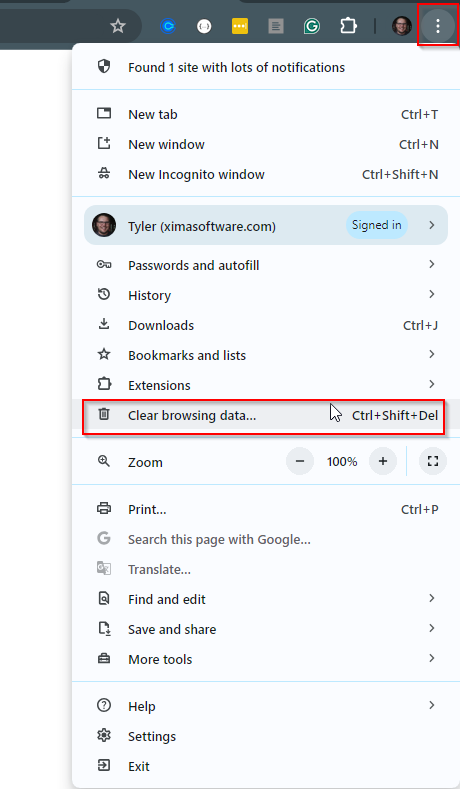
Clear browser cache by clicking the ellipses on the top right and selecting Clear Browser Cache.
-
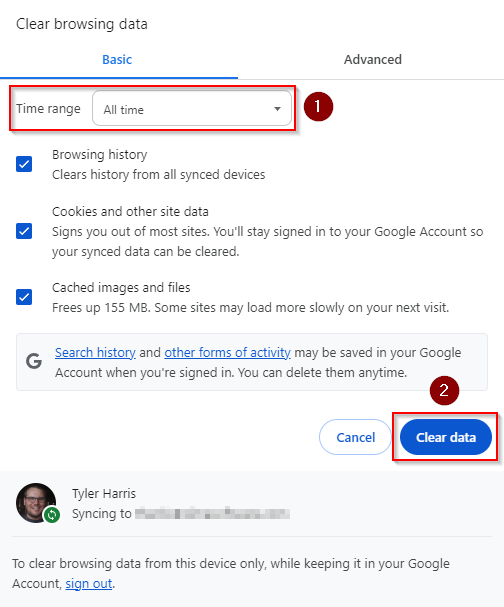
Select All time, and then Clear Data.
-
-
Additionally, browser memory-saving features can silently disconnect CCAC when the tab is minimized or in the background. See Contact Center Agent Client Logs Out Automatically for Chrome, Firefox, and Edge-specific steps to disable this.
-
Close your browser completely, relaunch, and try to replicate the issue.
Reports Failing to Run
- Often, if the first report for the day is spinning up, it will spin up that day's first daily reporting cluster on the cloud for your site.
- Give it a few minutes and try the report again — it should work once that cluster is fully initialized.
- Note: CCaaS spins up cloud resources as it needs them, on demand.
Tools
Supervisor Tools
-
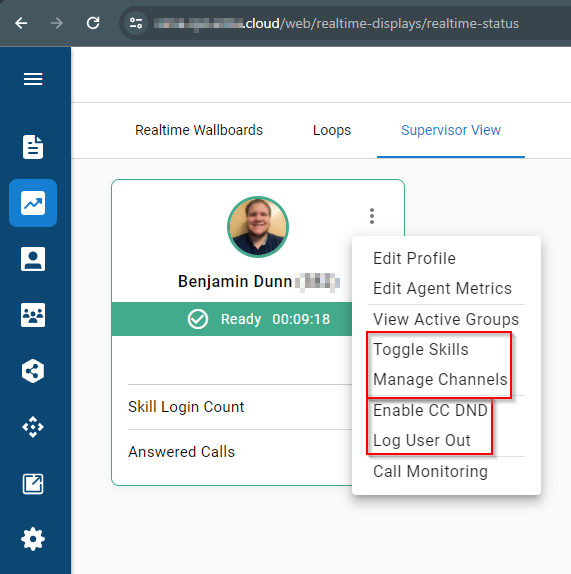
From Supervisor View, a supervisor can select the ellipses next to an agent to access options such as:
-
Toggle Skills
-
Manage Channels (Voice and/or Email)
-
Enable CC DND
-
Log User Out
-
-
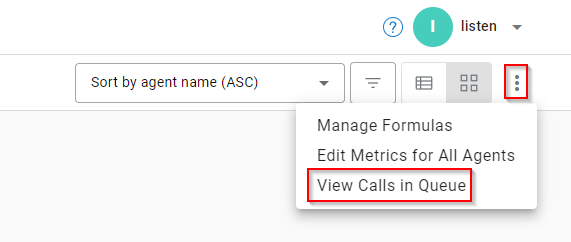
Supervisors can also manually route calls that are "stuck" by finding the call under the top-right ellipses and selecting View Calls in Queue.
-
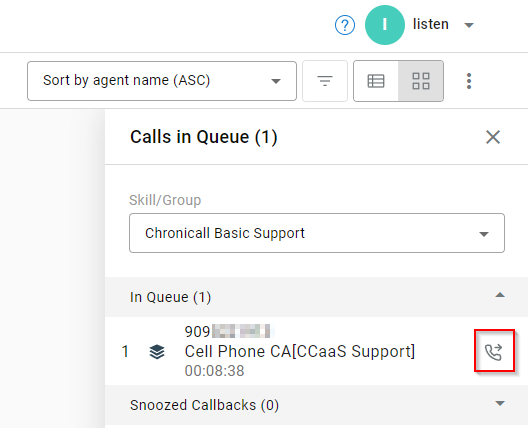
From there, find the call in the skill it is in, and click the call to show the option to route it to an agent.
Updated 3 months ago