
Messaging Flows
Messaging Flows are automated conversation flows that greet a messaging customer, collect information, and route the conversation before an agent is engaged.
Messaging Flows bring IVR-style automation to messaging. A flow runs a series of actions and conditions when a conversation arrives — sending messages, offering a reply menu, collecting contact details or answers, checking the channel, time of day, or a parameter — and then transfers the conversation to a skill, another flow, or an AI messaging bot, or ends it. Flows are assigned to conversations through Message Routing, the same way skills and AI agents are.
AvailabilityMessaging Flows appear only when enabled for the account and licensed for messaging. Flows run on web chat conversations using the current web chat widget.
Accessing Messaging Flows
Messaging Flows is accessible to accounts with Supervisor or Admin permissions.
- Navigate to
Routing Configuration > Messaging Flows - All messaging flows are listed on the left of the
Messaging Flowsmodal; the selected flow's details are shown on the right
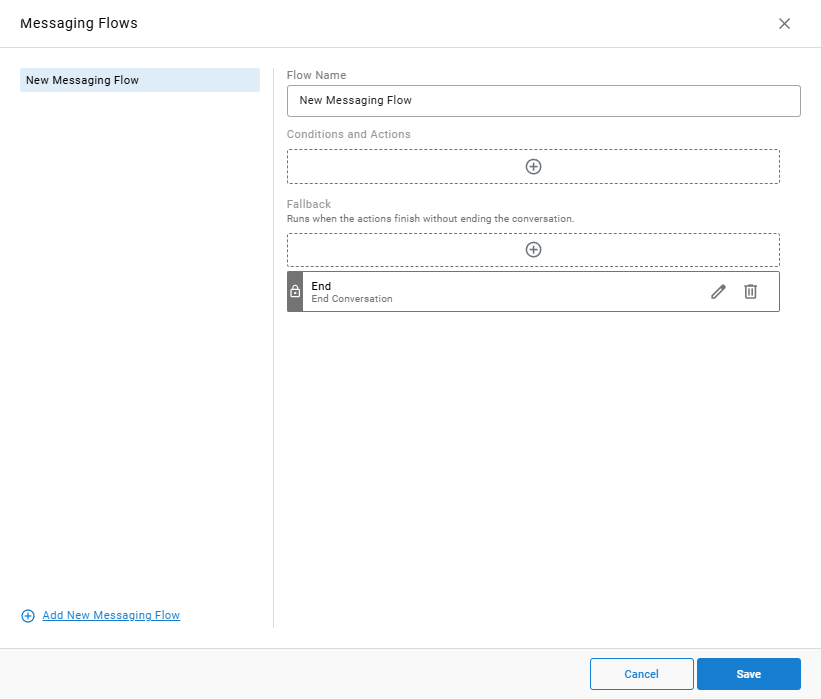
Creating a Messaging Flow
- Select
Add New Messaging Flow - Enter a
Flow Name - Add steps to
Conditions and Actions— see Building the Flow - Review the
Fallbacksteps - Select
Save
The editor checks the flow when it is saved and does not save an incomplete flow — for example, a step with no destination, a reply menu with no choices or duplicate choice labels, a step placed after a terminating action, or a reference to a profile that has been deleted.
Building the Flow
Each flow has two sections of steps. Select the + in a section to open Add an Action, then choose an action or condition from the Action / Condition Type list. Each step in a section can be edited with the pencil icon or removed with the trash icon.
| Section | Description |
|---|---|
Conditions and Actions | The main flow. Steps run in order from top to bottom. Any action or condition can be added |
Fallback | Runs when the actions finish without ending the conversation. Only actions that do not wait for a customer reply can be added: Send Message, Set Parameter, Data Dip, Transfer, AI Messaging Bot, Offer Email, and End Conversation. A new flow's fallback starts with an End Conversation action named End |
Terminating ActionsA terminating action — such as
Transfer,Offer Email,End Conversation, or aReply Menu— hands off or ends the conversation, so no steps can follow it in the same section.
Using a Messaging Flow
A messaging flow runs when a Message Routing rule sends a conversation to it, or when another flow or a reply menu transfers to it.
- Navigate to
Admin (System) > System Settings > Messagingand openMessaging Configuration - In Message Routing, select the messaging flow as a rule's
Destination
Messaging flows are listed alongside skills and AI agents in the Destination list, by their current name. Renaming a flow does not break the rules that use it. See System Settings — Messaging.
Deleting a Messaging FlowA flow cannot be deleted while a Message Routing rule uses it or another flow transfers to it. The error names the rules or steps that reference it; remove those references first.
Reporting
In Cradle to Grave, a conversation that runs through a messaging flow shows one Auto Attendant row covering its time in the flow, with the flow's name as the party. Expanding the row shows each action or condition that ran, in order, named after the step. Conversations that never enter a flow are reported as before.
Related Pages
- Messaging Flow Actions
- Messaging Flow Conditions
- IVR — the equivalent for voice calls
Updated about 7 hours ago