
Managing Parameters
Manage Parameters defines named, typed values while building a report in Create Report, for reuse elsewhere in the same report.
Parameters are named, typed values defined while building a report in Create Report, alongside the related Manage Formulas option. A row type must already be selected before Manage Parameters becomes available.
Opening Manage Parameters
- In Create Report, select a row type
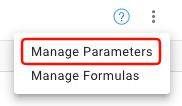
- Select the
⋮menu at the top of the report builder - Select
Manage Parameters
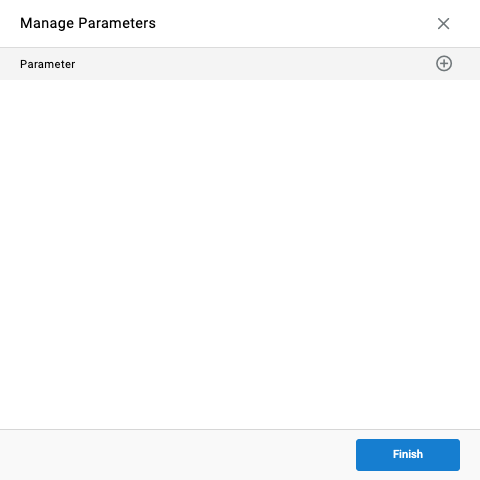
The Manage Parameters window lists every parameter already defined for the report.
Creating a Parameter
- In the Manage Parameters window, select the
+icon next toParameter - Enter a
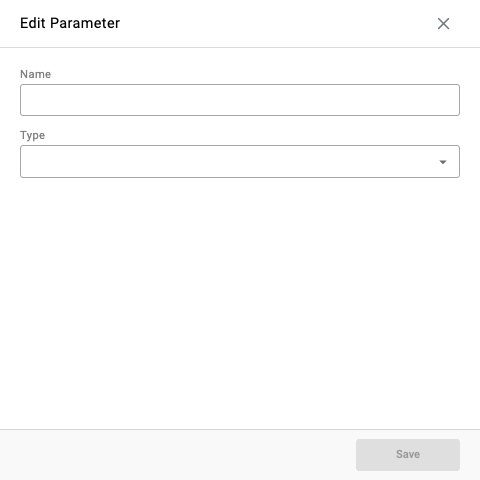
Namefor the parameter - Select a
Type— see Parameter Types below - Select
Save - Select
Finishto close the Manage Parameters window
Parameter Types
The following types are available when defining a parameter's Type:
Call Event TypeAccount CodesEvent Duration ThresholdCall DirectionsAdvanced TextGroupsAgentsSkillsEvent SequenceBooleanTernaryRolesTime IntervalShiftTime of DayDays of WeekThresholdsLong RangeMULTI_SELECT_WITH_OPTIONSMedia SelectionChat Media TypeMultimedia Interaction TypeFeature TypesEmail DirectionsEmail Event TypeCount Interval Credit ModeReason Code
Assigning a Parameter to a Criteria Field
A saved parameter can be assigned to any criteria field added while building a column, row filter, or summary metric, in place of selecting a fixed value directly.
- On a criteria field, select the
⋮menu next to the field - Select
Use Parameters, thenAssign - Select an existing parameter from the list, or select
New Parameterto create one without leaving the criteria field
Once assigned, the field displays Assigned to [Parameter Name] instead of a selected value, and the criteria's value is resolved from the parameter rather than a fixed selection. Selecting Use Values from the same ⋮ menu reverts the field back to a fixed, directly-selected value.
Parameters at Runtime
Once a criteria field is assigned to a parameter, that parameter appears as its own field — named after the parameter — in the report's Configuration panel wherever the report is run, scheduled, or viewed. Selecting a value there at runtime determines what the assigned criteria field resolves to for that run, rather than the report always using a value fixed at design time.
A parameter can also drive Sub-Reports, which generates a nested report per value found for the parameter when a report runs.
Updated about 1 month ago