
AI Agent — Availability
The Availability step links an AI Agent to business hours and holidays and sets the closed messages it gives instead of transferring a customer when the team is closed.
Availability is the third step of the Agent Builder and tells the bot when the business as a whole is open. The bot checks this schedule before it considers transferring a customer to a specific team. Availability is optional — if it is left empty, the bot treats the business as always open, and the step list shows Nothing set · always open.
The Bot Keeps Answering When ClosedOutside business hours the bot still answers questions, uses its knowledge, and helps where it can. The only change is that instead of offering to transfer the customer to a person, it gives the closed message.
Accessing Availability
Availability is accessible to accounts with Admin permissions.
- Navigate to
AI Configuration > AI Agent Profilesand select the pencil icon next to an AI Agent - Select
Availabilityin the step list; the workspace shows theHours,Holidays, andClosed messagessections
Hours
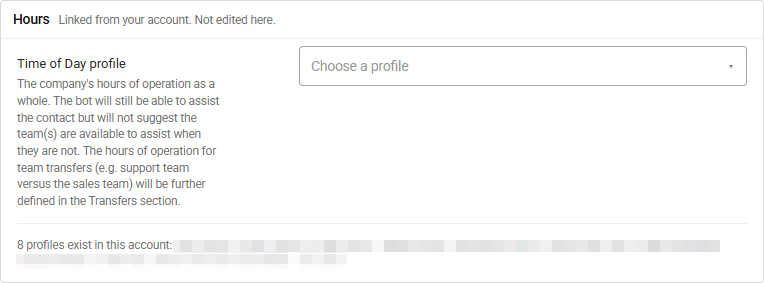
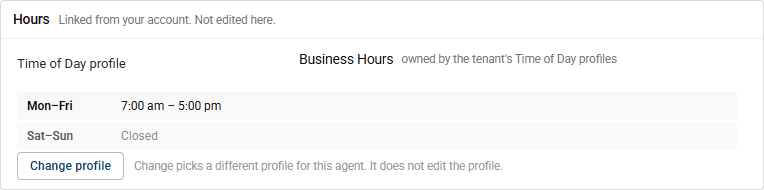
Select Change profile to choose a Time of Day profile. The profile's schedule is shown underneath — for example, Mon–Sun 12:00 am – 11:59 pm.
Hours are linked from the account's existing Time of Day profiles, not edited here. Change profile picks a different profile for this AI Agent; it does not edit the profile itself, so other parts of the contact center that use the same profile are not affected.
Holidays
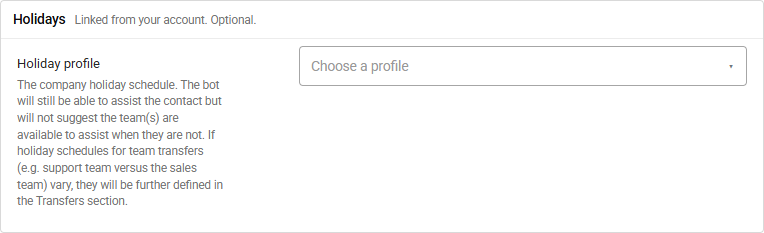
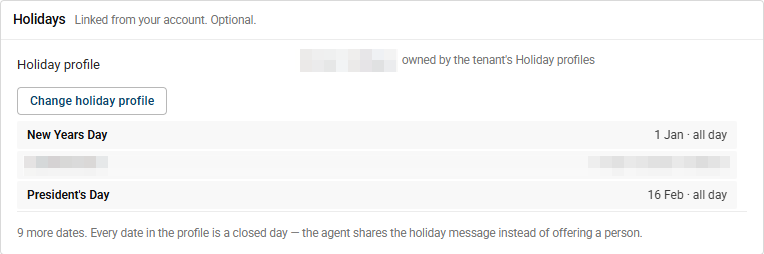
Optional. Select Change holiday profile to choose a Holiday profile. The builder lists the profile's dates — for example, 1 Jan · all day. Every date in the holiday profile is treated as a closed day, on which the bot gives the holiday message instead of offering a person.
Profiles Are Managed in Routing ConfigurationTime of Day and Holiday profiles are created and edited under
Routing Configuration. Create or update them there first, then link them here.
Closed Messages
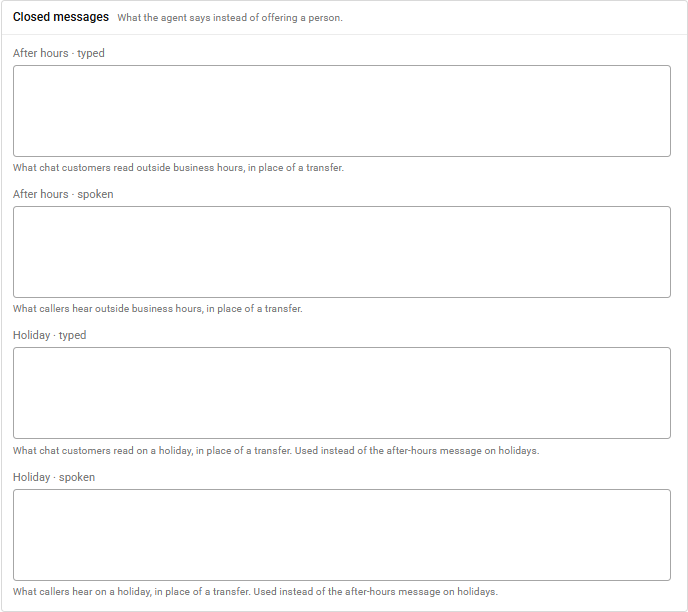
What the bot says instead of offering a person when the team is closed. When Messaging and Voice are both on, a typed and a spoken version of each message is written.
| Message | When It Is Used |
|---|---|
After hours · typed | What chat customers read outside business hours, in place of a transfer |
After hours · spoken | What callers hear outside business hours, in place of a transfer |
Holiday · typed | What chat customers read on a holiday, in place of a transfer. Used instead of the after-hours message on holidays |
Holiday · spoken | What callers hear on a holiday, in place of a transfer. Used instead of the after-hours message on holidays |
Use Case
- After hours: "The team isn't available right now because it's outside business hours. The office is open Monday to Friday, 8am to 6pm. Is there anything else I can help with in the meantime?"
- Holiday: "The team is closed today for the holiday and will be back tomorrow at 8am. Is there anything else I can help with?"
Writing Closed MessagesThe bot is still helping, so a closed message should explain why it cannot connect to a person, say when the team will be back, and offer to keep helping — not read as a goodbye. Spoken versions should be shorter and simpler than typed ones, and avoid web addresses or long numbers that are hard to follow by ear.
When hours are linked and messages are written, the step list shows Hours linked · closed messages set.
Team-Specific HoursA transfer destination can follow its own hours and closed messages instead of these — see Transfers.
Checklist
- Hours and holidays are linked, or treating the business as always open is intended
- Closed messages explain the situation and offer to keep helping
- Spoken versions are written for the ear
Updated about 3 hours ago