
Connecting Xima Voice Agent Client in Microsoft Teams
This article outlines the necessary steps to connect the CCAC proxy service to Microsoft Teams.
For product stability, we've consolidated the agent focused installed applications into one application.
This enhanced stability does mean Microsoft Teams users will need to take an addition step to connect to the installed application once but the changes will be saved.
Installing the application
Installing the application
Inside of teams, the agent first needs the Xima CCaaS app shortcut installed on their Teams application. This is done by a MS system administrator and is documented HERE.
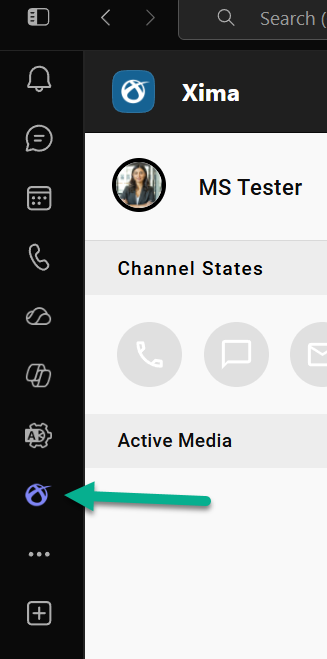
Once the application is selected and the agent logs into their agent account, they'll be prompted to either install the proxy application for the first time OR to update their existing copy to the installed application.
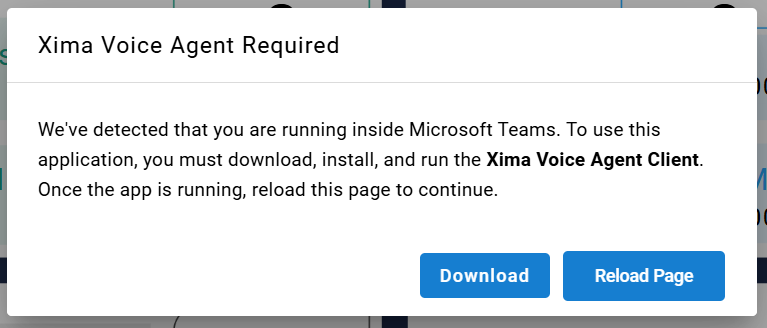
Connecting the Xima Contact Center agent app to Microsoft Teams
Connecting the Xima Contact Center agent app to Microsoft Teams
When attempting to login as an agent, they'll be directed to the download. The download is also available here: Xima Contact Center desktop application.
Downloading and installing the Xima Voice Agent Client will place an application on the agent's PC that will allow them to open the agent client from a stand-alone application, but that is not your goal for Microsoft Teams integration. Follow these steps so it will be connected to the agent's Teams application and will not need to be manually opened once complete.
-
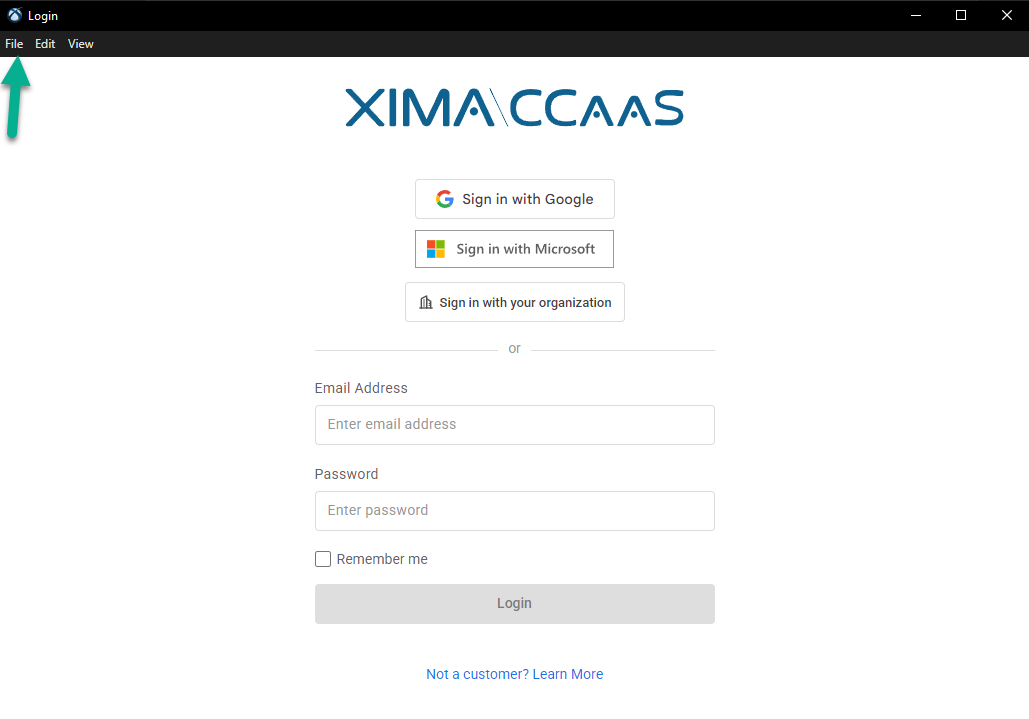
Open the Xima Contact Center agent app on the agent PC
-
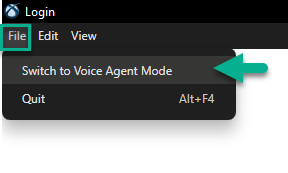
In the open application, navigate to "File" and select "Switch to Voice Agent Mode"
-
Confirm your changes
The desktop version will be closed and the Voice Agent Mode will be active though you won't see a new application open.
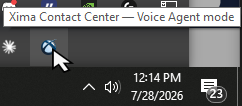
To check the running status of the application, find the Xima icon in your system tray and hover over the icon:
Swapping between Voice Agent Mode and Desktop Mode
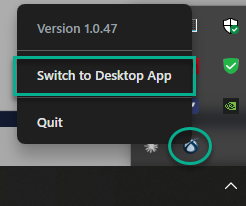
If you no longer want to use the Teams integration for opening the agent client, you may switch to desktop mode by selecting the Xima icon in the system tray and toggling the modes here:
Updated 2 months ago