
Alianza One BCC — Target Platform
Connects CCaaS to Alianza One (BCC) by creating a SIP Trunk in the Alianza One portal and entering its SIP proxy and call capacity details in CCaaS.
Alianza One (Business Cloud Communications, or BCC) connects to CCaaS through a SIP Trunk created in the Alianza One portal. The trunk defines how many simultaneous calls can pass between the two platforms and provides the SIP Proxy Server that CCaaS registers against. This must be completed before the trunk's SIP credentials can be registered — see SIP Extensions.
Adding the SIP Trunk Product
-
Sign in to the Alianza One portal
-
Scroll to the bottom of the left-hand navigation pane and select
Settings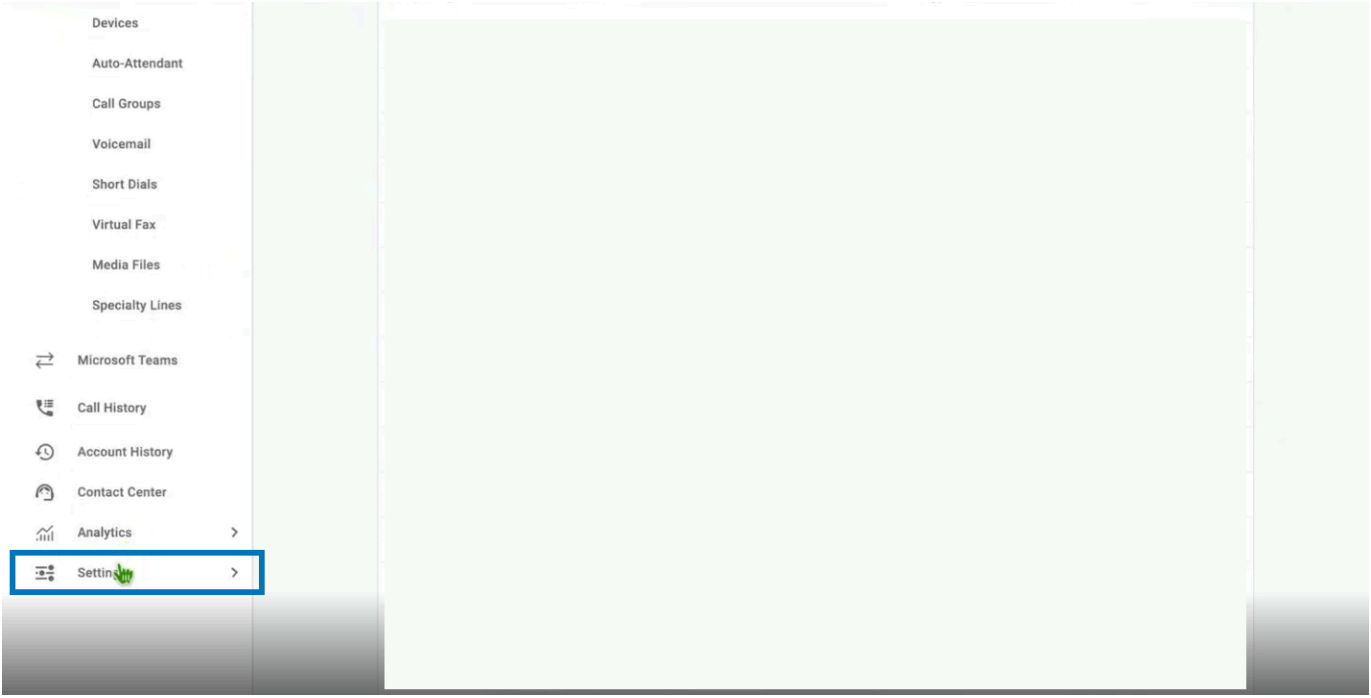
-
Navigate to
Account Details > Productsand select+ Add Product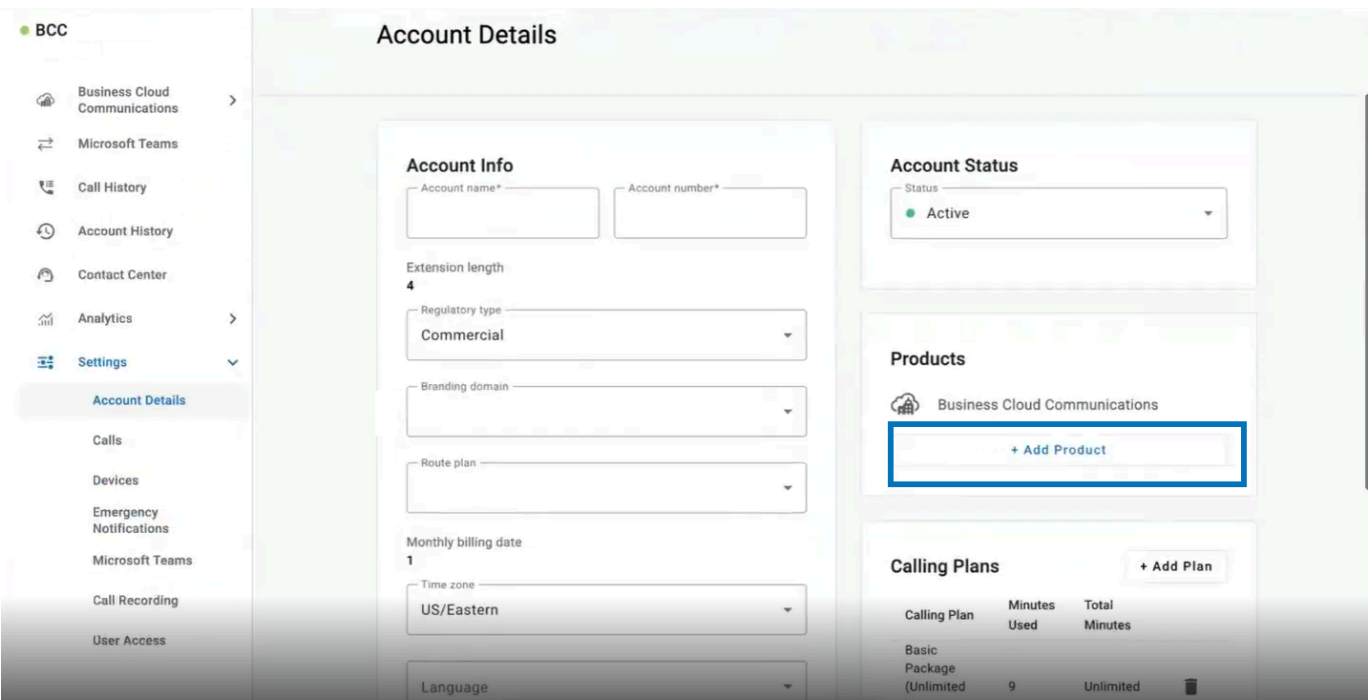
-
In the
Add Productwindow, selectSIP Trunk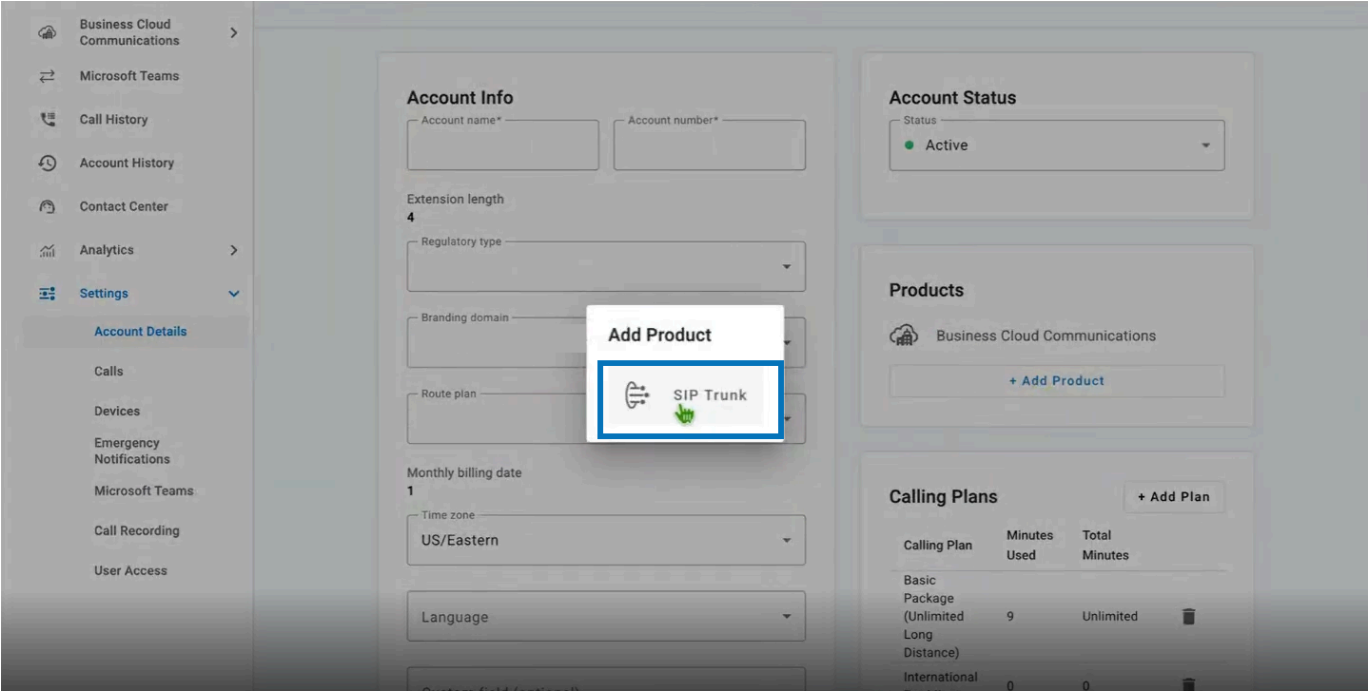
-
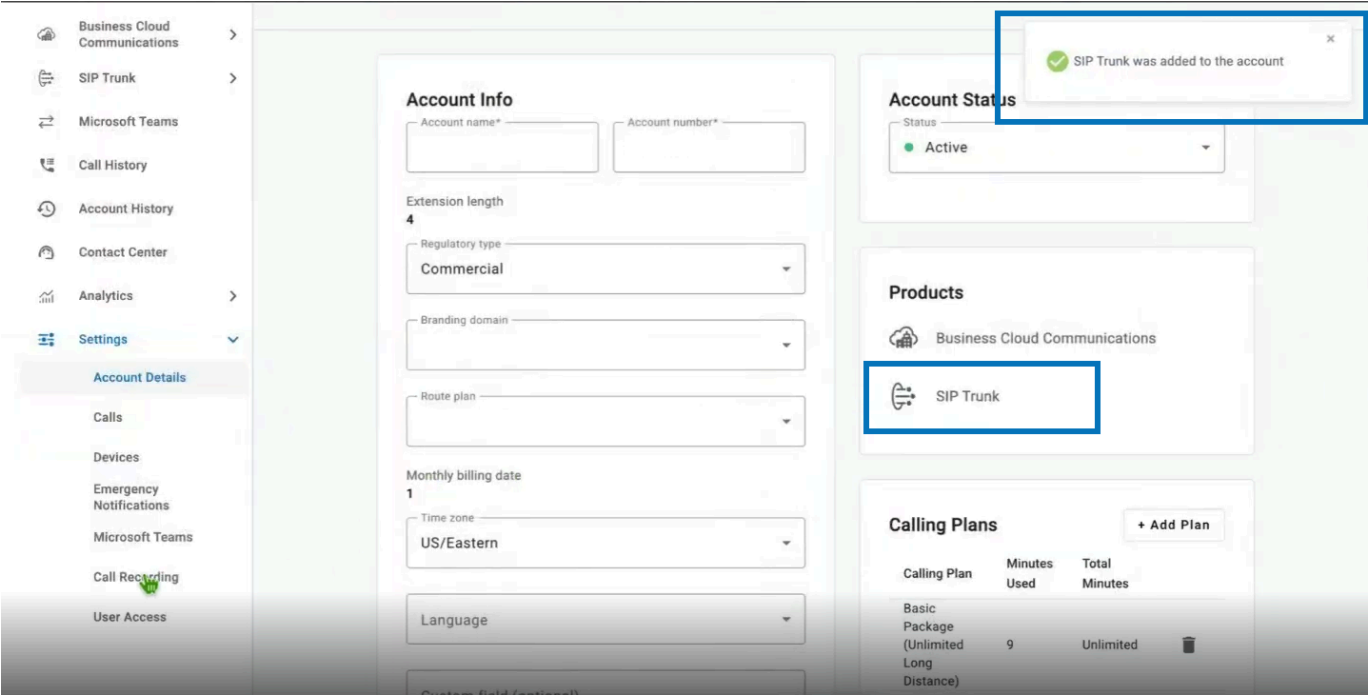
A confirmation banner displays once the SIP Trunk product is added
Creating the SIP Trunk
-
Select
SIP Trunkfrom the left-hand navigation pane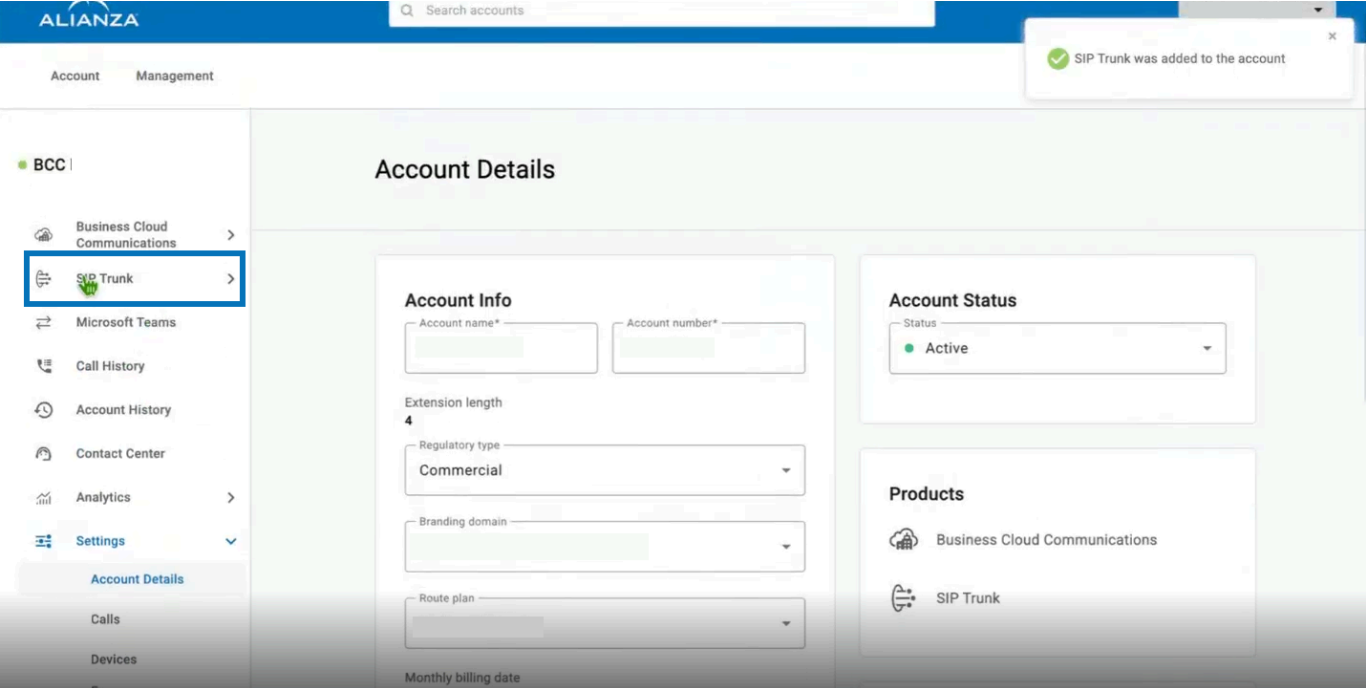
-
Select
+ Add SIP Trunkin the top-right corner of the SIP Trunks page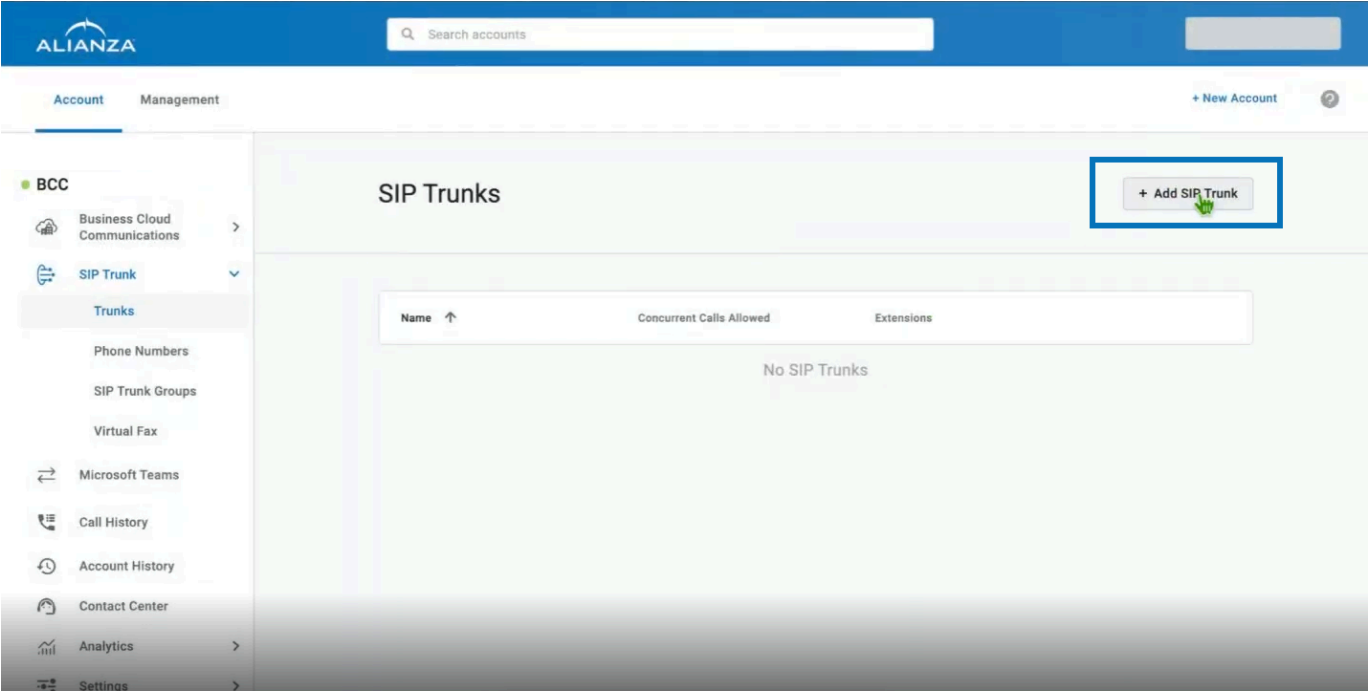
-
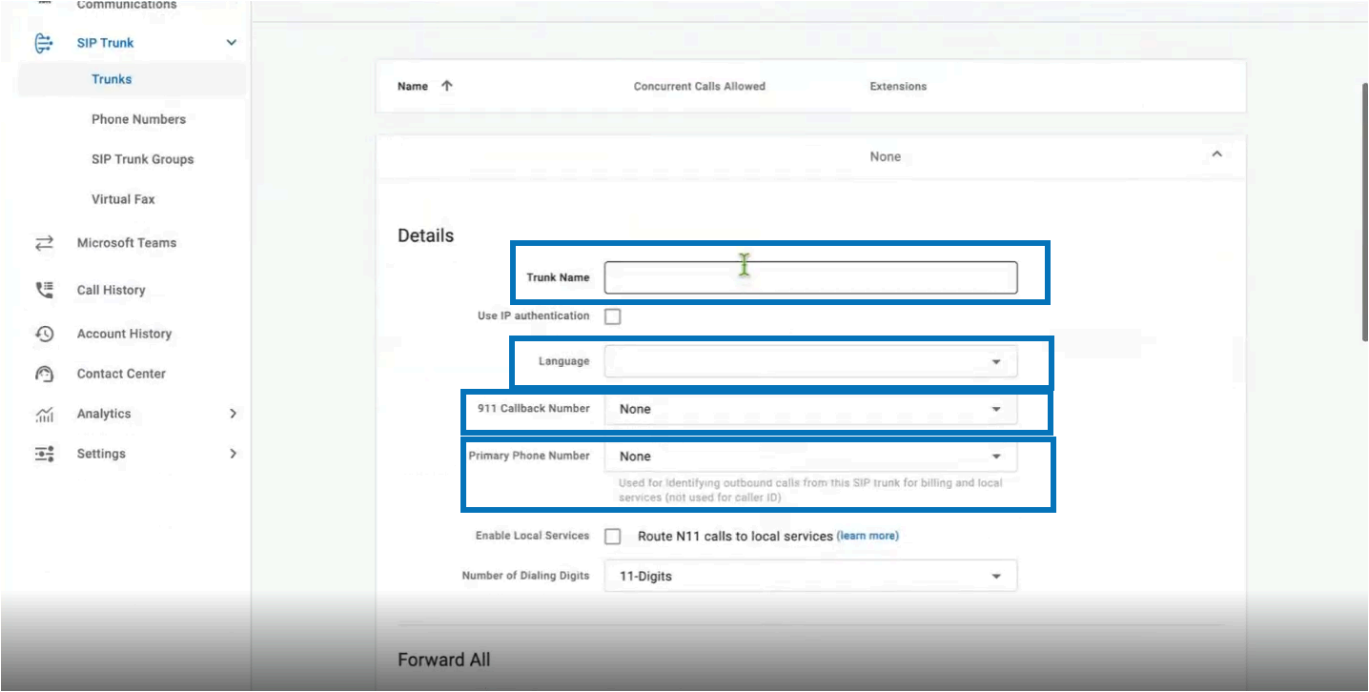
Complete the following fields:
| Field | Description |
|---|---|
| Trunk Name | The name of the trunk (for example, Xima Contact Center) |
| Language | The language used for the trunk |
| 911 Callback Number | The callback number presented for emergency calls |
| Primary Phone Number | The primary phone number associated with the trunk |
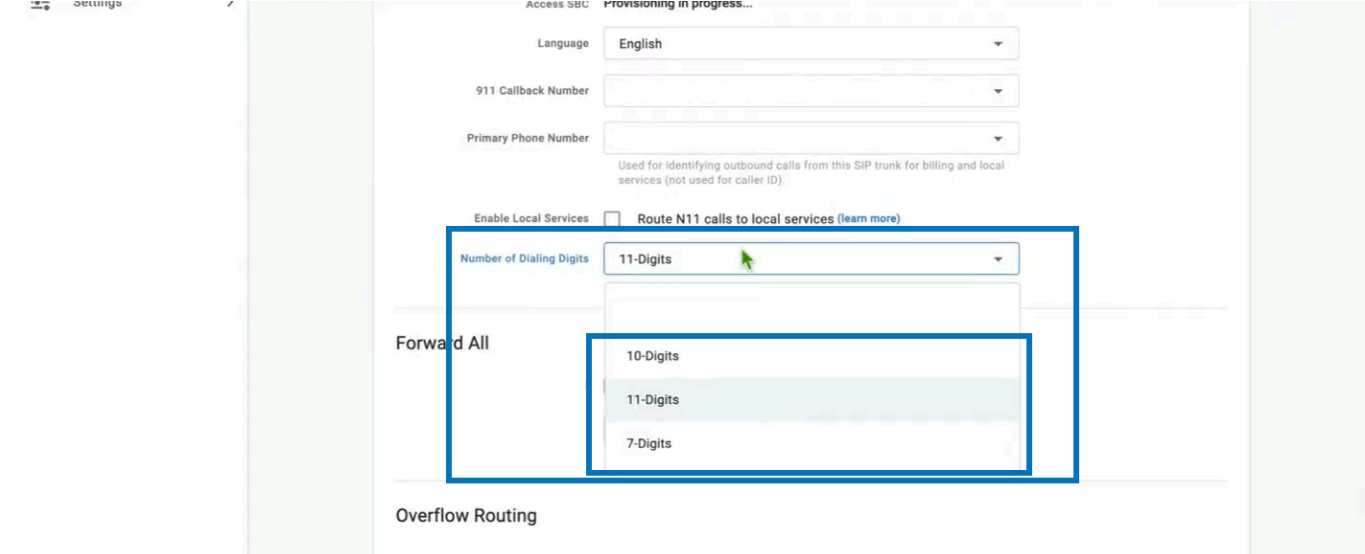
| Number of Dialing Digits | How many digits pass back and forth on the trunk — 7-Digits, 10-Digits, or 11-Digits |
Configuring Failover Routing
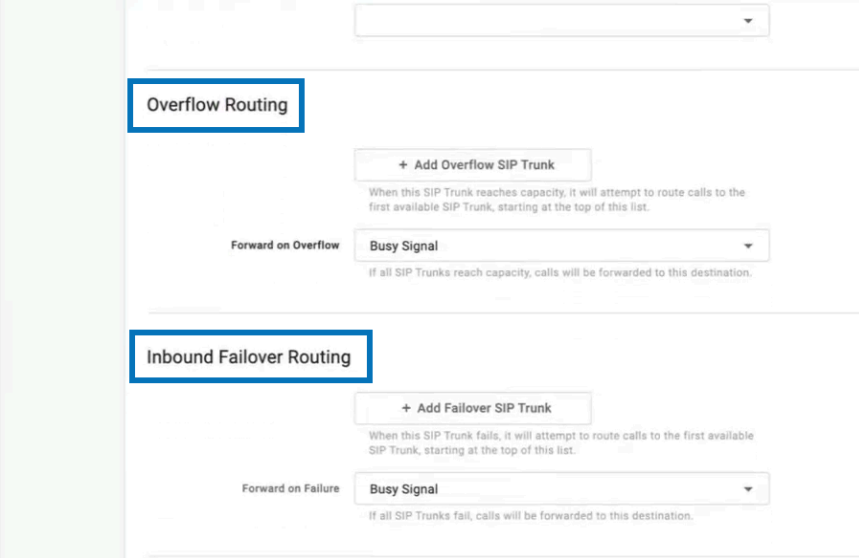
Strongly RecommendedFailover routing is not required at initial setup, but Xima strongly recommends configuring both destinations below in case the SIP Trunk to Xima is busy or goes down.
| Section | Description |
|---|---|
| Overflow Routing | Where calls go when the SIP Trunk reaches capacity; select + Add Overflow SIP Trunk to add a trunk, and set Forward on Overflow for when all trunks are at capacity |
| Inbound Failover Routing | Where calls go when the SIP Trunk fails; select + Add Failover SIP Trunk to add a trunk, and set Forward on Failure for when all trunks fail |
Setting Concurrent Calls
Concurrent Calls Allowed defines the total number of simultaneous conversations ("talk paths") between Alianza One and CCaaS.
-
Under
Definition, enter a value forConcurrent Calls Allowed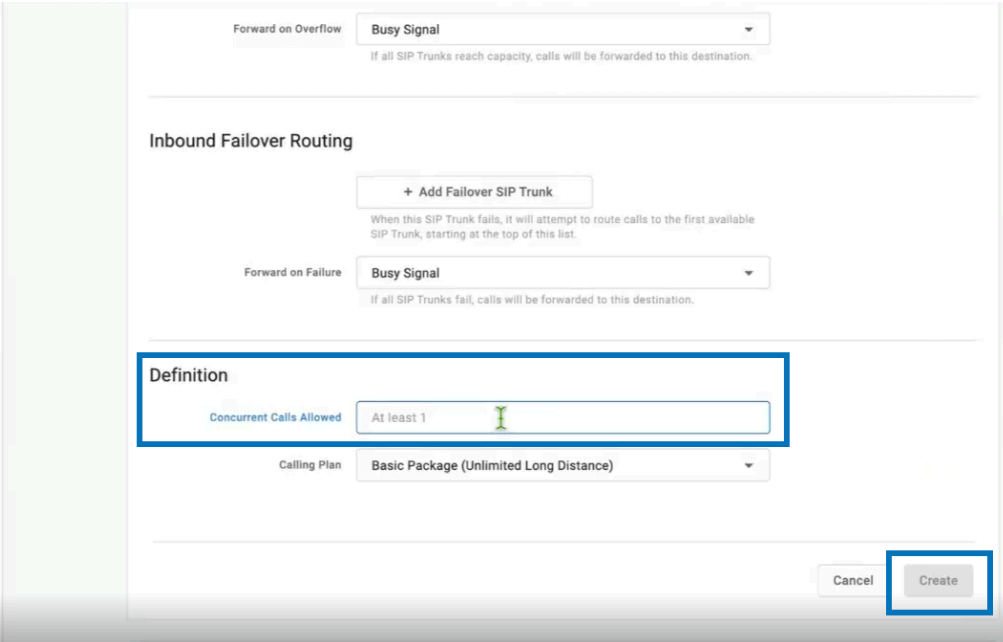
-
Note this value — it is entered as
Max Calls per Handsetin CCaaS -
Select
Create -
The new trunk is listed on the SIP Trunks page with its
Concurrent Calls Allowedvalue (for example,Xima Contact Centerwith30)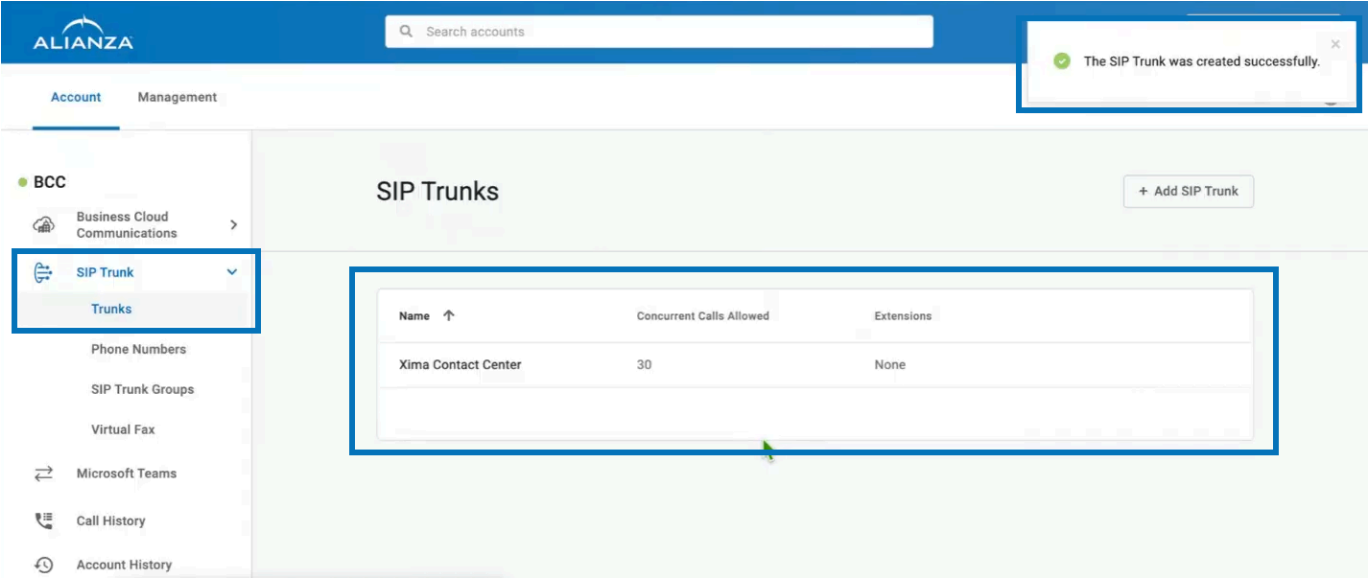
Noting the SIP Proxy Server
- Select the new trunk on the SIP Trunks page to expand its details
- Under
Authentication Credentials, note theSIP Proxy Servervalue — it is entered as theSIP Domainin CCaaS
The SIP Username and SIP Password in this same section are configured separately — see SIP Extensions.
Accessing Target Platform
Target Platform is accessible to accounts with Admin permissions.
- Navigate to
Admin (System) > Target Platform Configuration - The Platform Settings window is displayed
Configuring Target Platform in CCaaS
- Complete the following fields:
| Field | Description |
|---|---|
| SIP Domain | The SIP Proxy Server value noted from the Alianza One trunk |
| SRV Record | Confirm with the partner and Alianza |
| SIP Outbound Proxy | Confirm with the partner and Alianza |
| SIP Port | Confirm with the partner and Alianza |
| Max Calls per Handset | The Concurrent Calls Allowed value set on the Alianza One trunk |
Confirm Connection Details with the PartnerAs of February 22, 2026, the SIP Domain, SRV Record, SIP Outbound Proxy, and SIP Port should be confirmed with the partner and Alianza directly before saving.
- Save the changes
Updated 21 days ago