
Email Handling
Email Handling covers agent eligibility for inbound emails, Last Agent Routing, building an email signature, replying to and resolving an email in CCAC, and marking an email as spam.
Email is one of the interaction channels available in CCAC alongside voice and web chat, letting an agent draft, send, and resolve customer emails from the same interface used for calls and chats. Because an email thread can span multiple sessions rather than resolving in a single interaction, CCAC applies routing and eligibility rules — such as Last Agent Routing — that do not apply to voice or chat, and gives each agent a personal signature that carries across every email they handle.
Requires Email Channel LicensingAn agent must have an
Email ChannelorMulti-Channellicense assigned in Agent Licensing, and be enabled forEmail Sessionon the relevant skill in Skill Levels, before emails can be received. The connected mailbox itself is configured separately — see Email Account.
Receiving Emails
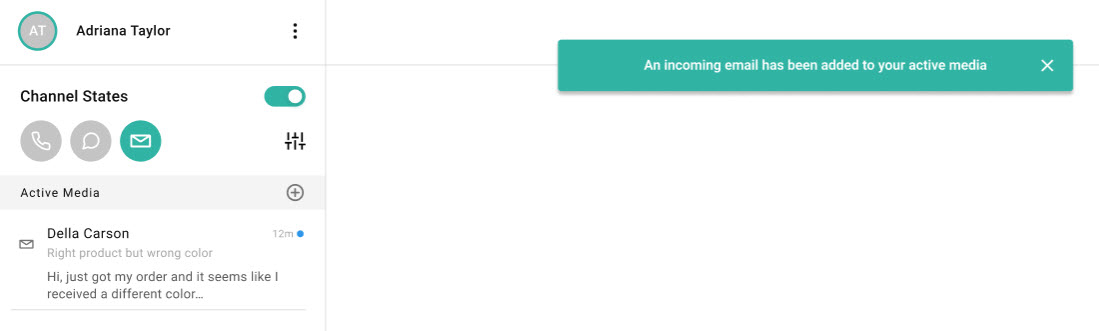
An agent is eligible to receive emails when they are logged into CCAC, off DND, and enabled on both the relevant skill and the Email Channel. Once eligible, emails route to agents in order of skill level using linear distribution — at this time, all emails use linear routing regardless of the skill's configured voice routing algorithm. A dispatched email appears as a notice in CCAC and is deposited into the agent's active media.
Last Agent Routing
By default, if a customer replies within an existing email thread, the reply routes back to the same agent who last handled it — even if that agent is currently on a call, handling another interaction, or on DND. The email is added directly to that agent's active media. If the agent is logged out of CCAC entirely, the reply is re-queued to the skill group instead.
Disabling Last Agent RoutingAn administrator can turn off Last Agent Routing from
Admin (System) > System Settings > Advanced Settings > Email Enabled Last Agent Routing, set toFalse. When disabled, every reply queues to the skill and routes to any available agent rather than the original agent.
Replying to Emails
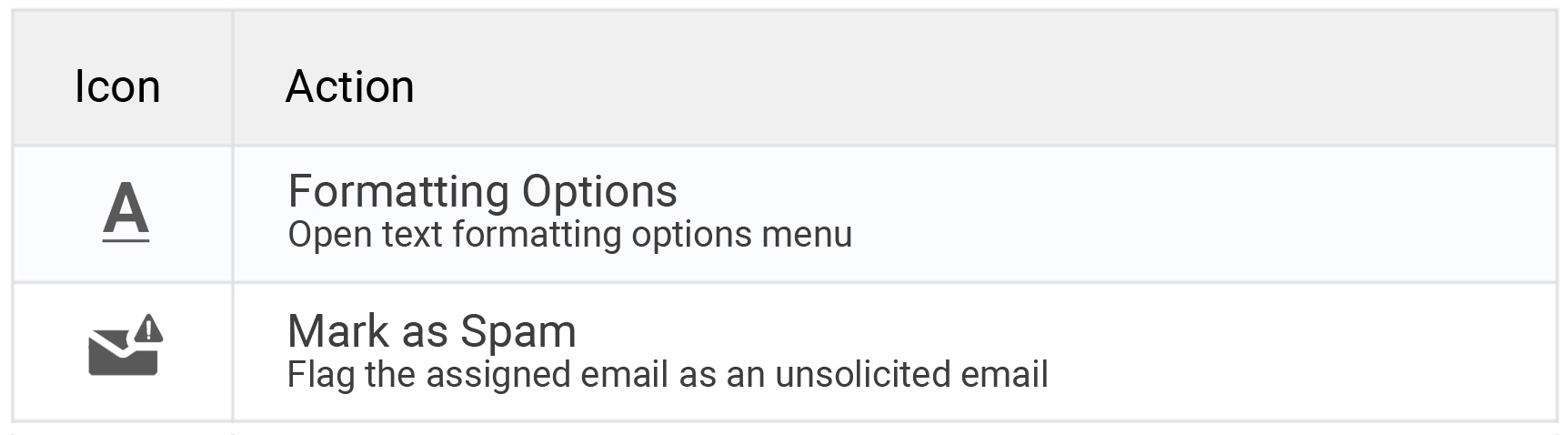
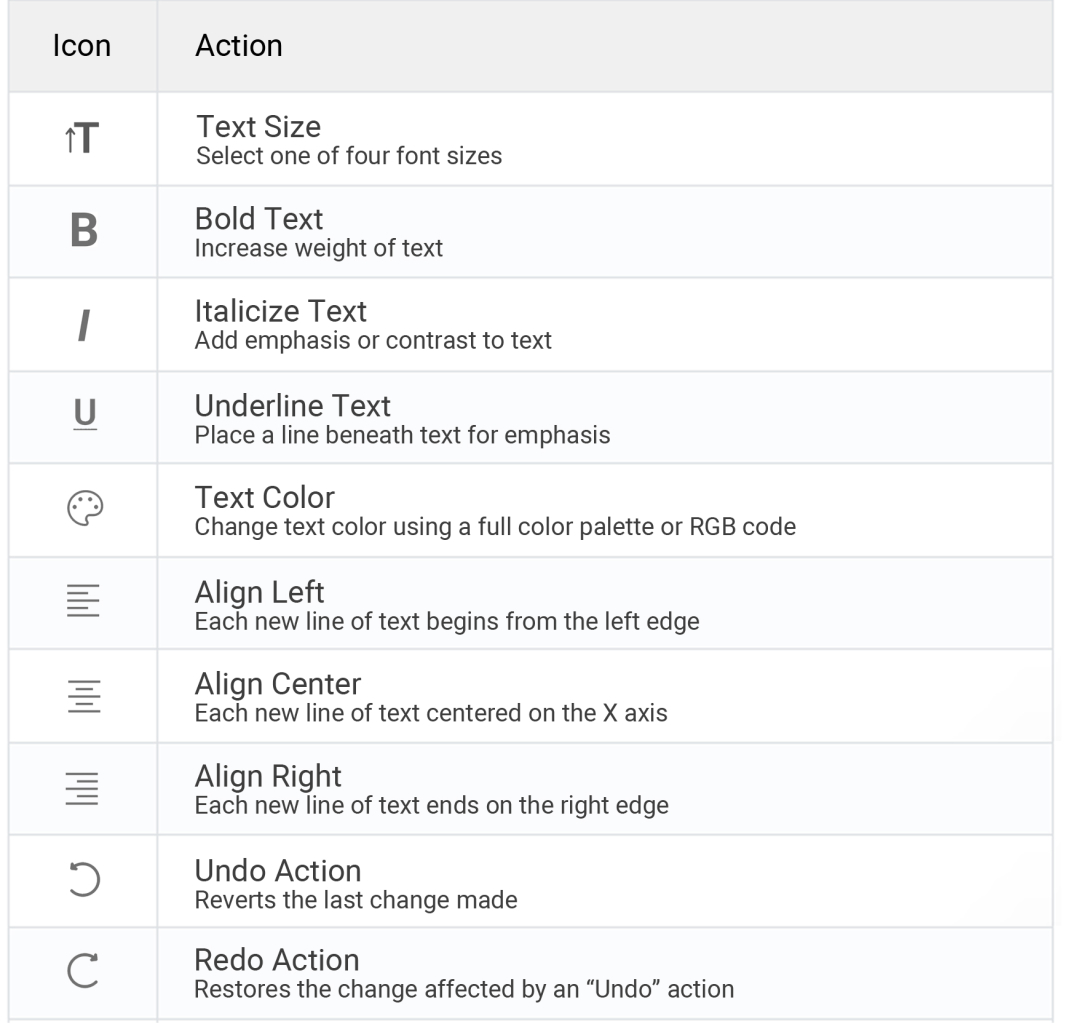
Selecting an email in active media presents Reply, Forward, and Mark as Spam buttons rather than automatically opening the editor. Selecting Reply opens the email editor, which includes text formatting options alongside the message content.
Primary Email Editor Features
Text Formatting Options
Building an Email Signature
An email signature is configured individually by each agent rather than centrally by an administrator.
-
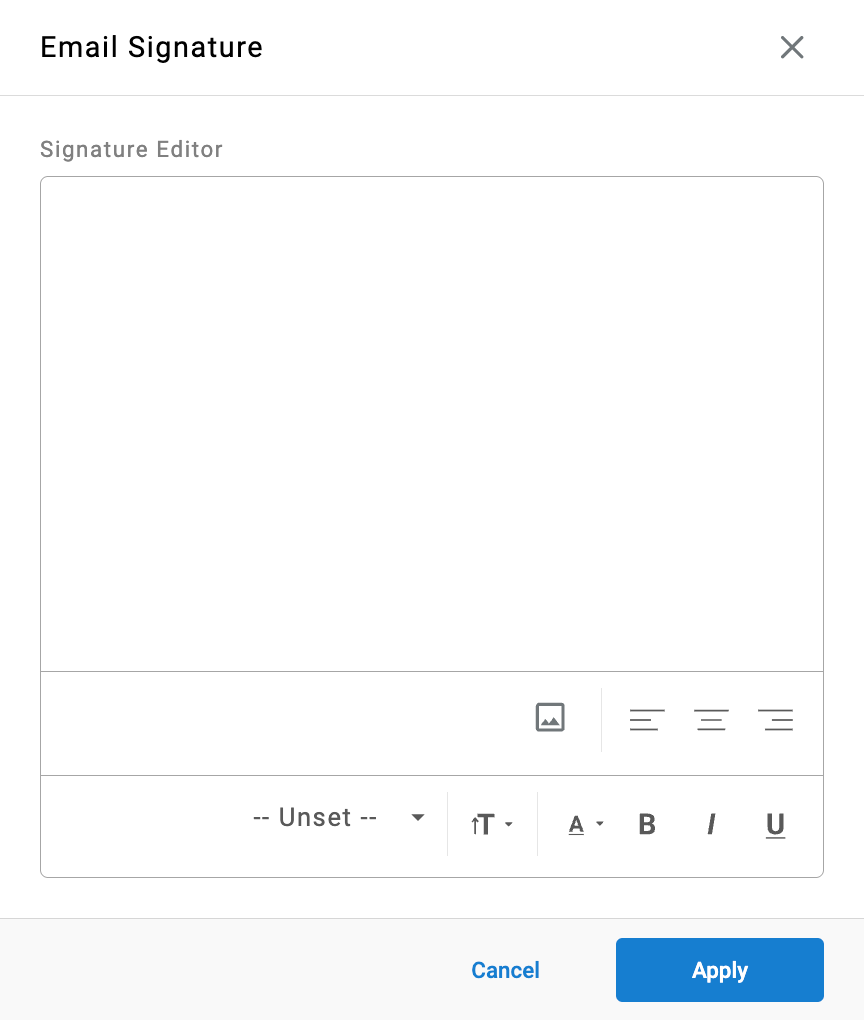
Select the ellipsis next to the agent name
-
Select
Email Signature -
Build the signature in the editor canvas using custom text, fonts, colors, sizes, and images
-
Images can be aligned and/or resized
-
-
Select
Applyto save
Once saved, the signature appears at the bottom of the editor whenever the agent starts or opens an assigned email.
Editing a Signature Within an EmailThe signature text within an individual email's body can be edited for that message without affecting the saved signature. To change the signature used on future emails, the
Email Signaturemenu must be reopened and updated directly.
Standardize the TemplateOrganizations commonly maintain a standard signature template that agents copy into their own signature editor and personalize, keeping formatting consistent across the team.
Forwarding an Email
Selecting Forward on an email in active media opens a new draft to send the interaction to one or more recipients outside the original thread, rather than only replying within it.
- Select
Forwardon the email in active media - Manually enter one or more destination email addresses — the original sender is not pre-filled
- Remove any attachments carried over from the thread that should not be included; every attachment already present in the thread is included by default
- Select
Send
After sending, one of the following is selected to resolve the original email:
| Option | Result |
|---|---|
Return to Email Thread | Keeps the original email in the agent's active media — useful when the agent still needs to reply to the original customer |
Mark as Complete | Closes the original thread and removes it from the agent's active media |
Undo | Reverts the forward |
The forwarded recipient is represented as the receiving party for that forward event in the thread view and in historical reporting, separate from the original sender and thread participants.
Sending, Transferring, or Marking as Complete
Once an email is assigned, the agent is responsible for resolving it by reply, forward, transfer, or marking it complete.
- Send — Sends the drafted response and removes the email from the agent's active media
- Forward — Sends the interaction to recipients outside the original thread; see Forwarding an Email above
- Mark as Complete — Closes the thread when no further response is needed (for example, a customer's final acknowledgment); the agent confirms the action in a prompt, and the email is logged in historical reporting as manually closed by the agent
Marking as Spam
Unsolicited emails assigned to an agent can be marked as spam rather than answered or closed. Selecting Mark as Spam in the email editor prompts a confirmation; once confirmed, the email is logged as spam in historical reporting.
Updated about 2 months ago