
Messaging Flow — Actions
Actions define what a messaging flow does at each step, from sending messages and collecting customer details to transferring or ending the conversation.
Actions are the steps that carry out a task within a messaging flow — sending a message, asking the customer something, saving a value, or handing the conversation off. Each action has an Action Name, which identifies the step in the flow and in Cradle to Grave. Actions marked as terminating hand off or end the conversation, so no steps can follow them.
| Action | Description | Terminating |
|---|---|---|
| Send Message | Sends a text message | No |
| Reply Menu | Offers choices the customer picks from | Yes |
| Collect Contact Info | Asks for the customer's name, phone number, and email | No |
| Collect Responses | Asks questions and saves each answer to a session parameter | No |
| Set Parameter | Sets a session parameter | No |
| Data Dip | Looks up data through a Data Dip profile | No |
| Transfer | Transfers the conversation to a skill or another messaging flow | Yes |
| AI Messaging Bot | Hands the conversation to an AI agent | — |
| Offer Email | Shows an email address to contact instead | Yes |
| End Conversation | Ends the conversation | Yes |
Reply Menu, Collect Contact Info, and Collect Responses wait for the customer's reply, so they can be added to Conditions and Actions only, not to Fallback.
Send Message
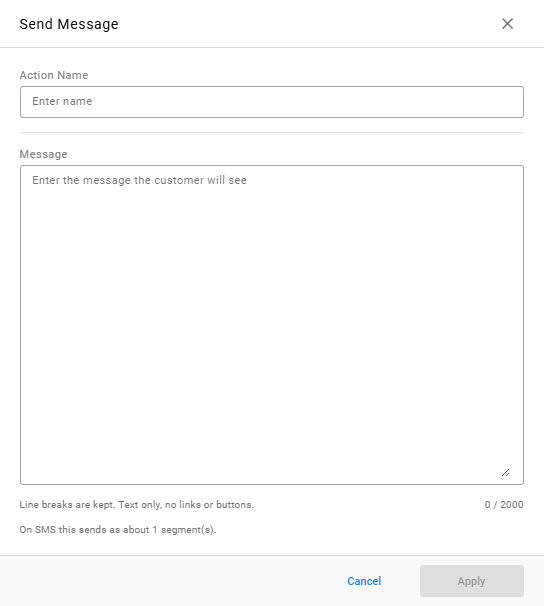
Sends a text message to the customer.
| Field | Description |
|---|---|
Action Name | Identifies the step |
Message | The message the customer will see, up to 2,000 characters. Line breaks are kept. Text only — no links or buttons |
SMS SegmentsBelow the message, the editor estimates how many SMS segments the message uses when sent on SMS.
Reply Menu
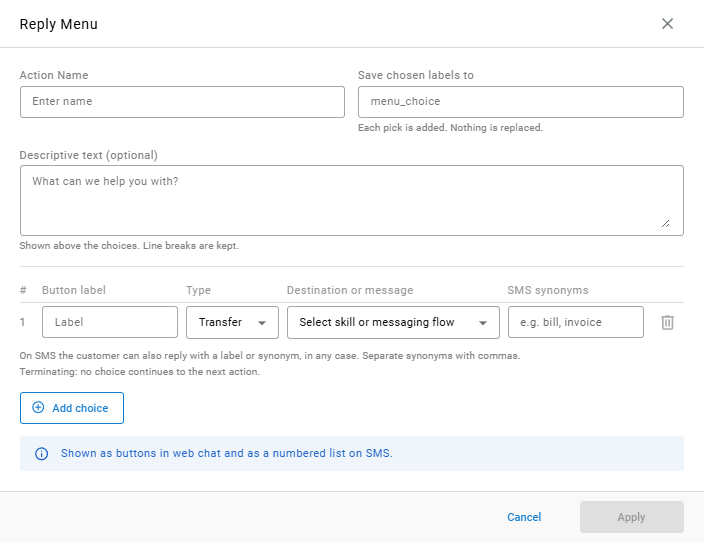
A terminating action that offers the customer a set of choices. Each choice either transfers the conversation or replies with a message.
| Field | Description |
|---|---|
Action Name | Identifies the step |
Save chosen labels to | The session parameter each chosen label is saved to. Defaults to menu_choice. Each pick is added; nothing is replaced |
Descriptive text (optional) | Text shown above the choices — for example, What can we help you with?. Line breaks are kept |
Each choice row has the following fields. Select Add choice to add a row, or the trash icon to remove one.
| Field | Description |
|---|---|
Button label | The text of the choice |
Type | What the choice does. Transfer sends the conversation to the destination selected in the next field |
Destination or message | For a transfer, the skill or messaging flow to send the conversation to |
SMS synonyms | Other words the customer can reply with on SMS to pick this choice — for example, bill, invoice. Separate synonyms with commas |
Choices are shown as buttons in web chat and as a numbered list on SMS. On SMS the customer can also reply with a choice's label or synonym, in any case. No choice continues to the next action.
Collect Contact Info
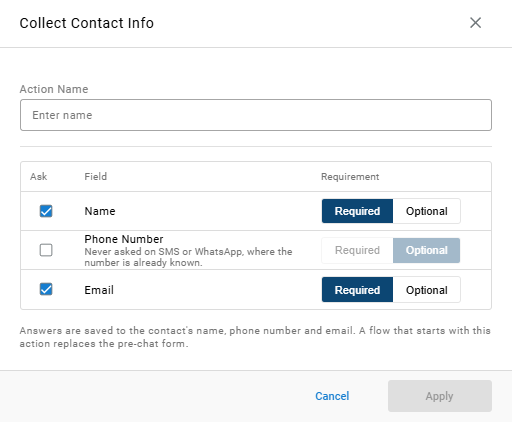
Asks the customer for their contact details. Answers are saved to the contact's name, phone number, and email.
| Field | Description |
|---|---|
Action Name | Identifies the step |
Name | Select Ask to request the customer's name, then choose Required or Optional |
Phone Number | Select Ask to request the customer's phone number, then choose Required or Optional. Never asked on SMS or WhatsApp, where the number is already known |
Email | Select Ask to request the customer's email address, then choose Required or Optional |
Replaces the Pre-Chat FormA flow that starts with
Collect Contact Inforeplaces the web chat's pre-chat form.
Collect Responses
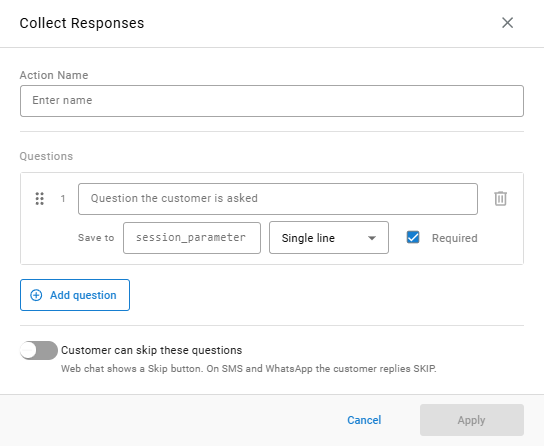
Asks the customer one or more questions and saves each answer to a session parameter.
| Field | Description |
|---|---|
Action Name | Identifies the step |
Questions | The questions asked, in order. Drag a question by its handle to reorder it. Select Add question to add one |
Customer can skip these questions | Lets the customer skip the questions. Web chat shows a Skip button; on SMS and WhatsApp the customer replies SKIP |
Each question has the following fields:
| Field | Description |
|---|---|
| Question | The question the customer is asked |
Save to | The session parameter the answer is saved to |
| Answer type | The kind of answer expected — for example, Single line |
Required | Whether the customer must answer |
Set Parameter
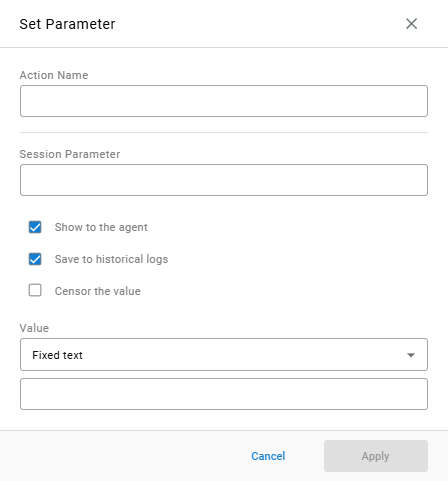
Sets a session parameter on the conversation.
| Field | Description |
|---|---|
Action Name | Identifies the step |
Session Parameter | The name of the session parameter to set |
Show to the agent | Shows the parameter to the agent who handles the conversation. Selected by default |
Save to historical logs | Saves the parameter with the conversation for reporting. Selected by default |
Censor the value | Hides the value. Not selected by default |
Value | The value to set — for example, Fixed text with the text entered below it |
See Parameters for how session parameters are used.
Data Dip
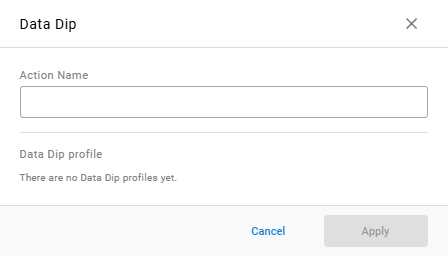
Looks up data from an external source through an existing Data Dip profile.
| Field | Description |
|---|---|
Action Name | Identifies the step |
Data Dip profile | The Data Dip profile to run. Profiles are created in Routing Configuration > Data Dip Profiles; when none exist, There are no Data Dip profiles yet. is shown |
Transfer
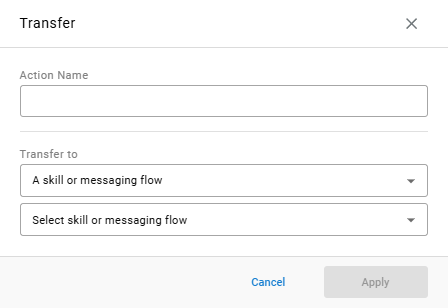
A terminating action that transfers the conversation.
| Field | Description |
|---|---|
Action Name | Identifies the step |
Transfer to | The type of destination — for example, A skill or messaging flow — and the destination itself |
AI Messaging Bot
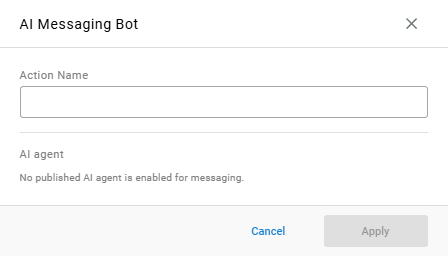
Hands the conversation to an AI agent.
| Field | Description |
|---|---|
Action Name | Identifies the step |
AI agent | The AI agent that takes the conversation. Only published AI agents enabled for messaging are listed; when none exist, No published AI agent is enabled for messaging. is shown |
See AI Agent Profiles.
Offer Email
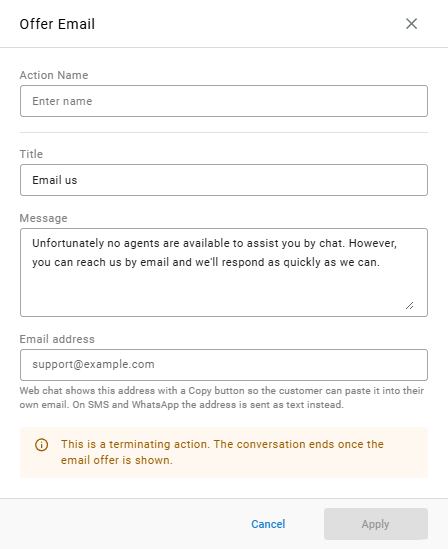
A terminating action that shows the customer an email address to contact instead. The conversation ends once the email offer is shown.
| Field | Description |
|---|---|
Action Name | Identifies the step |
Title | The heading of the offer. Defaults to Email us |
Message | The message shown with the offer. Defaults to Unfortunately no agents are available to assist you by chat. However, you can reach us by email and we'll respond as quickly as we can. |
Email address | The address offered. Web chat shows the address with a Copy button so the customer can paste it into their own email; on SMS and WhatsApp the address is sent as text |
End Conversation
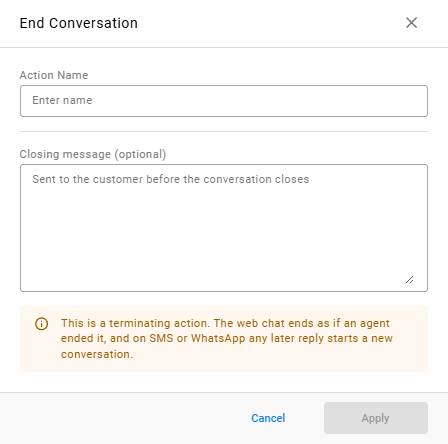
A terminating action that ends the conversation. The web chat ends as if an agent ended it; on SMS or WhatsApp, any later reply starts a new conversation.
| Field | Description |
|---|---|
Action Name | Identifies the step |
Closing message (optional) | A message sent to the customer before the conversation closes |
Updated about 7 hours ago