
NS — SIP Extensions
Registers a NetSapiens virtual handset extension so CCaaS can send and receive calls through the NetSapiens platform.
A virtual handset extension, created in the NetSapiens platform and registered in CCaaS, bridges the two systems for call routing, transfers, and reporting. The extension is created as a virtual handset rather than an agent, and does not require voicemail or the other fields normally configured for a live user.
Accessing SIP Extensions
SIP Extensions is accessible to accounts with Admin permissions.
- Navigate to
Admin (System) > Manage SIP Extensions - All registered SIP extensions are listed under Inbound Extensions in the "SIP Extensions" window
Target Platform Must Be Authenticated FirstTarget Platform must be authenticated before registering an extension.
Creating the Virtual Handset in NetSapiens
-
Log in to the NetSapiens portal, select
Users, thenAdd User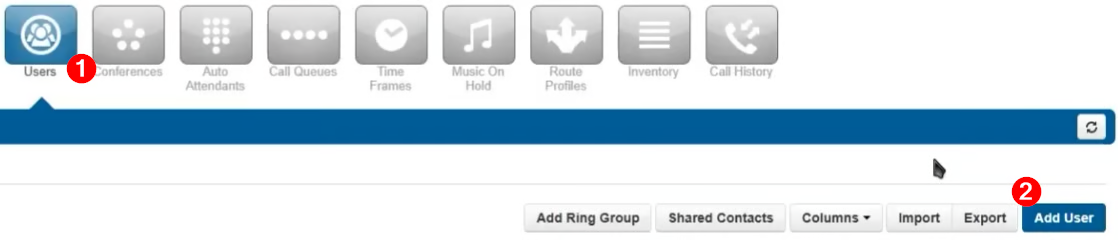
-
Complete the user's information and uncheck
Enable Voicemail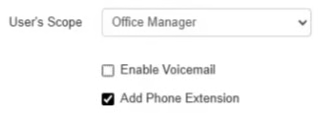
-
Select
Add User
Virtual Handset, Not an AgentThis user is created as a virtual handset, not as an agent. Fields such as Site, Emergency Address, Emergency Caller ID, Password, and Voicemail PIN are not used by CCaaS and can be left blank or set to default values.
-
On the
Userspage, locate the new extension and select its edit icon, thenPhones -
Note the Username, and Password shown — if no phone is listed, select
Add Phonefirst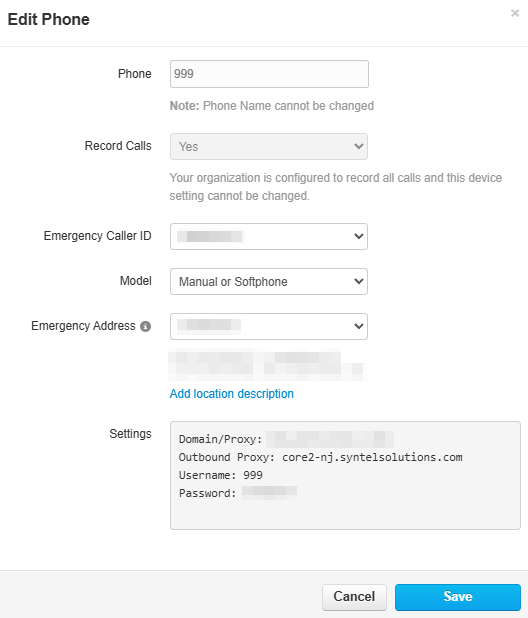
-
Select
Save
Registering the Extension in CCaaS
With the virtual handset's SIP credentials in hand, the extension is added directly from the SIP Extensions page.
- Navigate to
Admin (System) > Manage SIP Extensions - Select the
+icon in the upper-right corner of the Inbound Extensions list - Enter the following fields using the credentials from the NetSapiens Phones tab:
| Field | Description |
|---|---|
| SIP Extension | The virtual handset's Username |
| SIP Password | The virtual handset's Password |
- Select
Saveto register the extension - Registration typically takes a few minutes to complete — select
Refreshat the bottom of the SIP Extensions window to update the status display - The extension displays as
Registeredin CCaaS once complete, and appears fully green in the NetSapiens platform
Refreshing Users and GroupsAfter registering an extension, selecting
Refresh Users and Groupsand re-logging into CCaaS pulls the agents associated with the platform intoAgent Licensing.
Assigning a DID
A DID must be pointed to the virtual handset before it can receive inbound calls into the Contact Center.
- In the NetSapiens Manager Portal, select
Inventoryto view the available DIDs underPhone Numbers - Select the appropriate DID and locate its
Userfield - Enter the virtual handset's extension and select
Save
Call Limit
Extensions are commonly left at an unlimited call capacity, but a specific limit can be set per extension.
- In the NetSapiens Admin Portal, navigate to
Users > Configuration - Select the extension and locate
Call Limit - Enter the desired number of simultaneous calls the extension should handle
Updated about 1 month ago