
Custom Daily Triggers
Custom Daily Triggers check one report value once a day and send an email or CCAC desktop alert when it crosses a threshold.
Custom Daily Triggers check one report value once a day and alert people when it crosses a threshold — for example, when the previous day's abandoned calls are higher than expected. Triggers run every day at 00:01 server time and check the days selected on each trigger. See Alerts and Triggers for how alerts are delivered.
Accessing Custom Daily Triggers
Custom Daily Triggers are accessible to accounts with Admin permissions.
- Navigate to
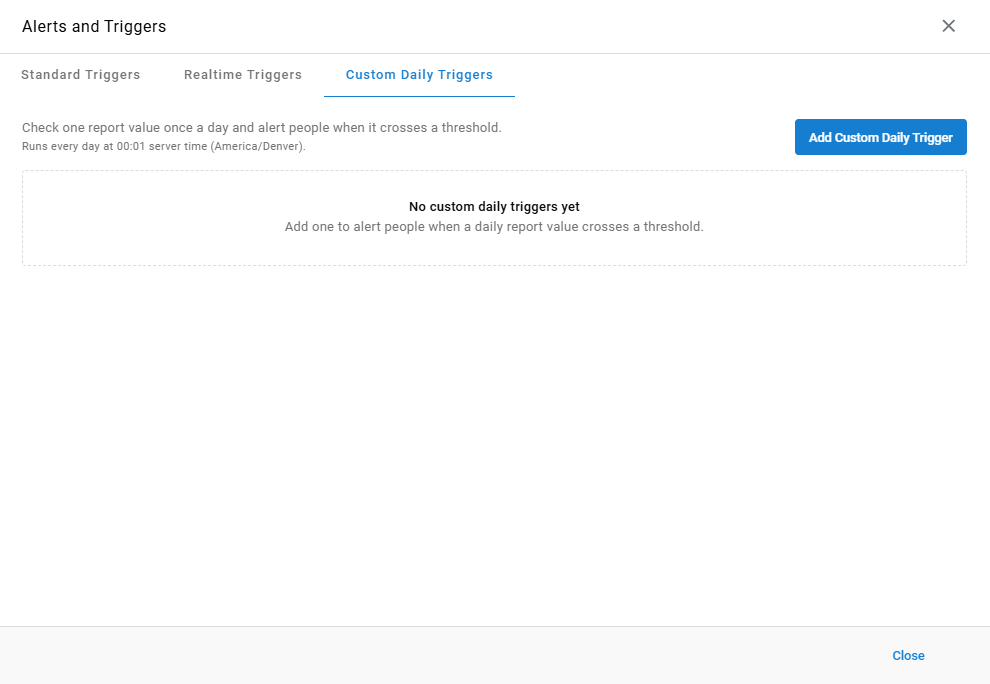
Admin (System) > Alerts and Triggers - All custom daily triggers are listed on the
Custom Daily Triggerstab; when none exist,No custom daily triggers yetis shown
Times use the server time zone shown on the tab — for example, America/Denver.
Creating a Custom Daily Trigger
- Select the
Custom Daily Triggerstab - Select
Add Custom Daily Trigger - Complete the following fields in the
New Custom Daily Triggerwindow:
| Field | Description |
|---|---|
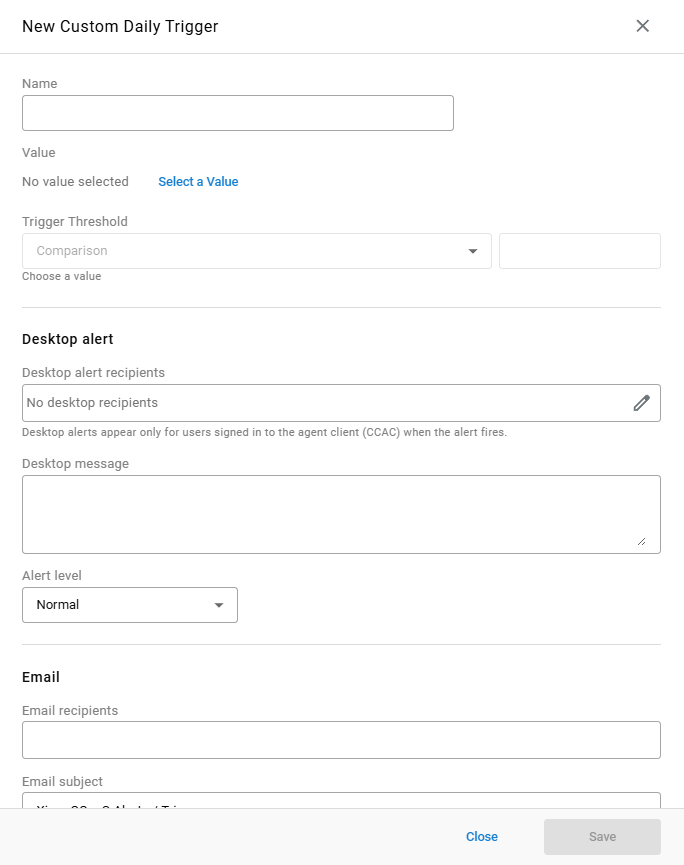
Name | Identifies the trigger in the list. Must be unique |
Value | The report value the trigger checks. Select Select a Value to choose it |
Trigger Threshold | A Comparison and the value the report value must cross before the alert fires, entered in the value's own format |
- Complete the
Desktop alertfields, theEmailfields, or both — see Notification Fields - Set the trigger's Schedule
- Select
Save
Notification Fields
Desktop Alert
| Field | Description |
|---|---|
Desktop alert recipients | The users who receive a desktop alert in CCAC. Select the pencil icon to choose recipients |
Desktop message | The text shown in the desktop alert |
Alert level | The desktop alert's severity: Normal, Warning, or Emergency — see Alert Level. Defaults to Normal |
Email
| Field | Description |
|---|---|
Email recipients | The addresses notified by email. Recipients do not need to be agents |
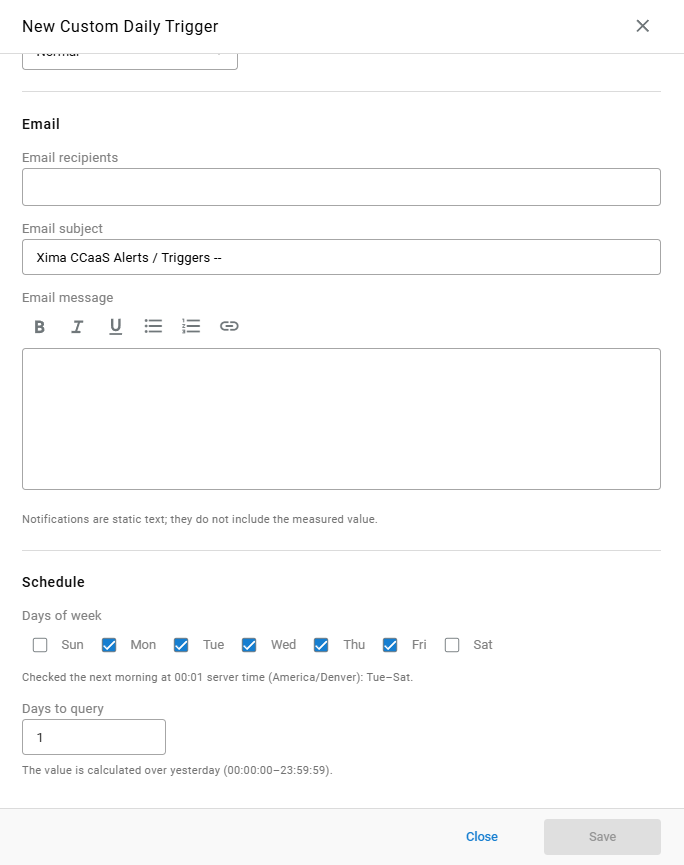
Email subject | The subject line of the alert email. Defaults to Xima CCaaS Alerts / Triggers -- |
Email message | The body of the alert email, with bold, italic, underline, bulleted and numbered lists, and links |
Static NotificationsDesktop messages and emails are static text; they do not include the measured value.
Schedule
| Field | Description |
|---|---|
Days of week | The days whose data is checked. Monday through Friday are selected by default. Each selected day is checked the next morning at 00:01 server time — for example, Monday through Friday is checked Tuesday through Saturday |
Days to query | How many days of data the value is calculated over. 1 calculates the value over the previous day (00:00:00–23:59:59) |
Updated about 8 hours ago