
Manage Music Files
Manage Music Files is the library of music tracks available for queue music and hold music, where tracks can be previewed, downloaded, and added.
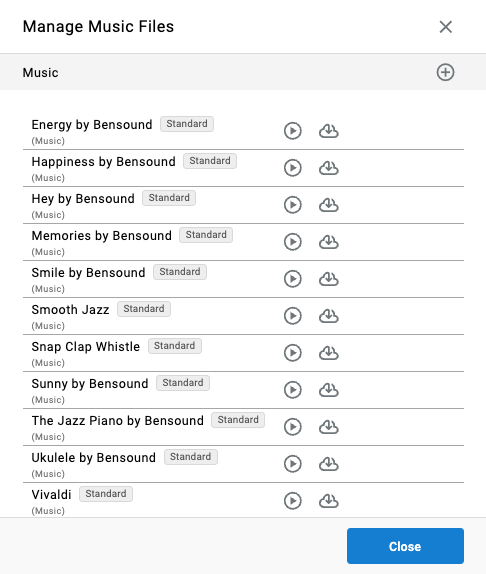
Manage Music Files brings every music track available to the account into one list — the standard tracks included with CCaaS and any custom music added by an administrator. Each track can be previewed or downloaded directly from the list, which makes it easy to choose the right music before assigning it to a skill's queue or a park zone.
Accessing Manage Music Files
Manage Music Files is accessible to accounts with Supervisor or Admin permissions.
- Navigate to
Routing Configuration > Manage Music Files - All music files are listed in the modal under
Music, with the standard tracks labeledStandard
Managing the Music Library
Each track in the list shows its name, its type, and a set of actions:
| Action | Description |
|---|---|
| Play | Previews the track's audio |
| Download | Downloads the track's audio file |
The standard tracks included with every account are listed on Standard Music List.
Adding a Music File
- Select the
+icon in theMusicheader - Upload the audio file and save it
The new track is added to the list and becomes available wherever music is selected.
Supported Audio FormatsCustom music files must use a supported codec, bit rate, and sample rate. See Supported Codecs for Audio Files.
Where Music Files Are Used
Tracks in this library are available wherever music is selected:
| Location | Description |
|---|---|
Manage Skills — Queue Music | The music played to callers waiting in the skill's queue |
Park Zones — Hold Music | The music played to a parked party while waiting to be retrieved |
Music vs. AnnouncementsSpoken messages played to callers — in an IVR or at scheduled points in a queue — are managed separately in Manage Announcements.
Updated about 7 hours ago