
Running a Report
How to run a report from My Reports, including configuring its timeframe, rows, and optional criteria filters.
Selecting any report from My Reports opens it for configuration before running. Every report follows the same basic configuration flow, though the specific fields available depend on the report's row type.
Opening a Report
- From My Reports, select the desired report
- If the report has run previously, its most recent results may already display; if the report has never been run, select
Configureto set it up
Configuring the Report
Timeframe
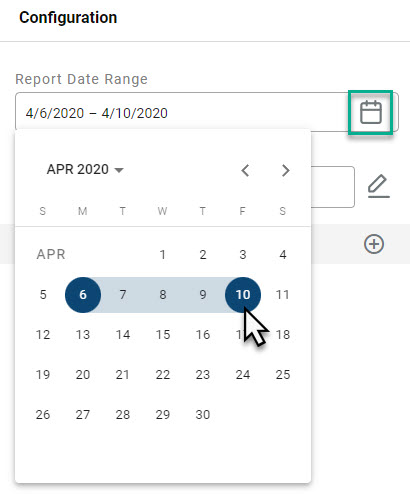
The Report Date Range fields set the time period the report covers. Selecting a large date range increases the time needed to render the report.
Rows
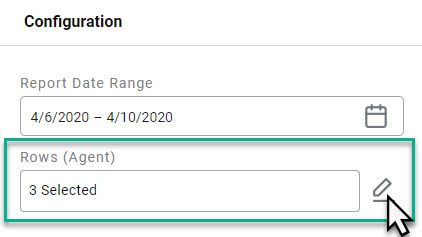
The Rows field determines which items appear as report rows, such as agents, skills, or account codes. Selecting the pencil icon opens a list of the available items for the report's row type; the desired items are selected individually, then applied.
Required FieldsAn asterisk marks a required field. Aside from the timeframe, most other fields are optional unless marked with an asterisk.
Criteria (Optional)
Criteria add further filtering specific to the report. Selecting the + icon next to Criteria adds a new criteria line; multiple criteria can be added to the same report.
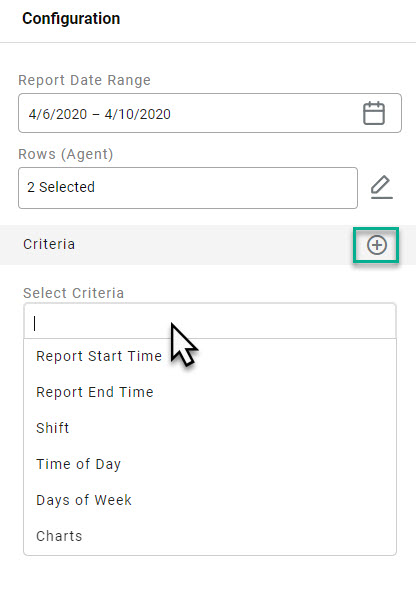
Frequently used criteria include:
| Criteria | Description |
|---|---|
| Shift | Applies a saved shift time frame to the report instead of re-entering start and end times on every run |
| Time of Day | Narrows the report to a specific window within the day, such as business hours, instead of a full 24-hour period |
| Days of Week | Narrows the report to specific days within the selected date range, such as only Monday and Friday |
Once all fields are configured, selecting Apply runs the report.
Updated 3 months ago