
AI Knowledge Base
AI Knowledge Bases are libraries of documents and website content that AI Agents reference when responding to inquiries. Administrators manage source content, configure descriptions to guide AI selection, and apply best practices to maximize response accuracy.
A knowledge base is a curated library of uploaded documents and extracted web content that an AI Agent draws from when answering customer or internal inquiries. Knowledge bases are assigned to AI Agent Profiles via the Access Knowledge Base tool — a single agent can reference multiple knowledge bases, and the same knowledge base can be shared across multiple agents.
Knowledge Base LimitBy default, environments are limited to 2 knowledge base libraries. Upgraded AI messaging packages are required to increase this limit. A single knowledge base may contain an unlimited number of documents.
Use Cases
- Customer-facing AI bot referencing public support documentation, product manuals, or FAQs
- Internal AI bot for agents and staff to query internal processes, policies, or reference materials
- Department-specific bots drawing from isolated knowledge bases scoped to their audience
Accessing AI Knowledge Bases
AI Knowledge Bases is accessible to accounts with Admin permissions.
- Navigate to
AI Configuration > AI Knowledge Bases - All configured knowledge bases are listed in the modal
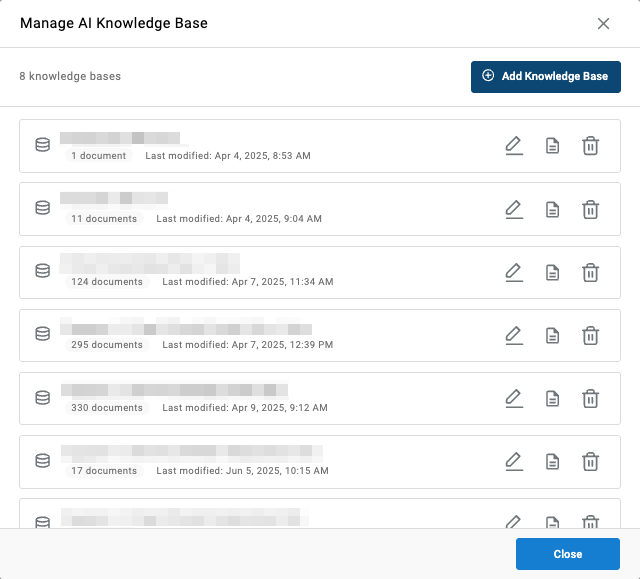
Creating a Knowledge Base
-
Click "Add Knowledge Base" to add a new knowledge base

-
Enter a Knowledge Base Name — be specific about its purpose (e.g., "Public Support Articles", "Appliance Manuals – Microwaves", "Internal HR Policies"). Specificity matters especially when managing multiple libraries
-
Enter a Description — this tells the AI when and why to use this knowledge base. When a profile has access to multiple libraries, the AI uses the description to determine the most relevant source for each inquiry
Description Best PracticesA strong description scopes the knowledge base clearly by topic and use case.
Good: "Contains setup and configuration documentation for Xima Cloud CCaaS. Covers call flow setup, user provisioning, queue configuration, voicemail, reporting, and licensing. Use for CCaaS setup-related questions only."
Avoid: "Support articles and help documentation for Xima." — Too vague for the AI to differentiate between libraries.
- Save changes
Adding Documents and Sources
-
Select the edit icon for the applicable knowledge base
-
Click "Add Document" to add a new source

-
Choose the source type:
- File Upload — Upload a file directly from the local machine (PDF, Word document, etc.)
- Web Extraction — Extract content from a specific web page using the built-in Web Extractor tool
-
Save changes
Some sources may not appear in the list immediately. Web-extracted pages may require processing time before appearing.
Using the Web Extractor Tool
Requires the installed Xima Contact Center applicationWeb extraction is not available from the browser-based interface due to resource restrictions. The installed application must be used to access the extractor.
- While logged into the installed Contact Center application, navigate to the knowledge base, add a new source, select Web Extraction, and then select Open Extractor
- Enter the desired URL into the address bar and select Load
- When the desired page is displayed, select Extract Current Page
- Navigate to additional pages by entering a new URL or by clicking links within the open page, then extract each page as needed
- Extracted pages populate on the left side of the extractor with their processing status
- Close the extractor when finished and save changes in the menu
Editing a Knowledge Base Description
To modify a knowledge base description after creation, select the edit description icon inline with the library name, make changes, and select Apply.
Description updates take effect for subsequent AI interactions and do not require re-uploading documents.
Content Best Practices
The AI Agent's responses are grounded entirely in the content of its assigned knowledge bases. The quality and structure of that content directly affects response accuracy.
Document formatting:
- Use headers and subheaders to organize topics
- Keep paragraphs short and scannable
- Use bullet points for key information
- Avoid content that is primarily images — AI relies on text
- Ensure scanned PDFs use selectable text rather than flat image scans
Knowledge base organization:
- A single well-structured knowledge base is preferable to fragmented libraries — the AI navigates one source more efficiently than two with overlapping content
- A second knowledge base is most effective when content is completely separate in audience or subject (e.g., a customer-facing library vs. an internal employee-only library, or two unrelated product lines with no shared process)
- Each knowledge base should have a clear, accurate description — descriptions are the AI's primary tool for choosing which source to consult
Validating uploads:
- Use the Markdown Preview within the UI to check the content, layout, and readability of uploaded documents before deploying the agent
- Use the Test Agent tool within the AI Agent Profile to simulate real customer prompts and verify that the correct knowledge base is selected and that responses are accurate
Troubleshooting inaccurate responses:
- Check the source document — is the answer clearly stated? If not, revise the document or create a focused article on that topic
- Check the knowledge base description — if the AI selected the wrong library, update the description to better scope its purpose
For full guidance on testing and optimizing prompts, see the AI Knowledge Base Best Practices documentation on guide.xima.cloud.
Updated about 19 hours ago