
Mobile App
Allows an agent to make and receive calls through the RingCentral mobile app instead of a desktop softphone or physical phone.
CCAC Still RequiredThe mobile app displays only the internal UC extension for a Contact Center call — not the skill, caller information, or account codes.
An agent must be signed into the Contact Center Agent Client (CCAC) to see the call details; without CCAC open, the agent cannot answer the call from the mobile app.
Installing the App
See the official RingCentral Mobile App Getting Started Guide for more details.
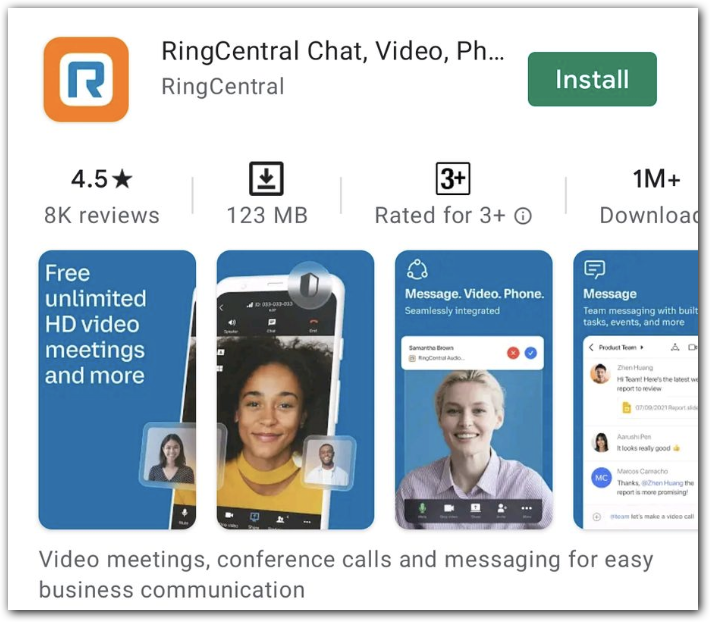
For Android:
- Open the Play Store
- Search for the
RingCentral appor navigate to this link - Tap
Installto begin installing the app
For iOS:
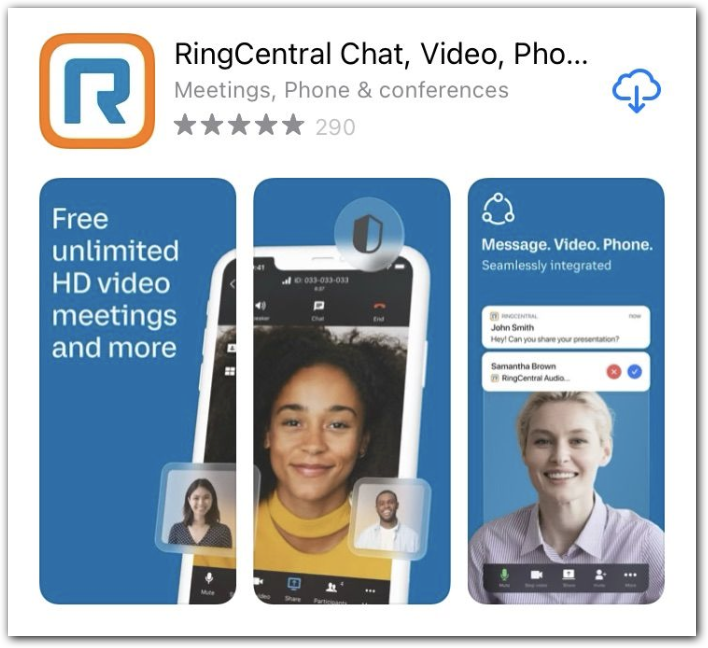
- Open the App Store
- Search for the RingCentral app or navigate to this link
- Tap
Getto begin installing the app
Existing Phone
-
Sign in as an Administrator in the RC/ACO portal
-
Navigate to
Phone System, select the user, and selectExisting Phone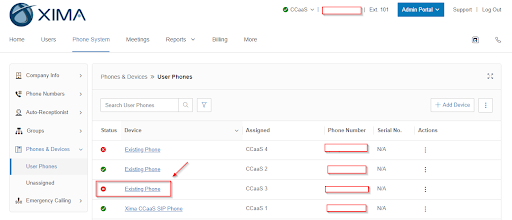
-
Select
Change Phone, thenRingCentral Phone app -
Confirm the statement and select
Next -
Confirm the emergency address and select
Next, thenNextagain to finish
New User
-
Sign in as an Administrator in the RC/ACO portal
-
Navigate to
Users > Add Userand proceed through the setup flow -
At
Select a Device, chooseOther Phones, thenRingCentral Phone App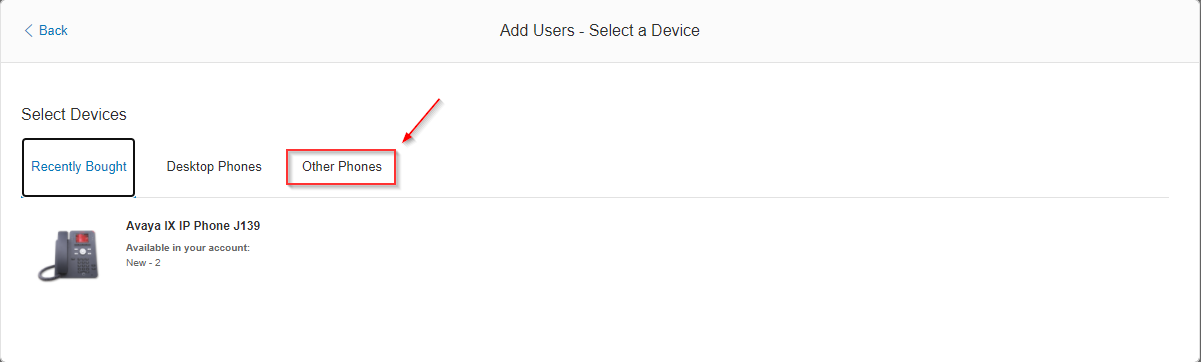
-
Select
Add,Next, confirm, andAssign to Selected, thenNext -
Send the registration invite email to the user, who completes setup with an email, PIN, and password