
Call Link
Lets an agent take and place Contact Center calls on any assigned soft phone, desk phone, or mobile device instead of only the embedded CCAC web phone.
Limited Release FeatureCall Link is currently limited to beta customers and will be more widely available in a future release.
Call Link lets an agent select from a range of devices — assigned by an administrator as Connected Numbers — to take and place Contact Center calls, rather than being limited to the embedded web phone in CCAC. See Connected Numbers for how an administrator assigns these devices and configures Require Digitpress to Connect.
Selecting a Connected Number
On Login
If more than one device is assigned, CCAC prompts for which Connected Number to use as soon as the agent logs in.
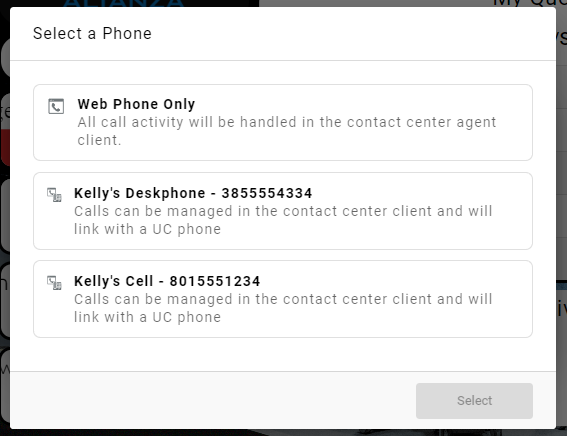
During a Session
-
Select the ellipsis next to the agent's name in the top-left corner
-
Select
Configure Connected Number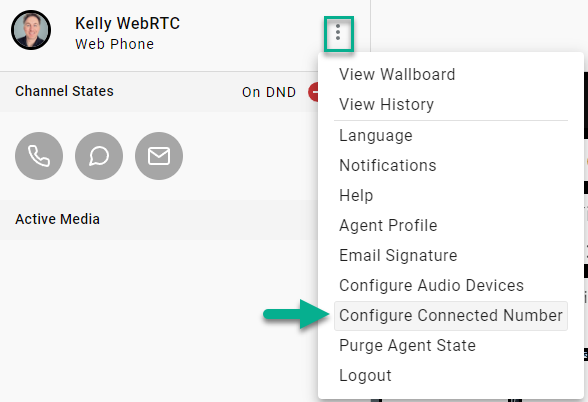
-
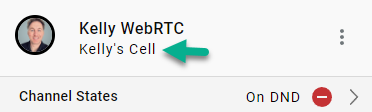
Choose the desired device from the list
The active device's name is always displayed directly below the agent's name in CCAC.
Answering an Inbound Call
- Once logged in and in a
Readystate, an incoming call shows a notification in CCAC and rings the selected Connected Number device - Answer the call on that device
- Press
1to accept the call
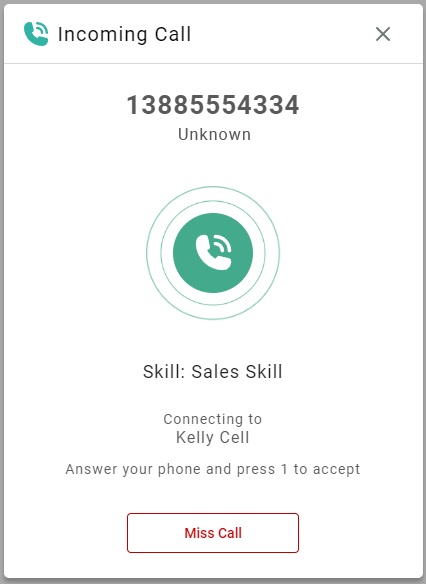
Pressing 1 confirms a live person answered rather than voicemail. Declining is done from CCAC by selecting Miss Call rather than from the device itself.
Placing an Outbound Call
Always Dial from CCACCalls should be started from CCAC, not dialed directly from the connected device, so they're tracked and logged correctly.
- In CCAC, select the
+icon in the active media bar, thenNew Call - Enter the destination number, or select a contact from the directory, then select
Send - The Connected Number device rings first — answer it and press
1to confirm - Once confirmed, the call connects to the destination
Updated about 1 hour ago